Order editor
You can easily modify orders in your store using the Order Management for Magento 2 extension.
To edit an order in the left panel of your store admin page select Sales > Orders. In the orders list find an order you need to edit and press View button.
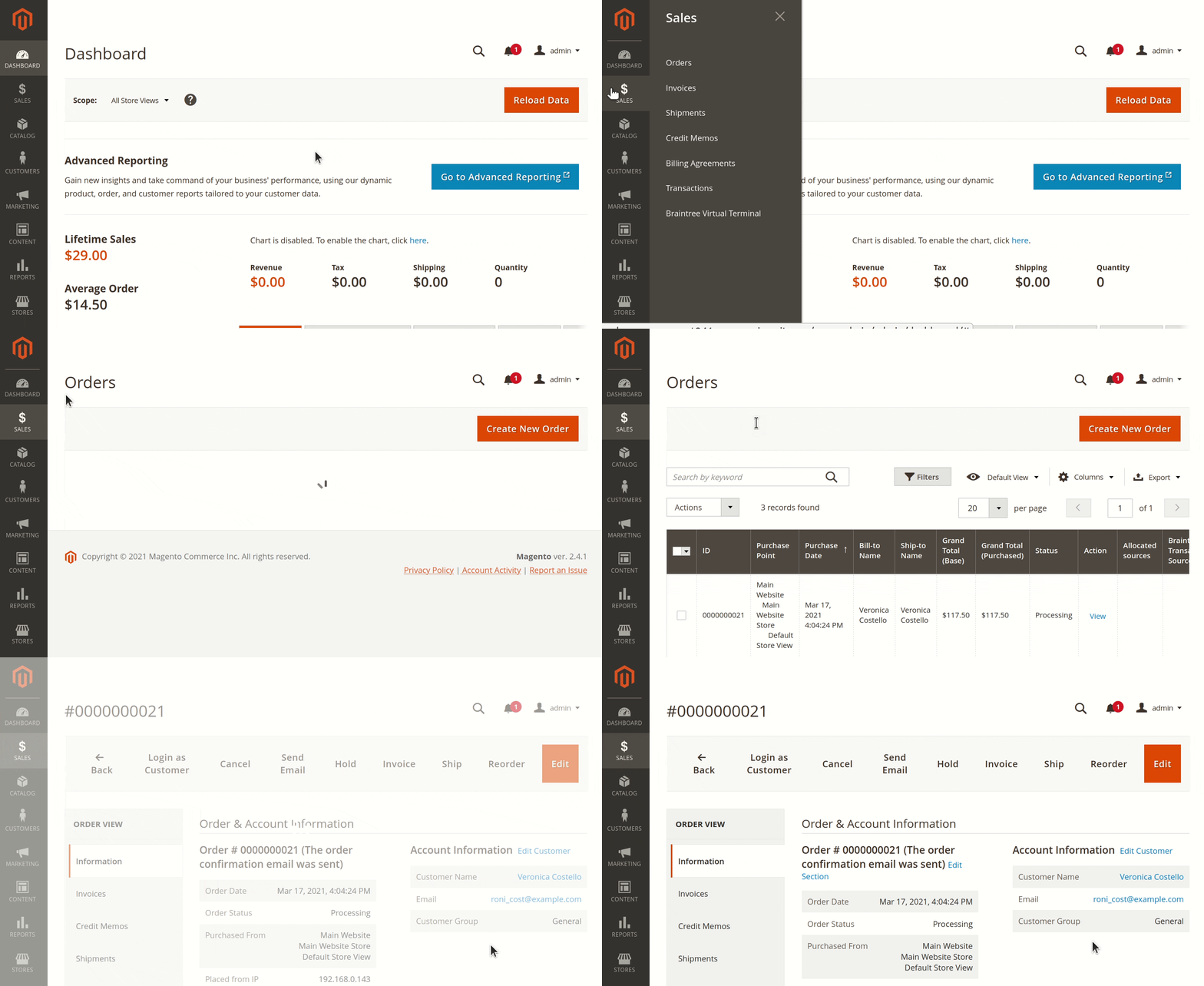
When the order page is opened, do not click on the orange button Edit. Otherwise, you will be given the suggestion to cancel the current order and create a new one.
To edit the order, click on the link Edit Section inside the order. You can edit the order sections one by one. To adjust any other order section, first finish editing the current section. To finish, press Submit or Cancel.
Orders that have been invoiced and shipped cannot be modified.
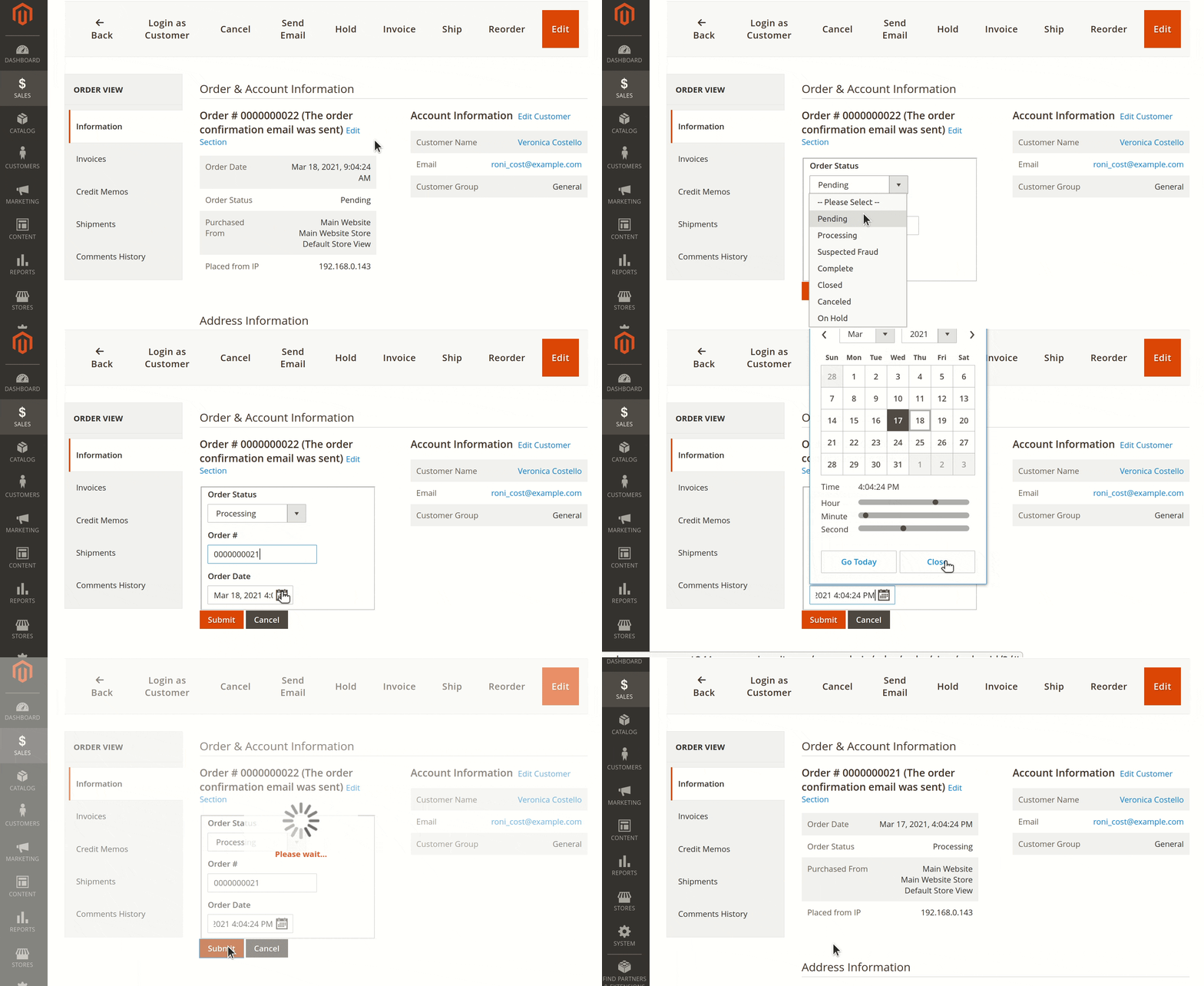
Edit order & account information
To edit order status, order number, order date press an Edit Section button. The button is located near the current order number. Click Submit to save changes.
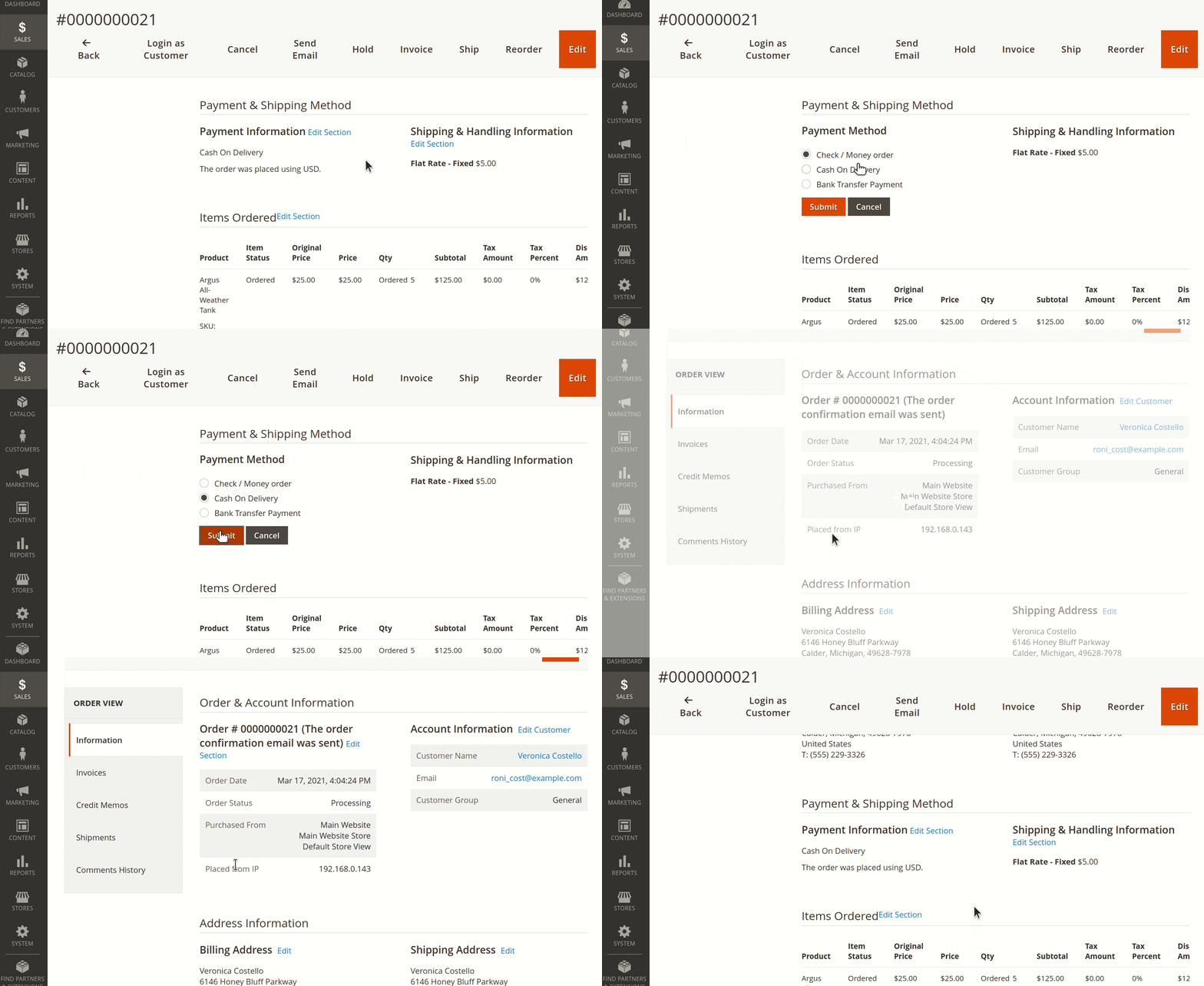
Edit payment & shipping method
You can change the payment method for the order you are editing. Click Edit section near the headline Payment Information.
Edit items ordered
Press the button Edit section near the headline Items Ordered.
You can change the ordered items, their quantity, prices, tax rate, and discount amount.
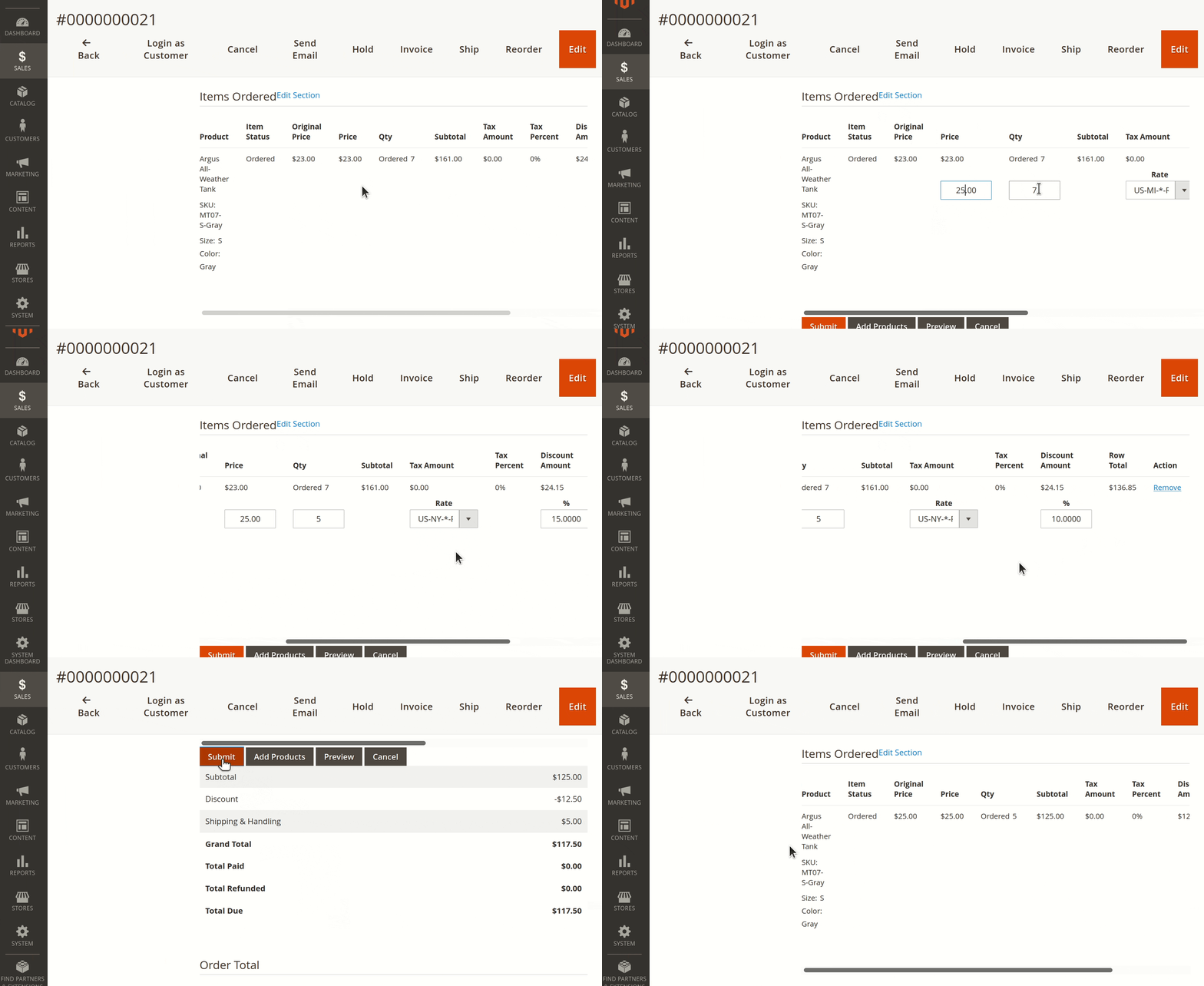
Press the Preview button to view the recalculated order. To save the changed order, press Submit.
Press Remove to delete the chosen product form the list.
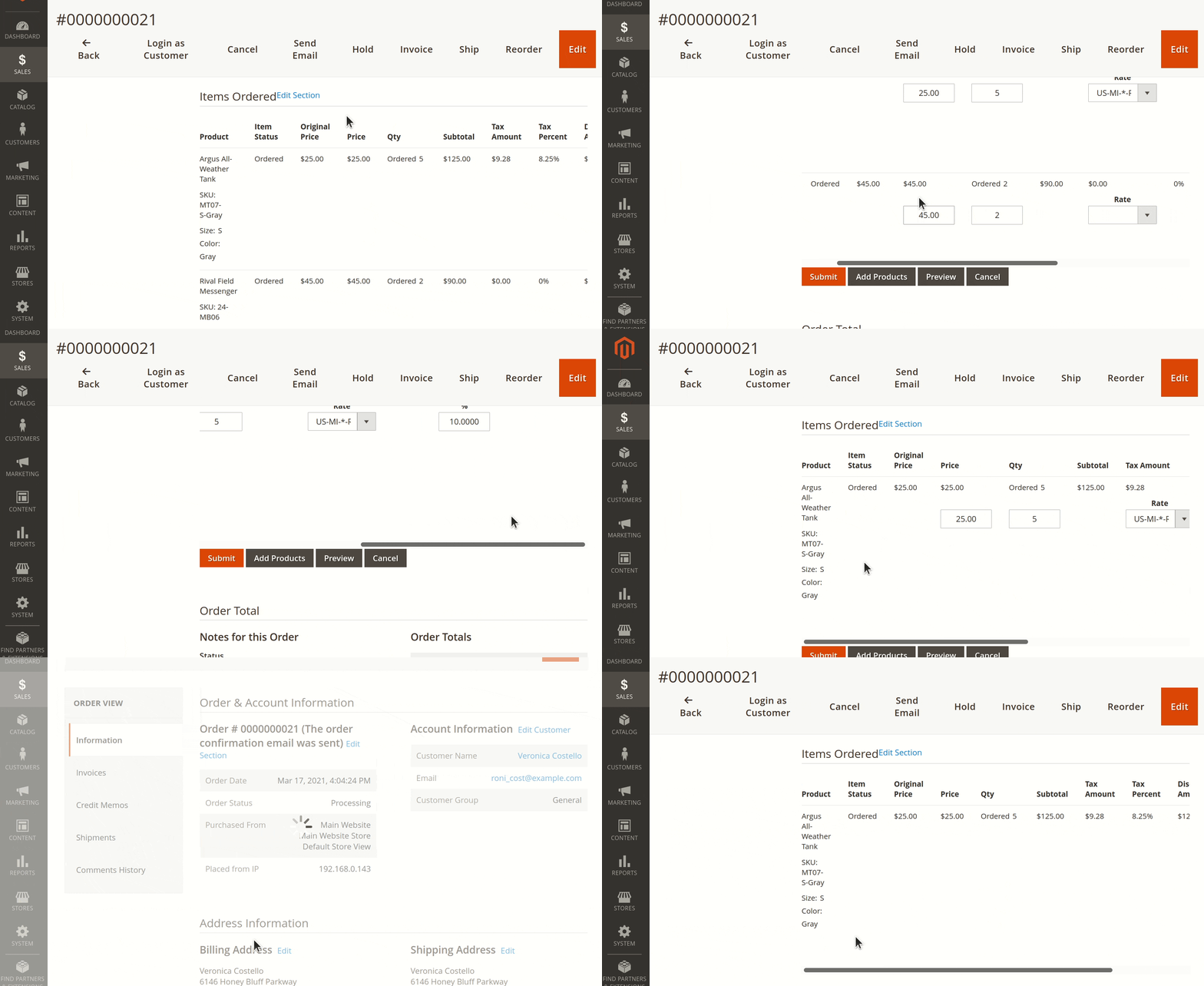
To add new products to the order, press Add Products. Select a product from the list and press Add Selected Products.
Timeline
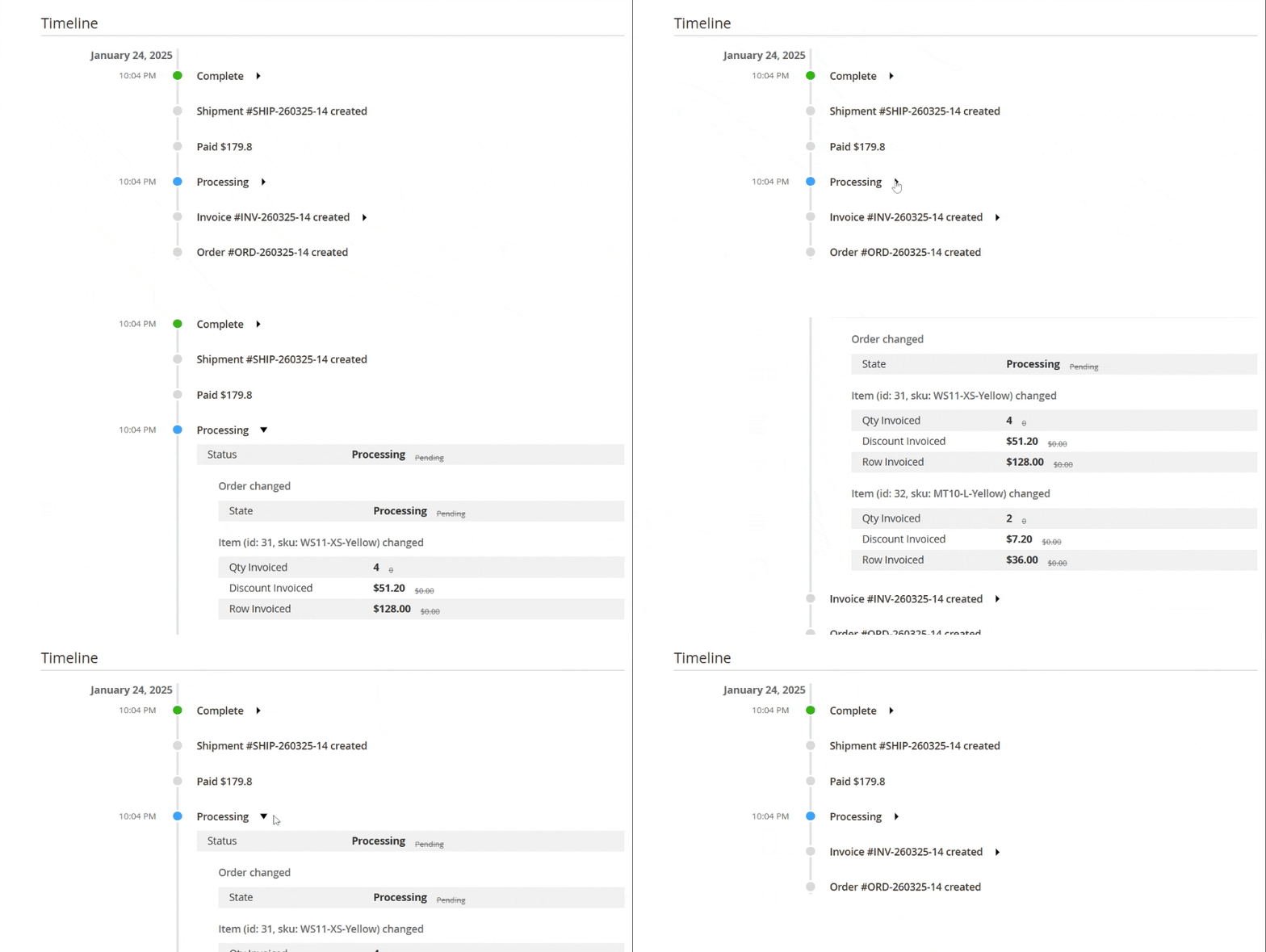
You can find the Timeline section right after the Order Total section.
This section offers a detailed record of all related actions and events. To view the details of a specific action or event, click the arrow next to its name.
Split order
Break a single order into two or more separate orders directly from the order view page.
Click the Split Order button in the order view page toolbar. In the modal that opens:
- Choose which items (and quantities) go into each of the resulting orders.
- Preview the totals of each new order.
- Click the button to complete the split.
Coupons are recalculated for each resulting order, and the split action is recorded in the original order's Timeline.
The Split Order button is not shown for orders whose status is listed in Restricted statuses for split (see General settings), and requires the Mass Split Order permission under System -> Permissions -> User Roles -> Sales -> Operations -> Orders -> Actions.