Order grid
Get additional columns in the order grid. See all necessary information on a single screen. Filter and search orders using additional columns.
In the admin panel of your store, visit Sales > Orders.
To add more columns, press Columns. When a particular column is added, you will get the option to filter through it in Filter.
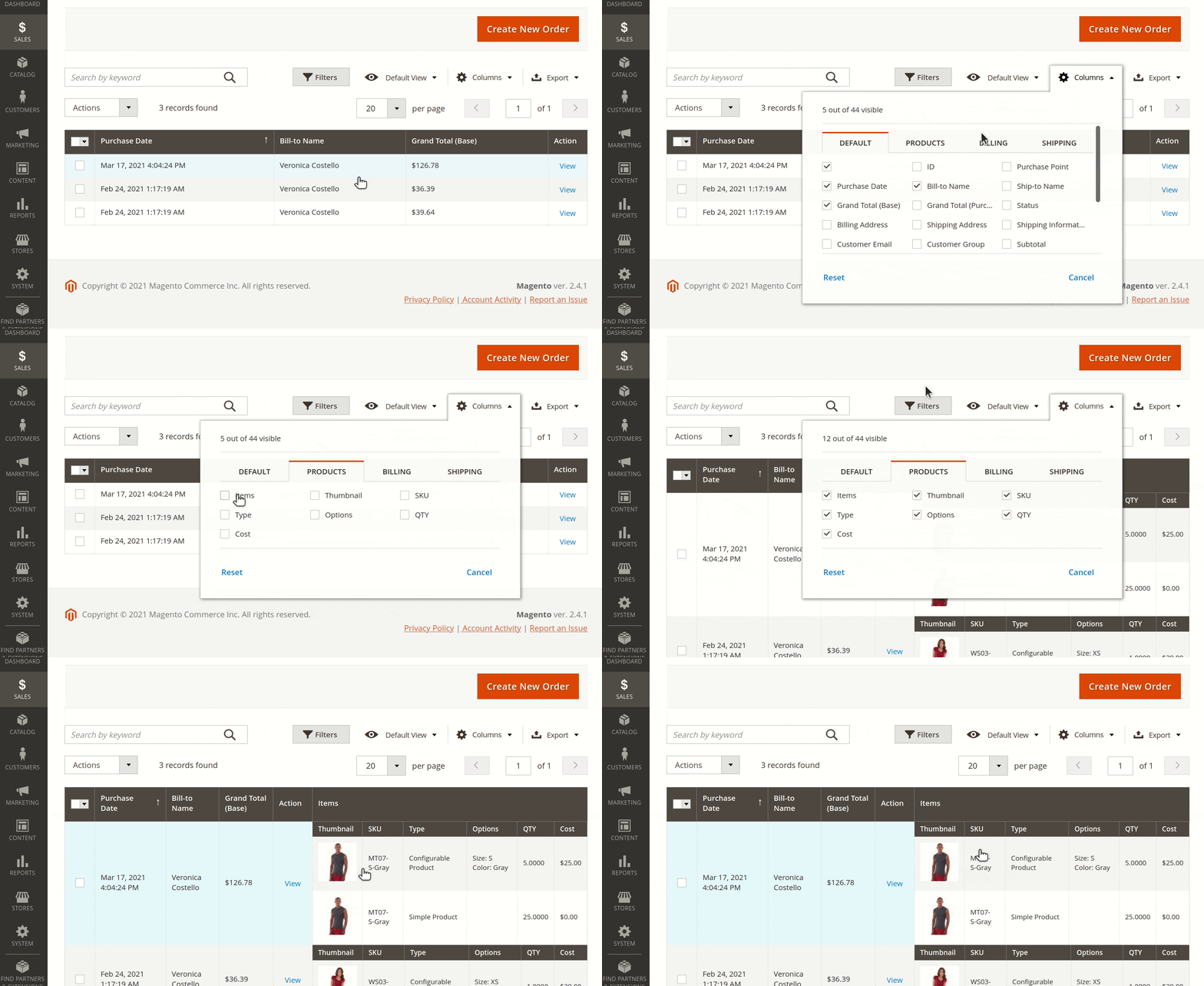
Add information on items
In Columns, select Products. You can add on your screen relevant information for items including:
- Item thumbnail
- Item SKU
- Item type
- Item available options
- Ordered item quantity
- Ordered item cost
Show billing information
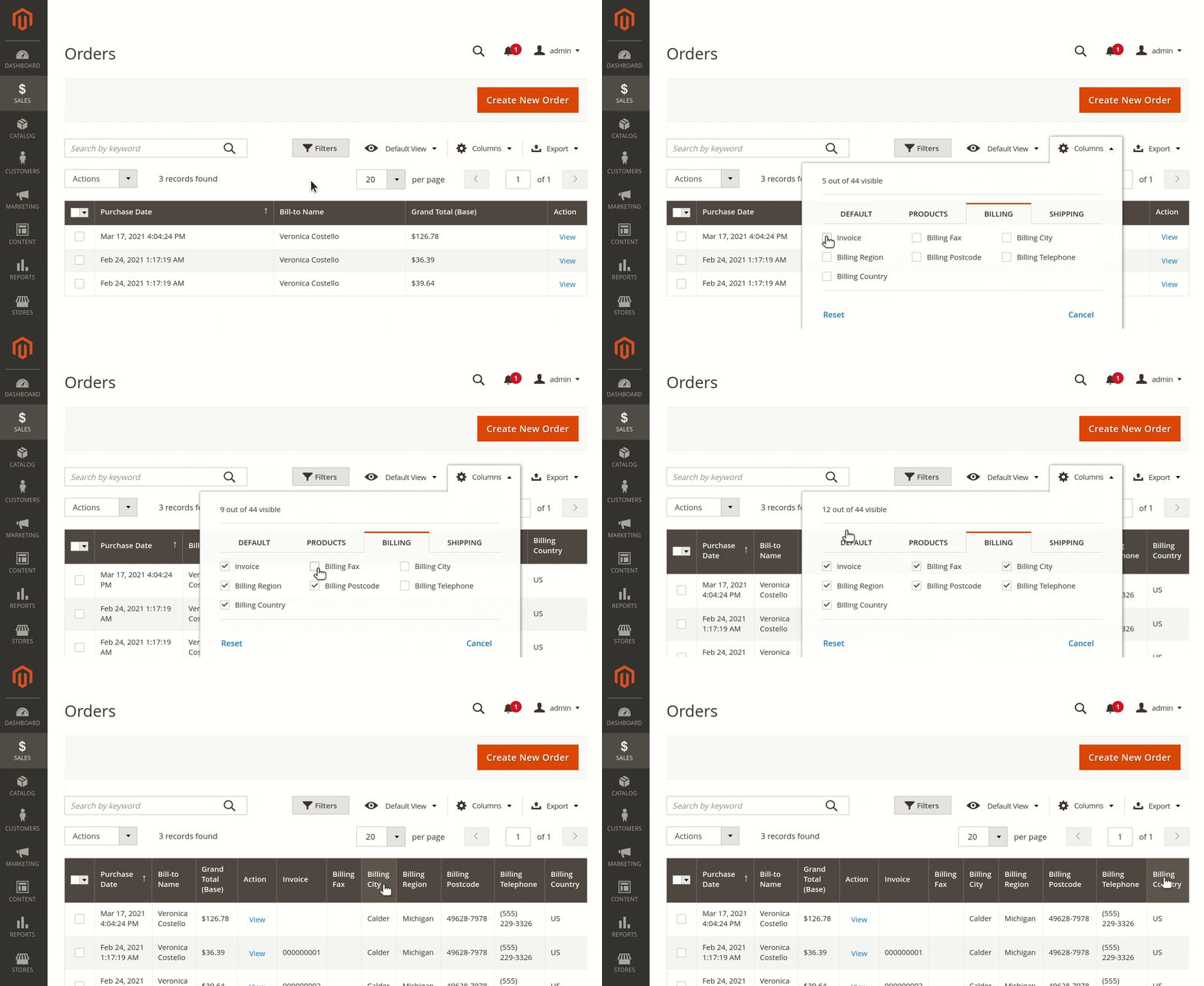
In Columns, select Billing. Our module allows you to display:
- Invoice
- Billing Fax
- Billing City
- Billing Region
- Billing Postcode
- Billing Telephone
- Billing Country
Get shipping information
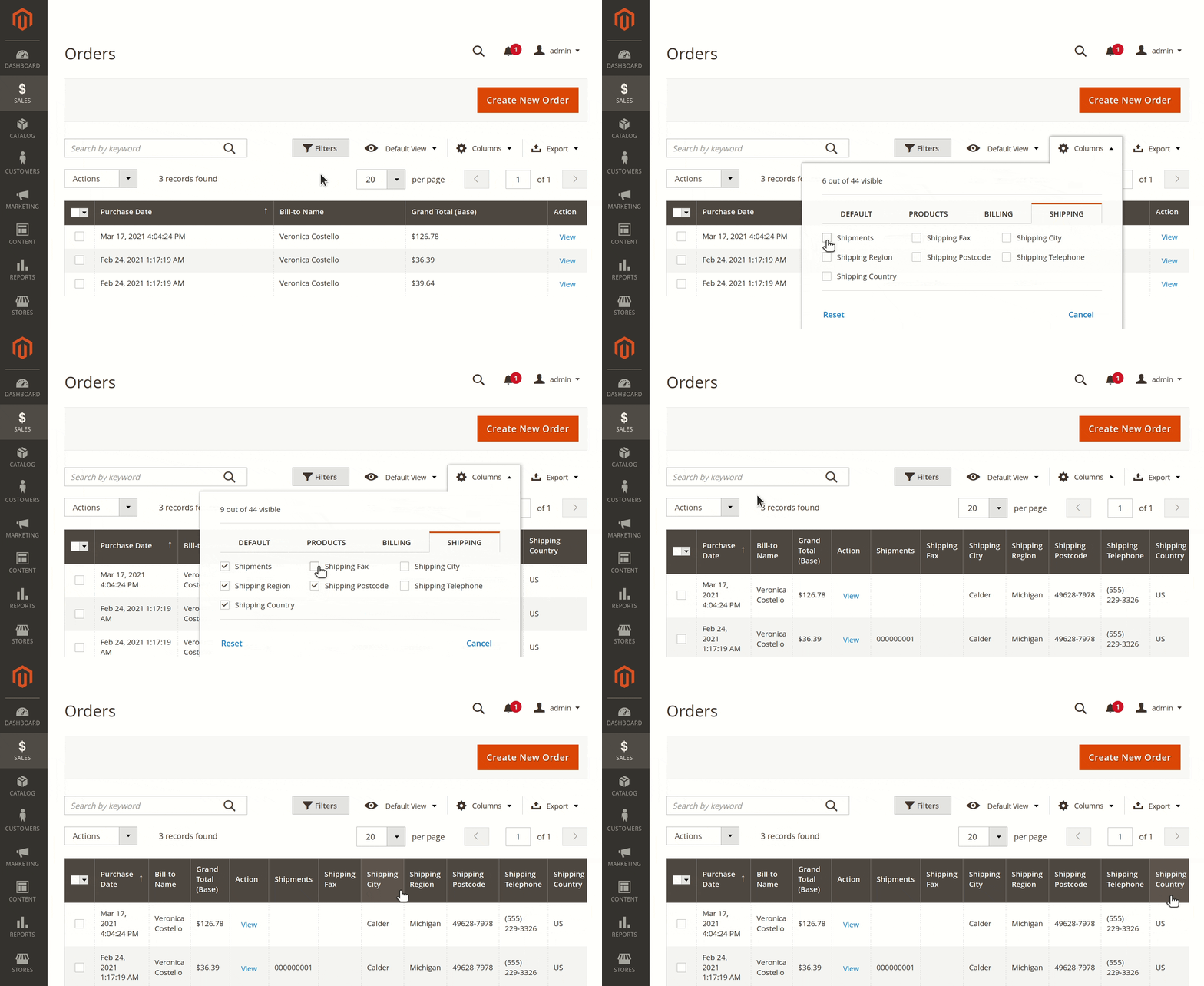
In Columns, select Shipping. In addition, you will get:
- Shipments
- Shipping Fax
- Shipping City
- Shipping Region
- Shipping Postcode
- Shipping Telephone
- Shipping Country
Quick view

Use the Quick View option to access order details faster. Click an order number to open a side-sliding window with full order information. From there, open the Magento edit order form or close it to switch orders.
Merge orders
Combine several orders into a single order directly from the orders grid.
Select the orders you want to combine, then choose Merge Orders from the Actions dropdown. In the modal that opens:
- Choose which of the selected orders should be kept as the target order - the other orders' items are moved into it.
- Review the merged items and totals. If the source orders use different currencies, amounts are converted automatically.
- Click the merge button to complete the action.
The source orders (other than the target order) are cancelled, and the merge is recorded in the target order's Timeline. Coupons applied to the source orders are carried over to the merged order.
The Merge Orders action is not shown for orders whose status is listed in Restricted statuses for merge (see General settings), and requires the Mass Merge Orders permission under System -> Permissions -> User Roles -> Sales -> Operations -> Orders -> Actions.