Order tag and tag groups
Use order tags to quickly navigate and filter orders. Color-coded tags help identify key order attributes at a glance. Apply tags manually or set conditions for automatic tagging. Orders can have multiple tags - assign priority levels to highlight the most important ones.
All order tags are located in their dedicated grid at Sales > Order tags.
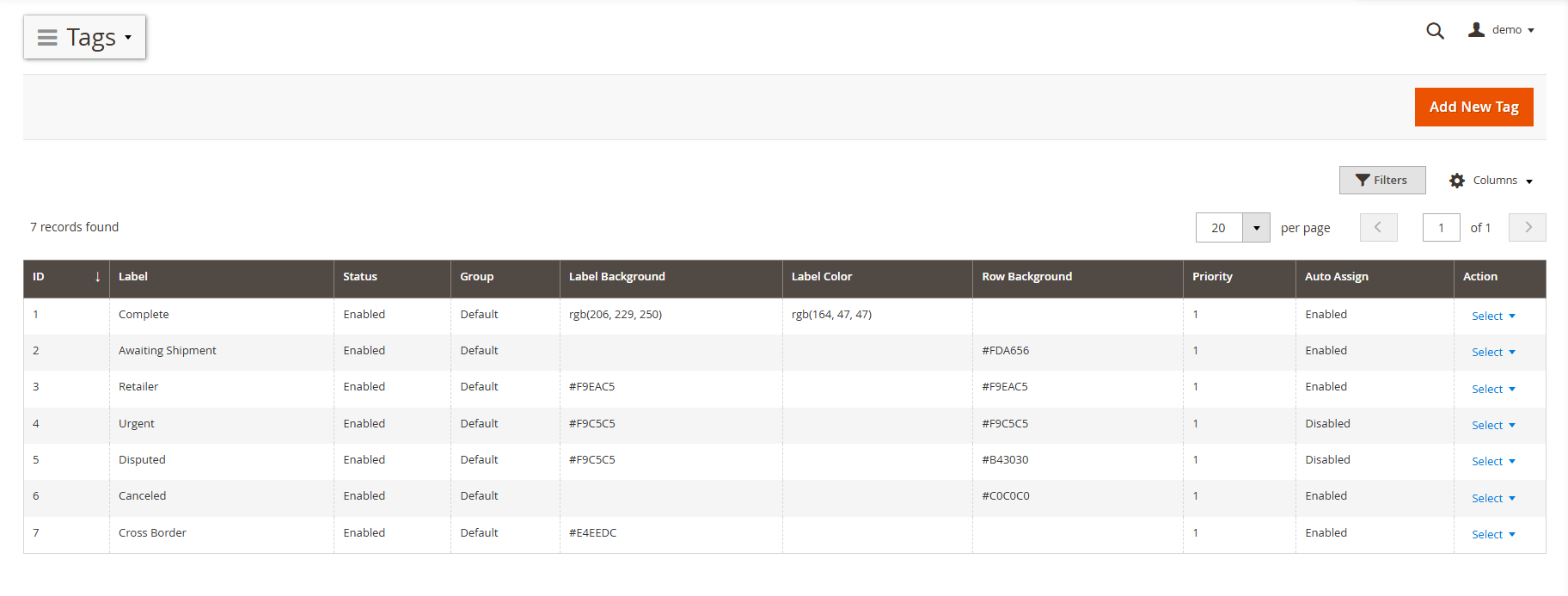
Tag groups
Tags are arranged into groups, with at least one group required. You can view existing groups and create new ones in Sales > Tag groups.
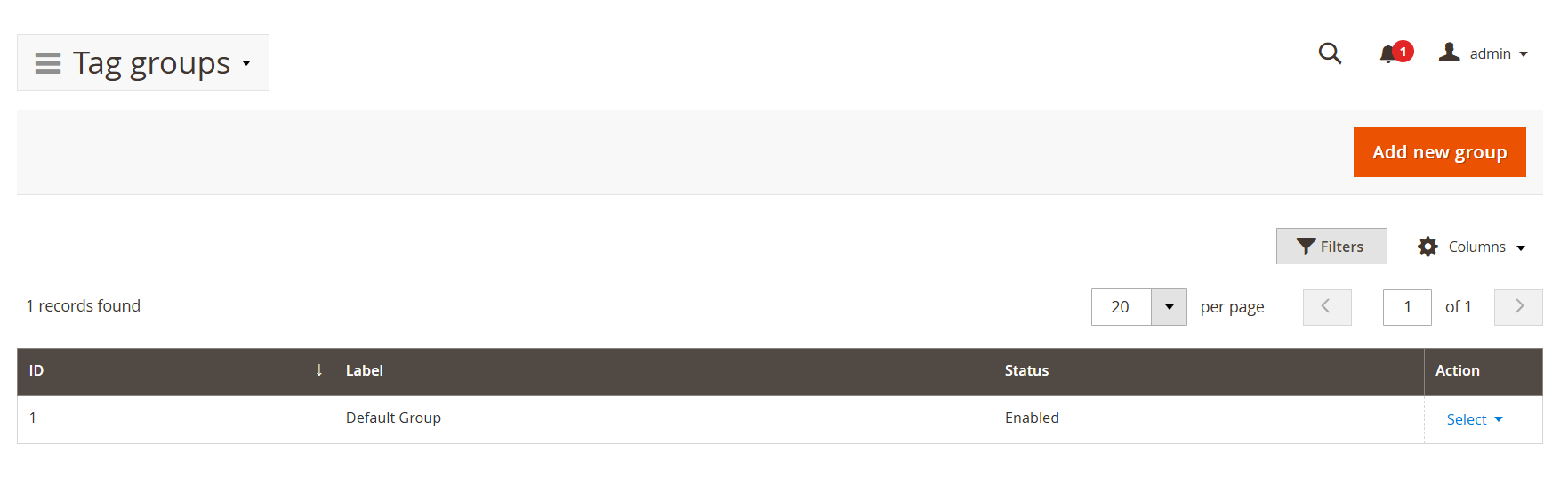
Tag group creation page
Tag group creation page contains just two fields:
- Active: determines whether this group is active.
- Label: sets a name for a group.
Order tag creation page
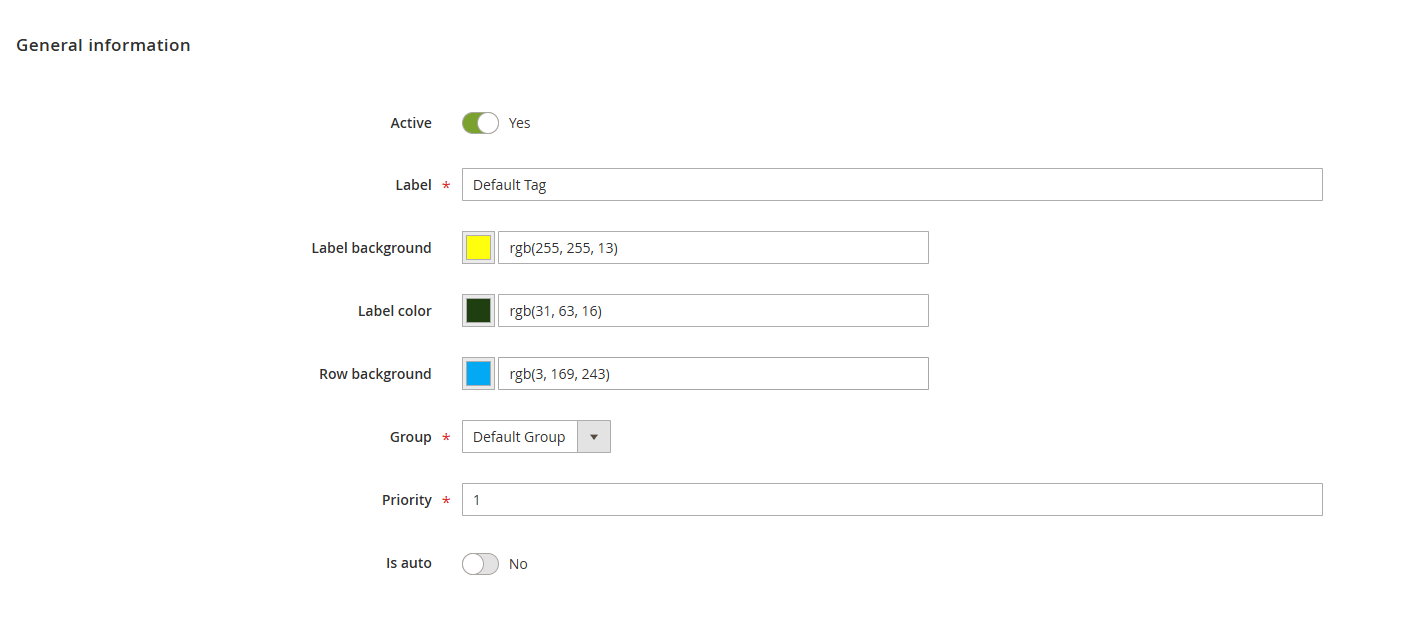
Order tag creation page contains following fields:
-
Active: determines whether this tag is active.
-
Label: sets a name for a tag.
-
Label background: sets the background color of the tag label.
-
Label color: determines the text color of the label.
-
Row background: changes the background color of the entire row.
-
Group: categorizes the tag within a specific group
-
Priority: the priority of the tag.
-
Is auto: determines if the tag is applied automatically. If set to Yes, conditions for automatic application must be specified using the condition builder, grouped by Order, Customer, Billing, Shipping, Product, and Payment Info attributes.
Payment Info conditionsConditions in the Payment Info group match against the order's additional payment information (e.g., fraud/risk data returned by the payment gateway) using one of two syntaxes:
-
Key:Value- matches when a specific key has an exact (case-sensitive) value, e.g.riskDataDecision:Approve,liabilityShifted:Yes. -
Key(no value) - matches when a specific key exists, regardless of its value, e.g.riskDataId,processorAuthorizationCode.
Only one key (or key:value pair) is allowed per condition row.
-