Providers
The Providers section lets you control which content types appear in the search popup, how they are ordered, and which fields are indexed and displayed for each one.
Navigate to Mirasvit → Admin Quick Search → Providers to open the providers list.
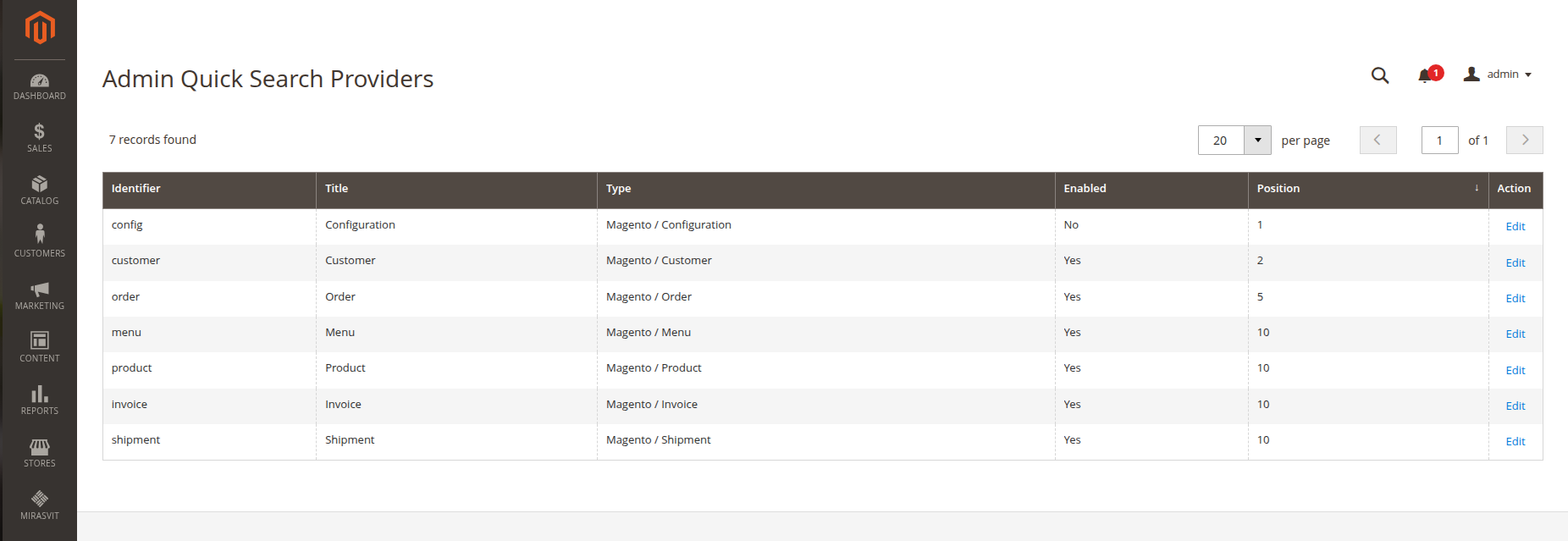
The grid shows all available providers with the following columns:
- Identifier — internal provider code (read-only).
- Title — the custom label shown as a section header in the search popup. If empty, the default provider title is used.
- Type — the content type the provider indexes (e.g. Magento / Order, Magento / Customer).
- Enabled — whether the provider is active and included in search results.
- Position — the display order of the provider in the search popup. Lower values appear first.
Click Edit on any row to open the provider configuration form.
Provider settings
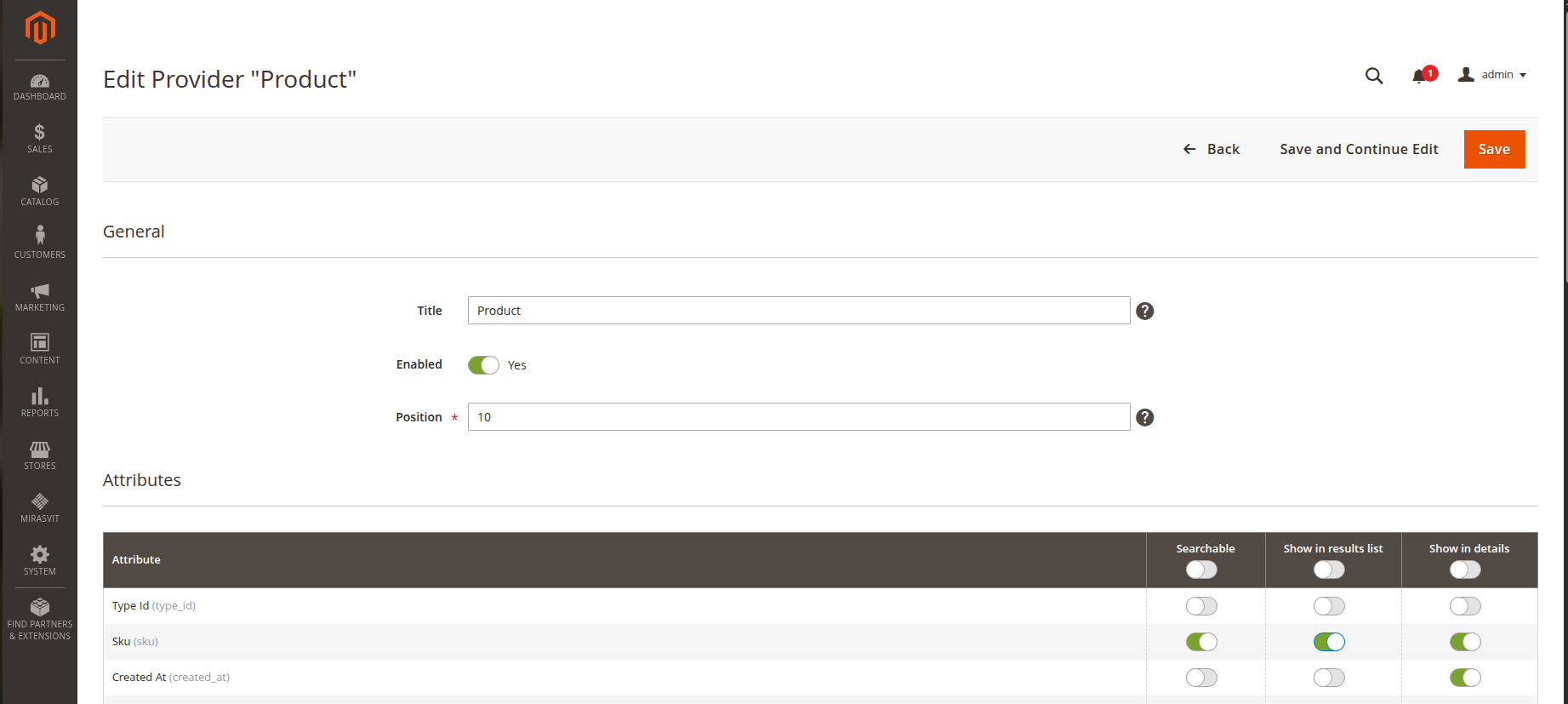
General
- Title — overrides the default section header shown above this provider's results in the search popup. Leave empty to use the provider's built-in title (e.g. Orders, Customers).
- Enabled — toggle to include or exclude this provider from search results. Disabled providers are skipped entirely during search, which can improve performance for content types you don't need.
- Position — controls the sort order of providers in the popup. Providers with a lower position value appear first. Use this to promote high-priority content types (e.g. put Orders before Menu).
After saving changes, run reindex to apply them:
bin/magento indexer:reindex mst_backend_search
Attributes
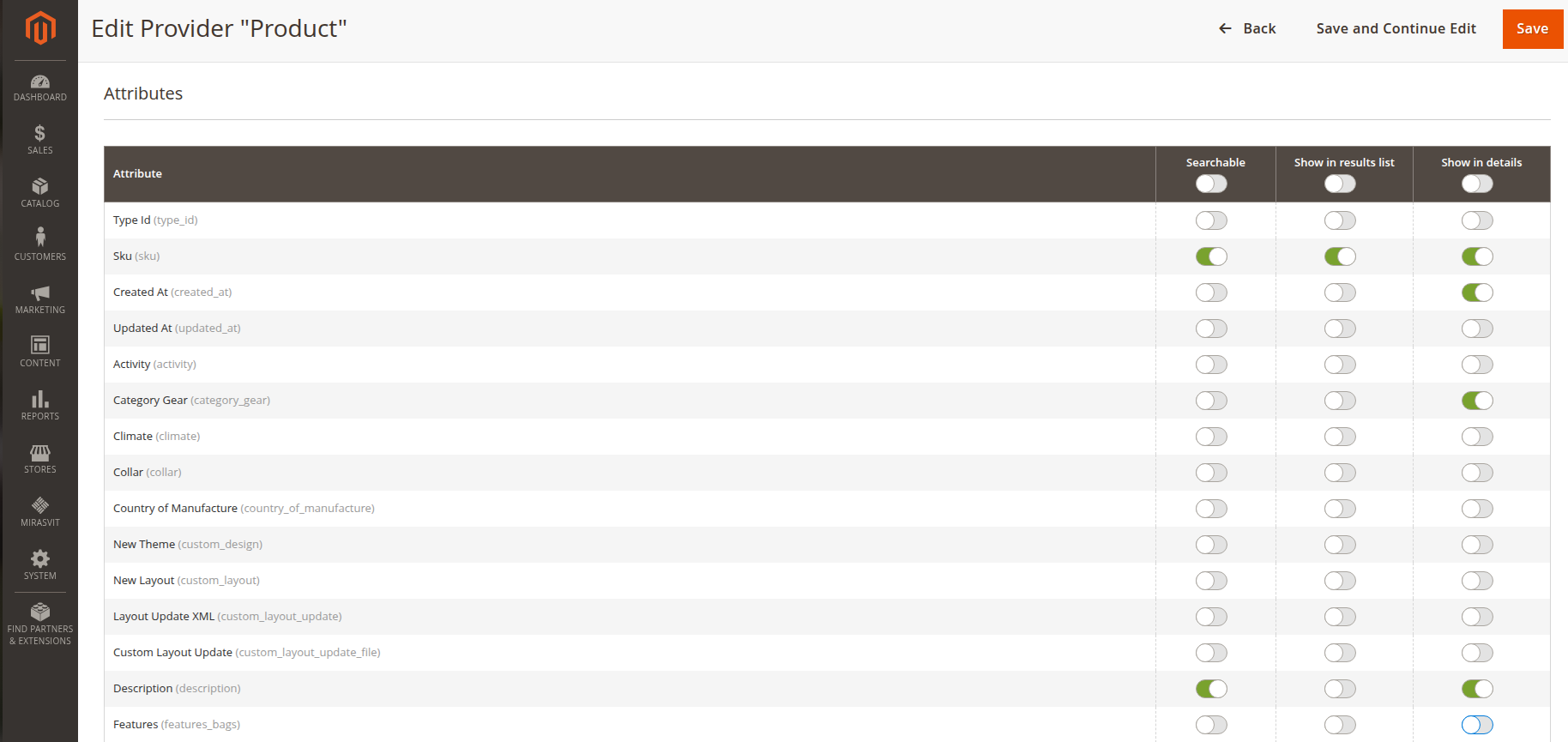
The Attributes table lets you control exactly which fields are used for each provider. Every row represents one attribute available for that provider.
Each attribute has three independent toggles:
- Searchable — include this attribute in the search index. When enabled, the field value is indexed and matched against the search query. Disable attributes that are irrelevant to search (e.g. internal IDs) to avoid unnecessary noise in results.
- Show in results list — display this attribute's value in the compact result row shown in the search popup list. Use this for the most important identifying fields (e.g. customer name, order total).
- Show in details — display this attribute's value in the expanded detail panel that opens when a result is selected. Use this for supplementary fields that are useful in context but too verbose for the list view.
The Searchable and display toggles are independent. An attribute can be searchable without being displayed, and vice versa.
After modifying the attribute configuration, run reindex to rebuild the search index with the updated field set:
bin/magento indexer:reindex mst_backend_search