Efficiency reports
With detailed search reports, you can assess how relevant the search results are to your customers. Based on this information, you will be able to fine-tune your search configuration to ensure that your customers are directed to the products they need.
Our extension collects statistical data and stores it in the mst_search_report_log table. Starting from version 2.2.33, this data will be kept for 365 days by default, after which outdated data will be deleted via cron. If necessary, you can manually truncate it. This will only affect the statistics data in the reports.
Each search is recorded together with the store view it was performed on. Both reports provide a Store dimension and quick filter, so you can break the data down by store view or narrow it to a single one. Searches that were logged before this feature was introduced are not attributed to a store view and appear as N/A.
Search volume
You can find the reports in System -> Search management -> Reports -> Search volume.
At the top of the page, there are statistical charts that display the number of searches conducted within a specified period. Using the switches at the top, you can select the date range, data granularity, and chart appearance (chart, diagram, line, or column).
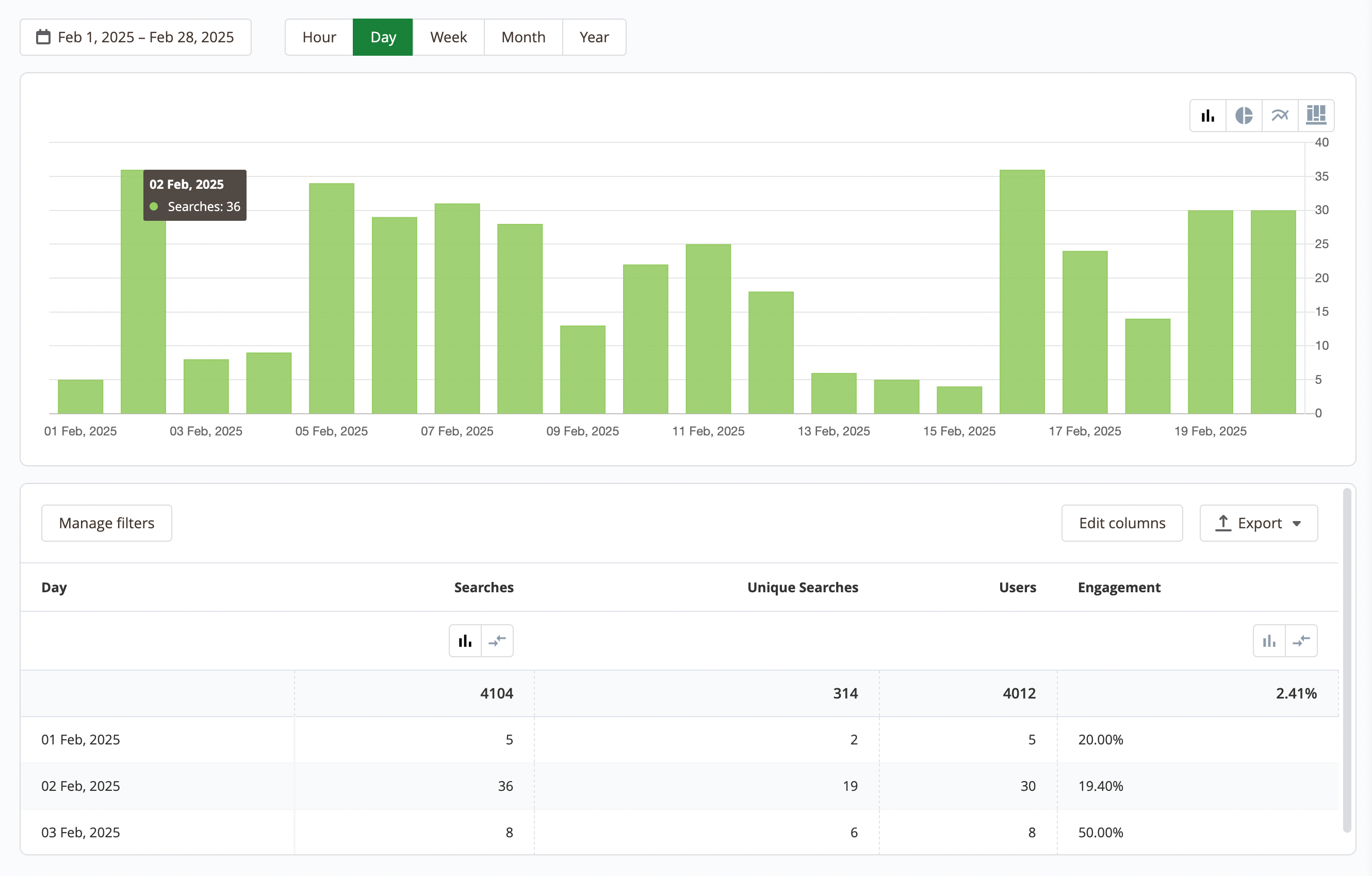
If necessary, you can apply filters, edit columns, and export the data to an XML or CSV file. By default, the following data is available:
- Time: Shows the selected date range (hour, day, week, month, year)
- Search Source: The origin of the search (e.g. main search, autocomplete, category search). Use this dimension to break down query and volume data by where searches were initiated
- Store: The store view on which the search was performed. Available as a dimension and as a quick filter, so you can break the volume down per store view or narrow the report to a specific one
- Searches: Total number of searches performed
- Unique Searches: Number of unique search queries (search phrases)
- Users: Number of unique sessions with searches
- Engagement: The percentage of users who opened a product from the search page
Search terms
You can find the reports in System -> Search management -> Reports -> Search terms. Use it to identify the most popular search queries and their frequency.
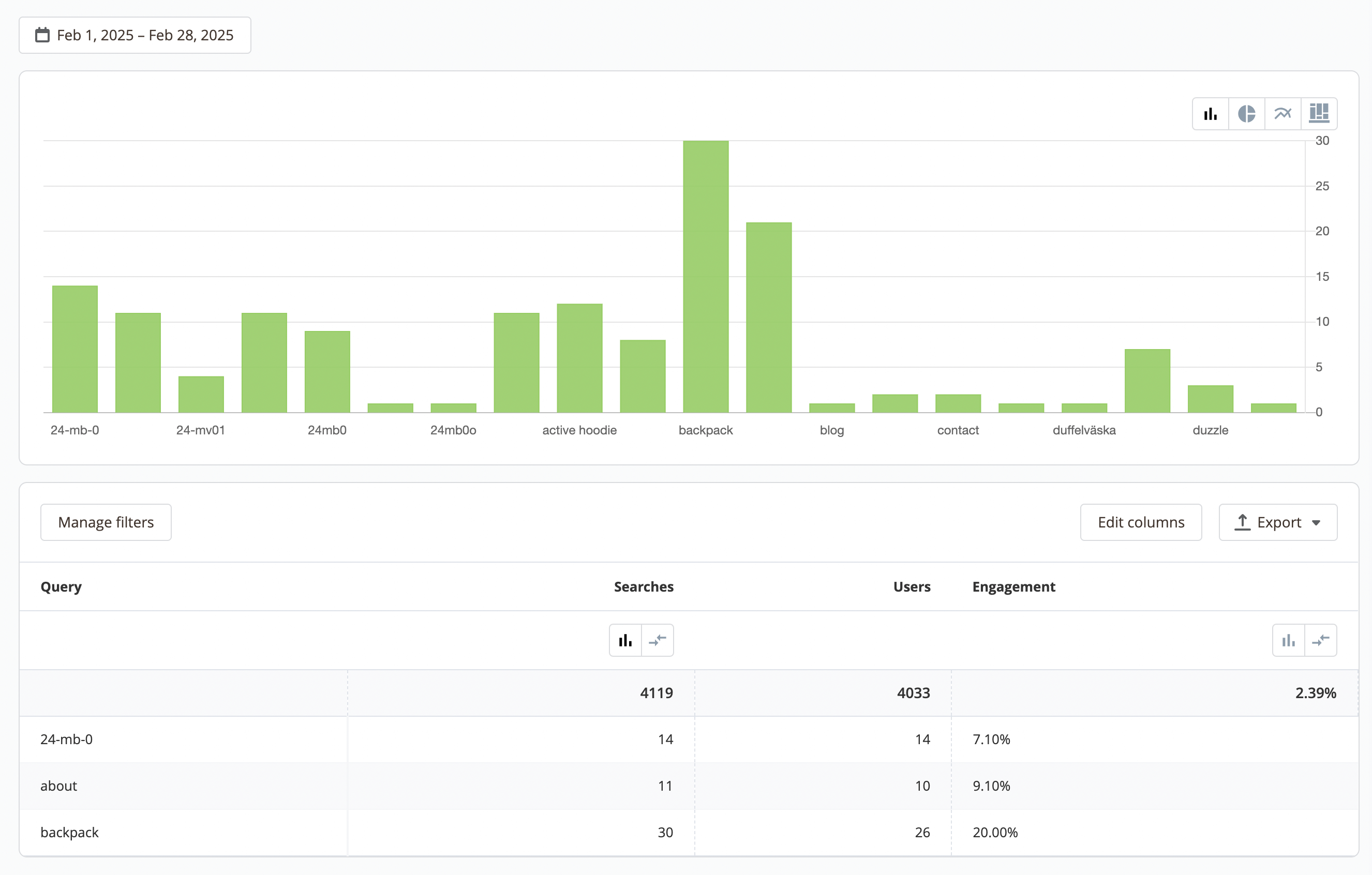
If necessary, you can apply filters, edit columns, and export the data to an XML or CSV file. By default, the following data is available:
- Query: Search query
- Search Source: The origin of the search (e.g. main search, autocomplete, category search)
- Store: The store view on which the search was performed. Available as a dimension and as a quick filter, so you can break the queries down per store view or narrow the report to a specific one
- Searches: Number of search requests
- Users: Number of unique sessions with searches
- Engagement: The percentage of users who opened a product from the search page