How to pin products to top
This guide describes how to pin certain products to the top of a category. Pinned products always appear first on the category page, regardless of global ranking factors and the selected sorting criteria.
You can pin products in two ways:
- When editing a product
- When editing a category
Pin from product edit page
Navigate to Catalog -> Products and select the product you want to pin. In the product edit form, find the Pin to the top in categories field.
- Pin to the top in categories: allows you to select one or more categories where this product will be pinned to the top.
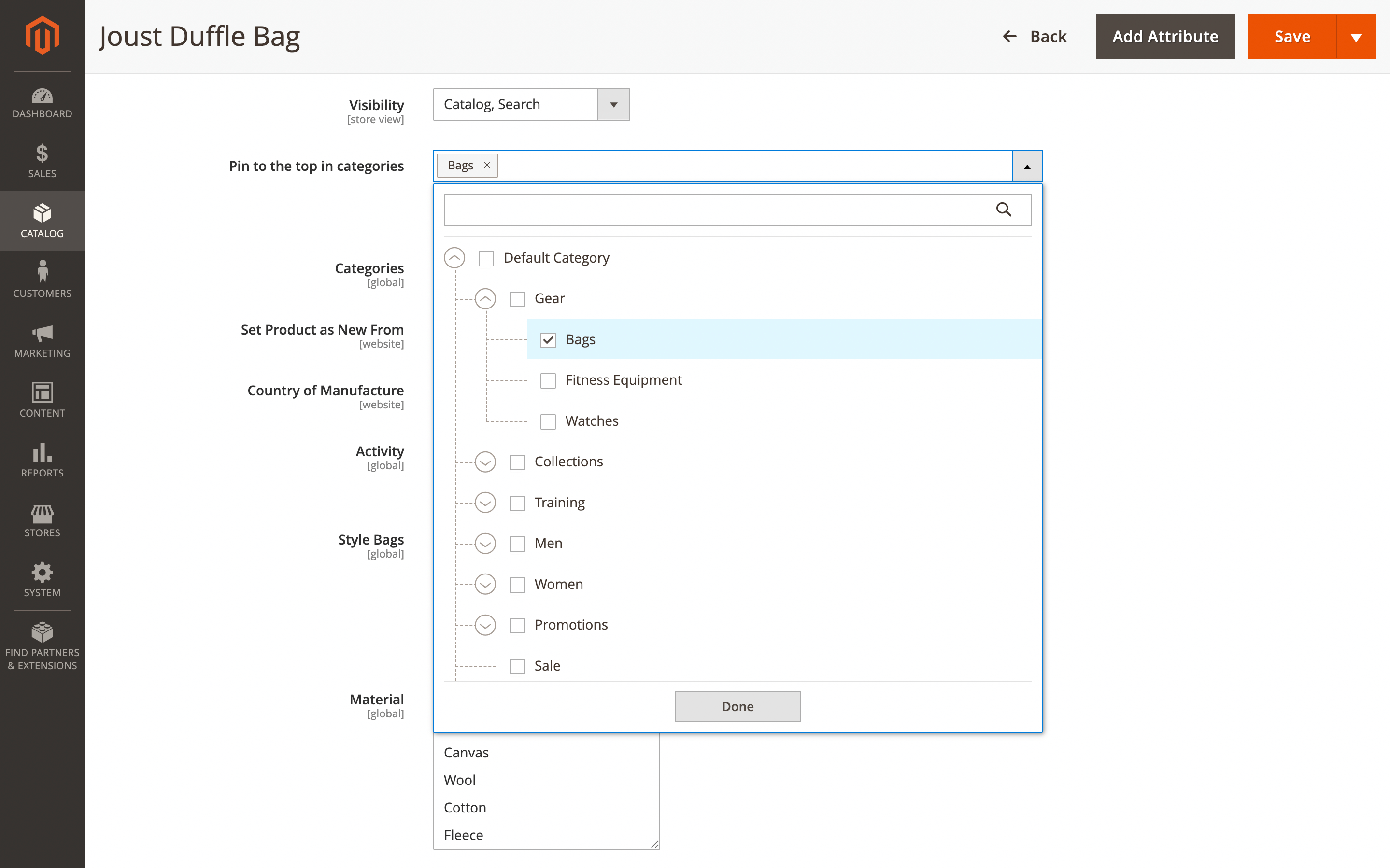
Select the desired categories and save the product.
If a product is pinned to the top of a category but is not actually assigned to that category, it will not appear in that category's product listing.
Pin from category edit page
Navigate to Catalog -> Categories and select the category. Open the Products in Category section where the products grid is displayed.
- Pin to top: a checkbox column in the products grid that allows you to pin individual products to the top of the current category.
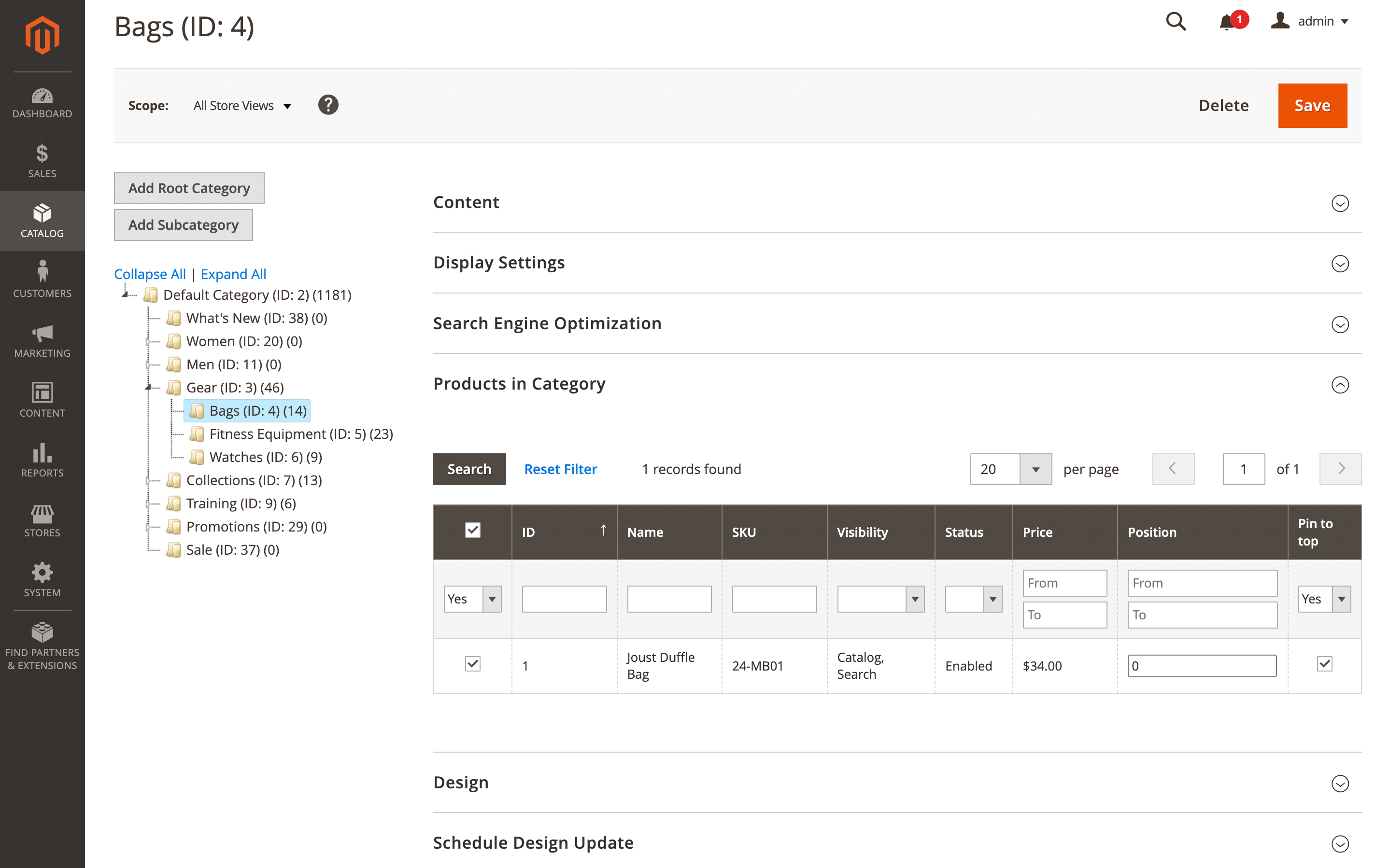
Check the box for each product you want to pin, then save the category.
How pinned products work
- Pinned products always appear at the top of the first page of the category.
- Multiple products can be pinned in the same category.
- Pinned products are not affected by sorting criteria selected by customers.
- Pinned products are not affected by global ranking factors.