Quick start
A few tips to quickly get started with the key features of the Advanced Reports extension for Magento 2.
Open the reports
Go to Reports -> Advanced Reports -> Reports. This page lists the dashboards and reports available to your admin role. Here you can:
- search reports and dashboards by name;
- filter reports by category, such as Sales, Catalog, Customers or Carts;
- add a report to favourites, so that it always comes first in the list;
- change the order of the list with Sort by.
The same page opens the extension's tools: Email Notifications, Config Builder, Import / Export and Shared Reports. Each one appears only if your admin role has access to it.
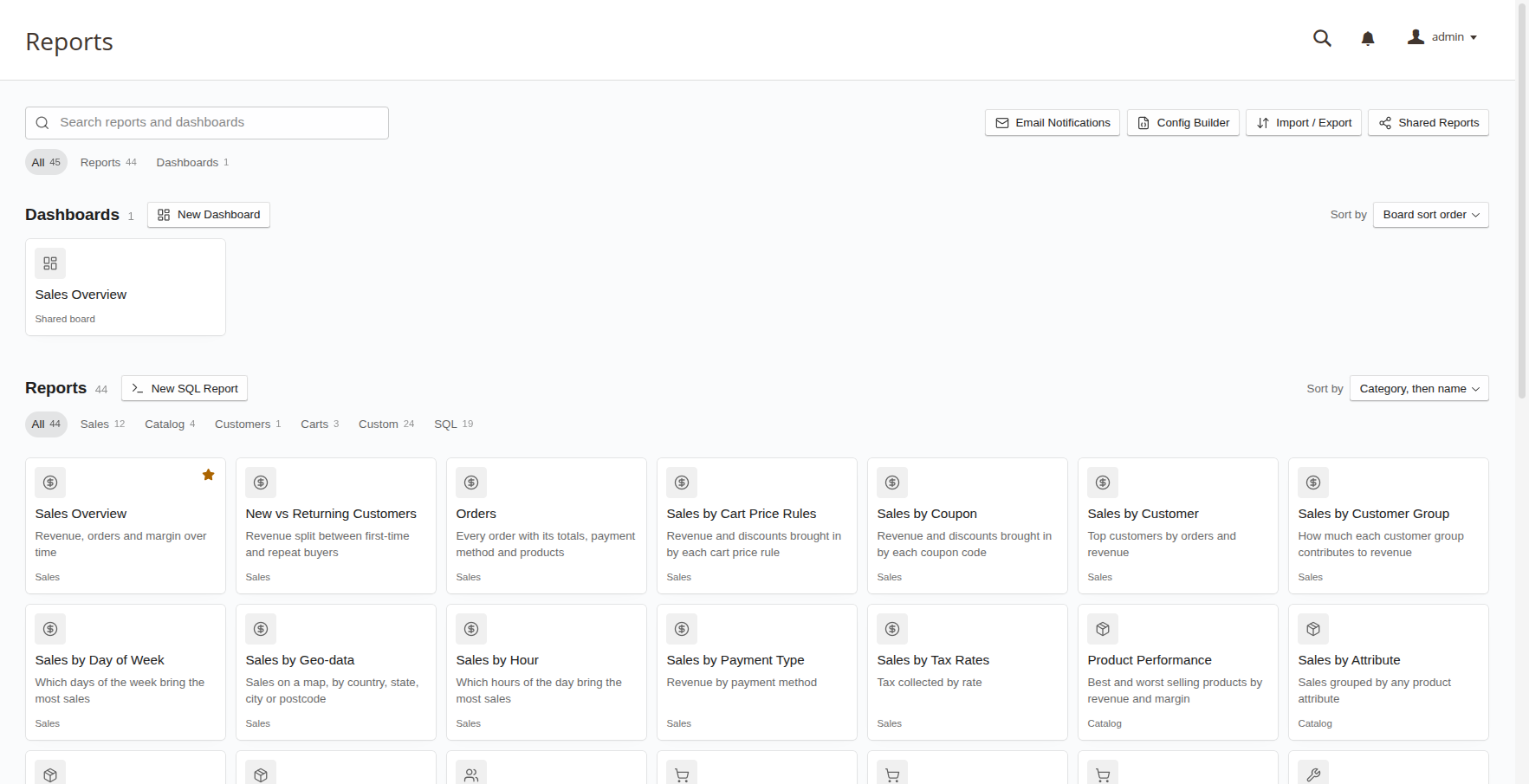
Check the predefined reports
The extension comes with 20 predefined reports, grouped into categories:
- Sales
- Sales Overview: revenue, orders and margin over time.
- Orders: every order with its totals, payment method and products.
- Sales by Hour: which hours of the day bring the most sales.
- Sales by Day of Week: which days of the week bring the most sales.
- Sales by Customer: top customers by orders and revenue.
- Sales by Customer Group: how much each customer group contributes to revenue.
- Sales by Coupon: revenue and discounts brought in by each coupon code.
- Sales by Cart Price Rules: revenue and discounts brought in by each cart price rule.
- Sales by Tax Rates: tax collected by rate.
- Sales by Payment Type: revenue by payment method.
- Sales by Geo-data: sales on a map, by country, state, city or postcode. See How to manage geo-data.
- New vs Returning Customers: revenue split between first-time and repeat buyers.
- Catalog
- Product Performance: best and worst selling products by revenue and margin.
- Sales by Category: revenue and quantities by product category.
- Sales by Attribute: sales grouped by any product attribute.
- Sales by Attribute Set: sales grouped by attribute set.
- Customers
- Customers: your customers with their group, orders and products bought.
- Carts
- Abandoned Carts Overview: how many carts are abandoned and what they are worth.
- Abandoned Carts: open carts with their customer and contents.
- Abandoned Products: products most often left behind in abandoned carts.
Sales and catalog reports open filtered by the order statuses set in Order statuses as default filter. To learn which dates, currencies and costs the reports are based on, see How reports count data.
Learn how to work with a report in Reports interface, and how to build your own report in How to create custom report.
Set up the dashboard
Go to Dashboard -> Advanced Dashboard and set up your first board. See Dashboard interface and How to create a new board.
The default Magento dashboard stays available at Dashboard -> Magento Dashboard. To open the Advanced Dashboard right after you log in to the admin panel, go to Stores -> Configuration -> Advanced -> Admin -> Startup Page and select it in the Startup Page field.
Set up email notifications
To receive reports and dashboard widgets by email on a schedule, click Email Notifications on the Reports -> Advanced Reports -> Reports page. See Email notifications.
Review the settings
Go to Reports -> Advanced Reports -> Settings to adjust the default order status filter, the order of reports and boards, and other options. See General settings.