How to create custom report
The Advanced Reports extension allows you to create custom reports by copying an existing report and adjusting it to your requirements. In general, the setup involves selecting the columns to display, defining filters, and sorting the results. Once saved, the report is available for regular use and does not require constant adjustments.
As an example, let's create a report that lists the products whose stock quantity is below 10, for timely replenishment. To create a custom report, you will edit a copy of an existing report with the Report builder. Saving a report requires the Changing Reports permission.
1. Make a copy of a similar report
- Open the report closest to the one you want to create, for example Product Performance.
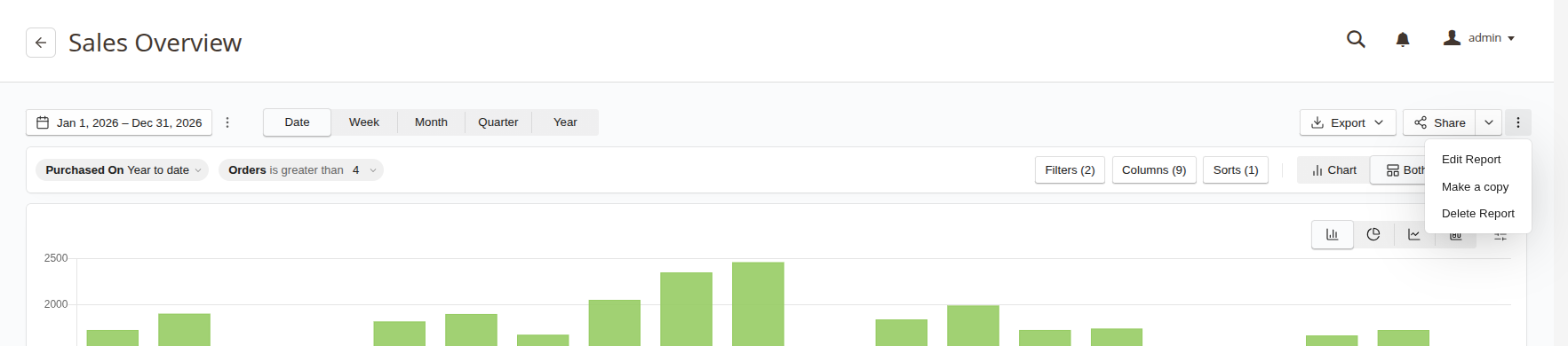
- Click the three dots at the right of the toolbar and select Make a copy.
The copy opens right away under the name Untitled Report. Changes made to the original report that were not saved are not copied.
2. Open the report settings
- Click the three dots again and select Edit Report.
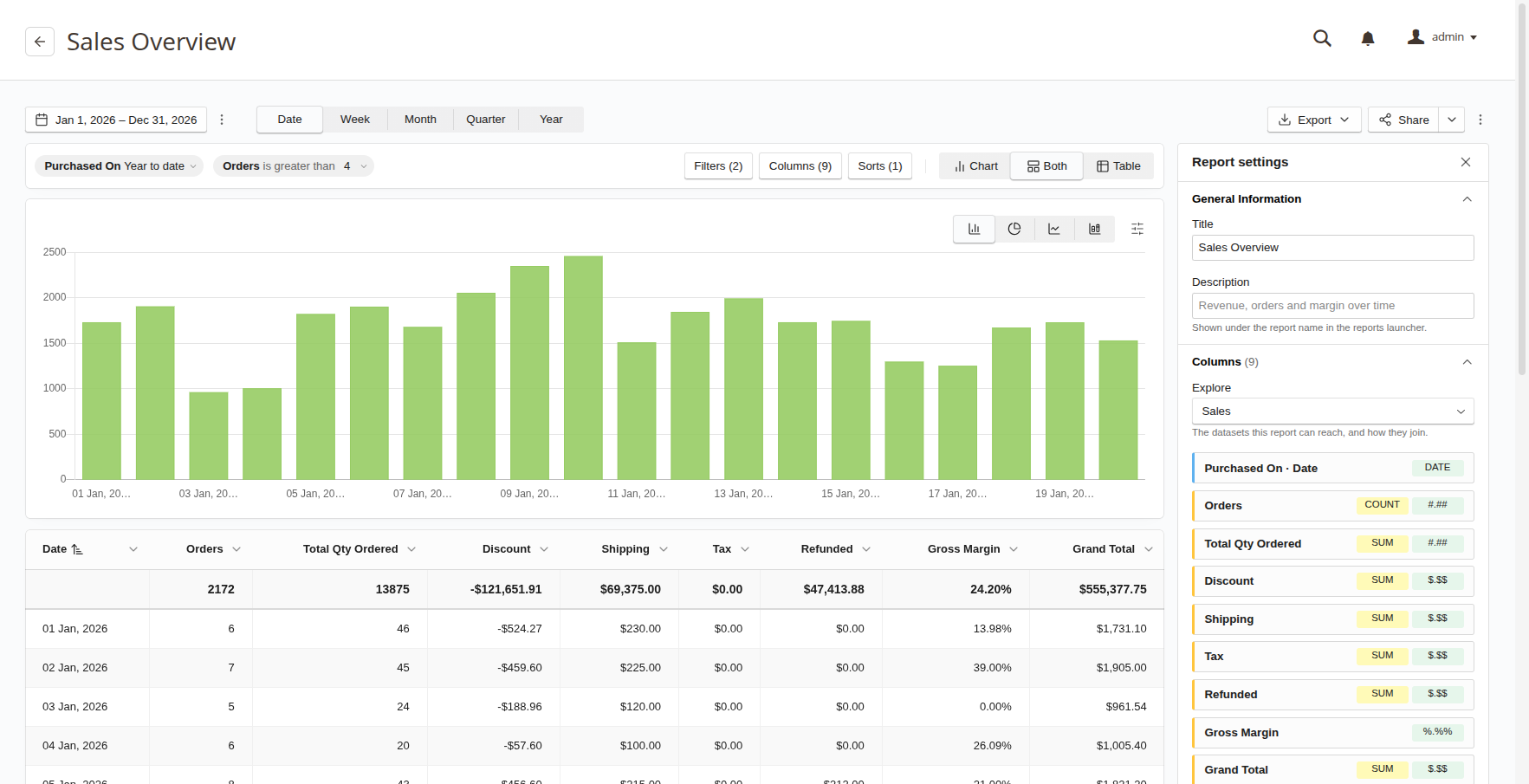
- The Report settings pane opens. In the General Information section, enter the Title of the report and, optionally, a Description. The description is shown under the report name in the reports list.
3. Choose the columns
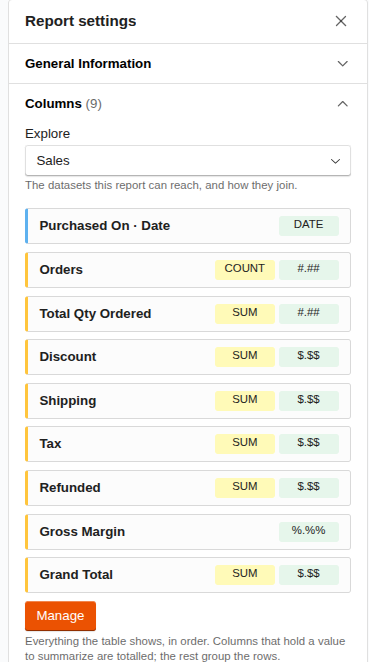
- In the Columns section, remove the columns you don't need and add the ones the report requires. For the low stock report, add Stock Qty.
- The Explore field above the columns defines which datasets the report can reach, and so which columns you can add.
Columns that hold a value to summarize are totalled, and the rest group the rows. In the low stock report, every product is a row of its own, because the product name and SKU group the rows. See more examples in the Report builder.
4. Set up the filters
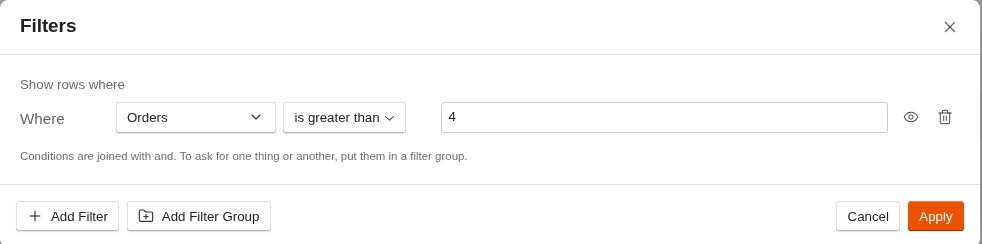
- In the Filters section, click Add Filter to define the conditions rows must meet. For the low stock report, add a condition on Stock Qty with is less than and the value
10. - Conditions are joined with "and". To combine conditions with "or", put them into a group with Add Filter Group.
- Click Apply.
Using filters, you can create a report for a particular store view or a specific country.
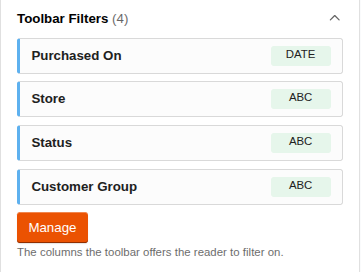
- In the Toolbar Filters section, choose the columns the toolbar offers readers to filter on.
5. Adjust sorting and visualization
- In the Sorting section, choose the columns to order the rows by.
- In the Visualization section, set up the chart of the report.
6. Save the report
Click Save in the toolbar. Reset discards the changes made since the last save.
Once saved, the report appears in the reports list alongside all other reports. Similarly, you can modify any existing report to meet your specific requirements.
Reports written as SQL statements
A report can also be written as a single read-only SQL SELECT statement. This option is available when Enable SQL reports is set to Yes in the settings and your role has the Authoring SQL Reports and Changing Reports permissions. See How to create an SQL report.