How to add a new widget
Adding widgets requires the Changing Dashboards permission.
1. Switch the board to the customize mode
- Open the board and press Customize in the toolbar.
2. Add a widget
- Press Add New Widget in the toolbar. The Widget Library pop-up opens.
- Select a ready-made widget in the list on the left. Its preview appears on the right.
- Press Add Widget to add the selected widget to the board, or press Add Empty Widget to add a blank widget and configure it from scratch.
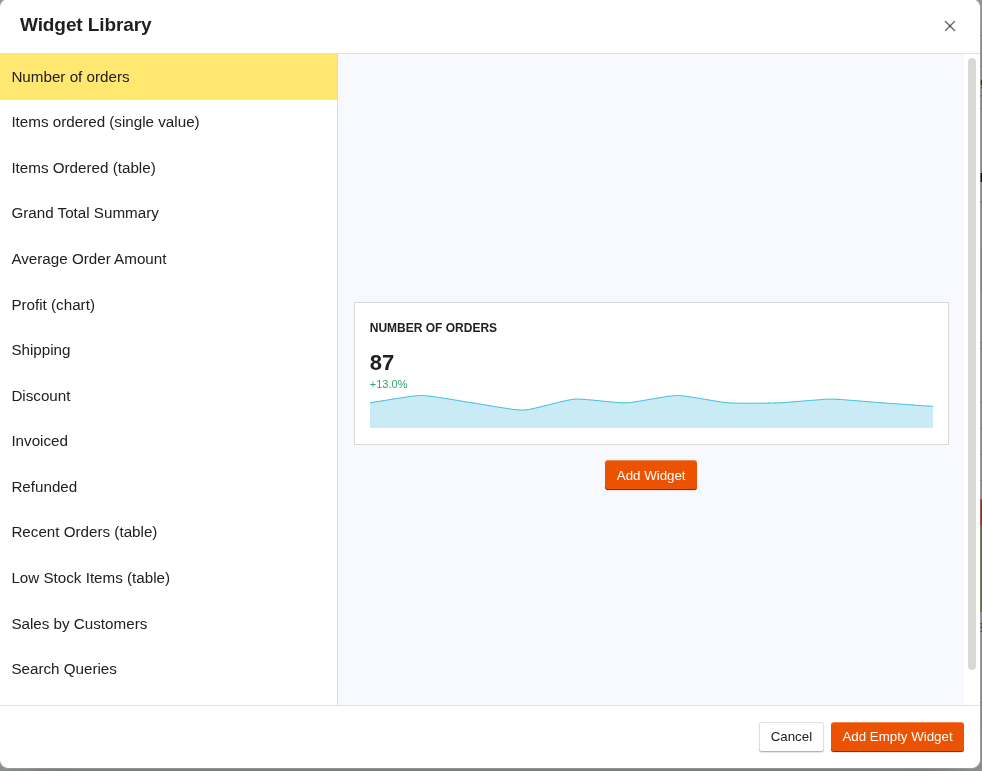
You can change any widget after adding it, including widgets from the library.
3. Place and configure the widget
- To move the widget, drag it by the handle in its right top corner and drop it where you want it on the board.
- To resize the widget, drag its bottom right corner.
- To configure the widget, press the Widget settings (gear) icon in its right top corner. The Widget editor opens.
4. Save the board
- Press Save in the toolbar.
- Press Customize to return to the view mode.
Duplicate a widget
To quickly create a similar widget, press the Duplicate widget icon (next to the gear icon) in the right top corner of an existing widget while the board is in the customize mode.
A copy named <widget title> (copy) is added directly below the original, with all of its settings. The copy is independent: editing it doesn't change the original. Adjust, move, and save it like any other widget.
tip
Duplicating is the fastest way to build several variations of the same view: copy a configured widget, then change only the metric, filter, or goal in the copy.