How to share reports
The Advanced Reports extension lets you access report data without logging in to the admin panel.
Get real-time data that is always up to date, share stock information with your vendors, or import report data into Google Sheets using a direct link. Whenever you visit the link, the extension returns the most recent report data.
1. Enable sharing
- Configure the report and click Save. The shared link always returns the report as it was last saved, so unsaved changes are not included.
- Click the Share button in the toolbar to open the Quick Access & Sharing popup.
- Click Enable.
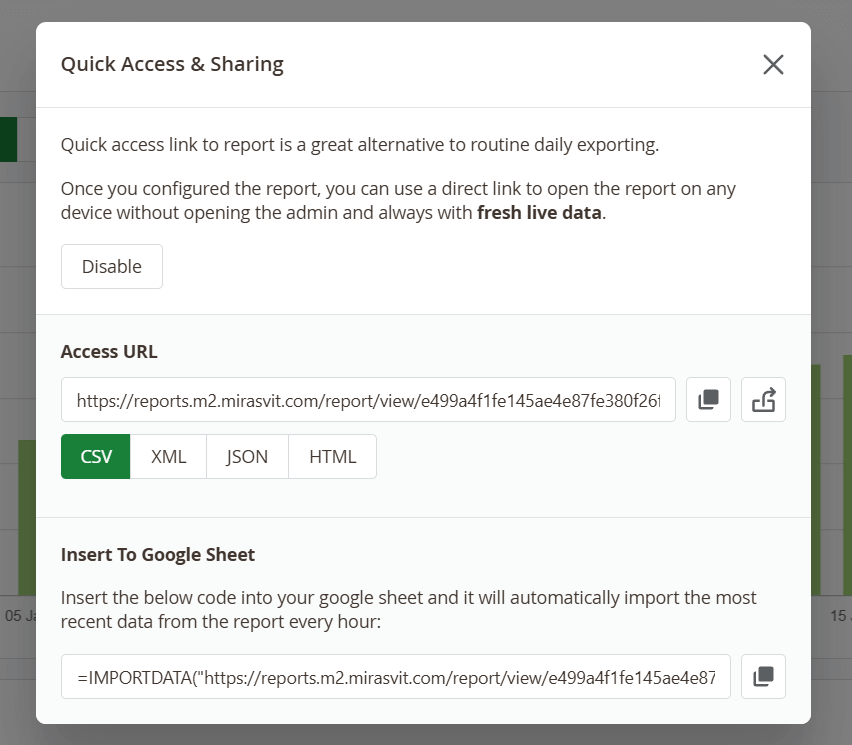
2. Copy the link
- Choose the format of the report:
CSV,XML,JSONorHTML. - Copy the link with the Copy to Clipboard button, or open it with the Open Link button.
To import the report into Google Sheets, copy the code from the Insert to Google Sheet section and paste it into a cell of a spreadsheet. The code uses the IMPORTDATA function with the CSV link, whichever format you selected above. Google Sheets refreshes the imported data automatically every hour.
The shared page
On the shared HTML page, the report's name is a link back to that report in the admin panel. It is there for colleagues who have an admin login of their own: following it opens the live report, ready to filter, adjust or export. Anyone who is not signed in to the admin is taken to the login page instead, and the link respects your User Permissions: it opens only for administrators who are allowed to see that report.
Because that link points at your admin panel, its address appears on the shared page. If you would rather it did not, turn sharing off for that report, which removes the page and the link together.
Manage shared reports
If you need to adjust the report after sharing the link, simply change and save it. The link stays the same, so anyone with the link receives the updated report.
To see every shared report in one place, click Shared Reports on the reports list page. From there, you can copy or open each link, or click Disable Sharing to turn sharing off. You can also turn sharing off with the Disable button in the Quick Access & Sharing popup of the report.
To prevent unexpected changes to reports, control who can change and share reports with the User Permissions settings.