How to export reports
The extension offers several ways to export reports.
From the report page
Save the report to a file from the admin panel.
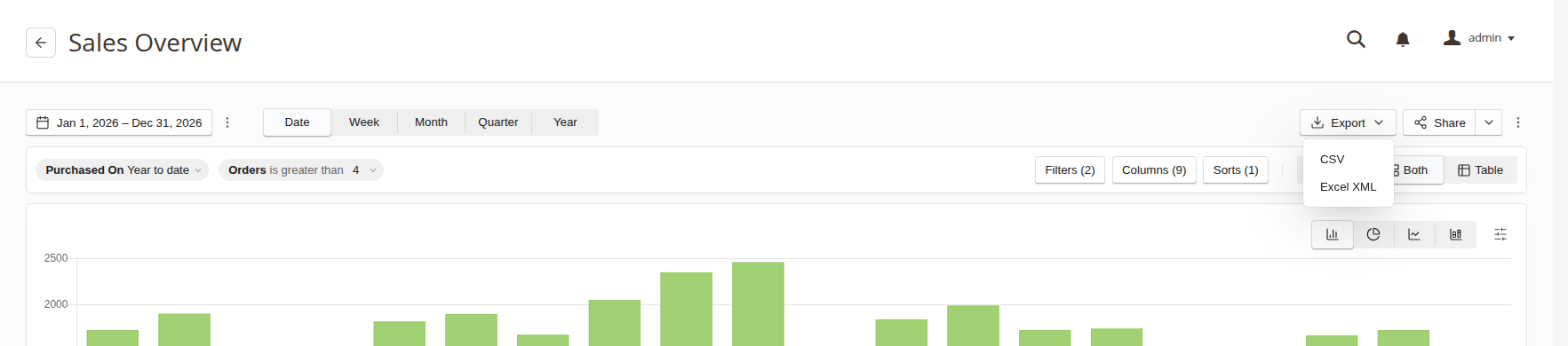
Click the Export button in the toolbar of the report and choose CSV or Excel XML. The file contains the report exactly as it is shown, including filters, columns and sorting you have changed but not saved yet. The file is named after the report, followed by the export date and time.
By default, money, percent and date values in CSV files are formatted the same way as in the report. To export raw values instead, set Format data in CSV files to No in the extension settings.
Via CLI
When you export large reports from the admin panel, the process may fail due to a timeout. To export such reports, use the command line interface of the extension:
php -f bin/magento mirasvit:advanced-reports:export [options]
For more information about the available options, refer here.
Using Quick Access and Share
For each report, you can enable quick access to share it with your team through a direct link.
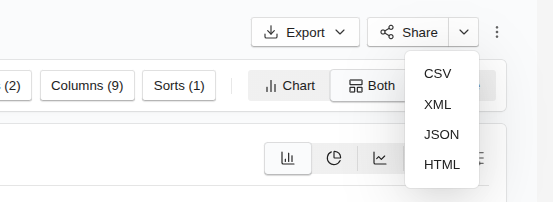
Once sharing is enabled, the arrow next to the Share button offers the report as a CSV, XML, JSON or HTML file. The same links work without logging in to the admin panel. They always return the saved version of the report.