How to share dashboard
Share a board to view it without logging in to the admin panel, for example on a phone. Sharing requires the Sharing Dashboards permission.
1. Enable remote access
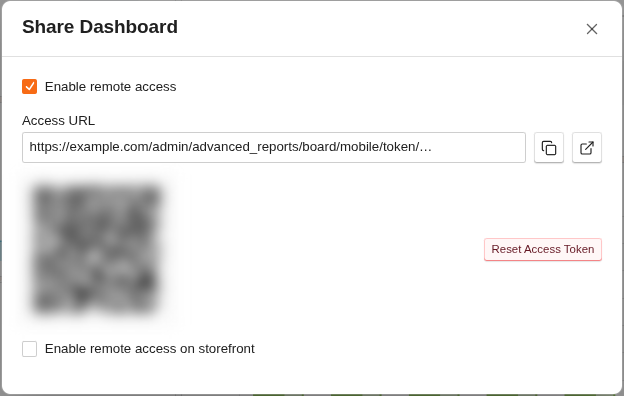
- Open the board and press Share in the toolbar. The Share Dashboard pop-up opens.
- Enable Enable remote access. The setting is saved right away.
The pop-up shows the board's Access URL with Copy to Clipboard and Open Link buttons, and a QR code with the same link. Scan the QR code to open the board on any device.
2. Share the board on the storefront
- In the same pop-up, enable Enable remote access on storefront.
A second Access URL and QR code appear. This link opens the board on your store's domain instead of the admin panel URL.
3. Send the link
Share the link or the QR code with your colleagues. Anyone with the link sees the board as it was saved and can choose the date range, but can't change the board.
Stop sharing or replace the link
- To stop sharing, disable Enable remote access. Both links stop working.
- To replace the link, press Reset Access Token and confirm with Reset. The old link stops working, and anyone who had it needs the new link to open the board. Use it when the link may have reached external parties or former team members.
note
A copy of a board made with Make a copy isn't shared, even if the original board is.