Report builder
Learn how to modify existing reports or create your own reports using the Report builder.
The Report builder works the same way for pre-defined and custom reports. The only difference is that pre-defined reports cannot be completely removed. If you customize a pre-defined report and then delete it, the report returns to its initial state. Delete Report stays unavailable for a pre-defined report that has no saved changes. Custom reports are removed permanently and cannot be restored.
To create a custom report based on an existing one, open the actions menu (three dots) in the top right corner of the toolbar on the report page and click Make a copy. The copy opens right away, and you can change it without affecting the original report.
Editor
To open the Report builder, open the actions menu in the top right corner of the toolbar on the report page and click Edit Report. The Report settings pane opens beside the report, and the report updates as you change its settings.
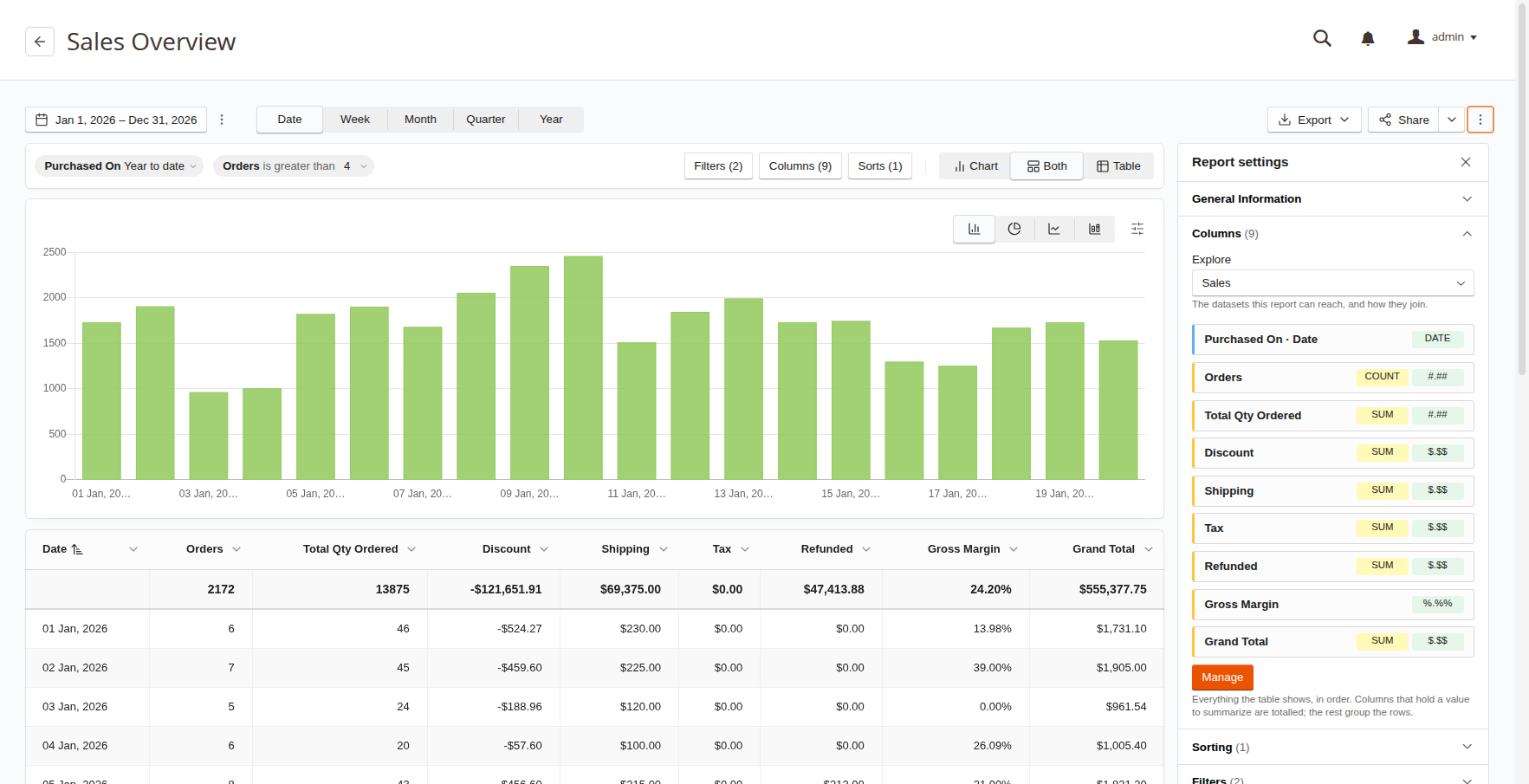
Changes made in the pane are kept as unsaved changes of the report. To keep them, click Save in the toolbar; to discard them, click Reset. Closing the pane does not discard them.
A saved report is shared by all admin users. When you save changes to a report, whether it is a pre-defined report or a custom one, every admin user who can open that report sees it with your changes. Unlike the saved report, favourites are personal.
The pane is divided into the following sections:
General Information
- Title: the report name shown on the report page and in the reports list.
- Description: the text shown under the report name in the reports list.
Columns
Everything the report table shows, in order. Click Manage to open the Columns chooser. Columns that hold a value to summarize, such as totals and counts, are totalled; all other columns group the rows. If a report has several grouping columns, it shows a row for every combination of their values.
For example:
- A report with the columns Customer Group and Grand Total shows one row per customer group, with the sum of the grand totals of that group's orders.
- Add Payment Method, and the report shows one row for each customer group and payment method pair, such as General with Check / Money order.
- Add Order #, and every order gets its own row, because each order has a different number.
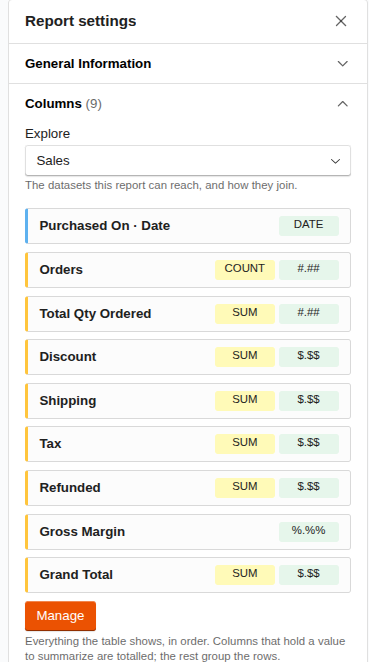
When more than one data source is available, the section also shows the Explore field, which selects the datasets the report can reach and how they are joined. A dataset is a database table with its columns, such as orders, order items, products or customers. The columns you can add depend on the explore:
- Sales starts from orders and reaches the datasets related to them, such as order items, invoices, products and customers. Most reports use it.
- Carts starts from shopping carts and reaches their items, products and customers. The abandoned carts reports use it.
Pay attention to the tables you choose columns from. Some tables have columns with identical names but different data, which can affect the accuracy of the report.
Sorting
The columns the report is sorted by, and the direction of each sort.
Filters
The conditions applied to the report. Click Add Filter or Edit Filters to open the filter editor. These filters are saved with the report and are shown as chips above the report table.
Toolbar Filters
The columns the toolbar offers as one-click filters on the report page. Click Manage to choose them.
Visualization
- Show: whether the report shows the chart only, the chart and the table, or the table only.
- Chart type: bar, doughnut, line or stacked chart.
- Plotted columns: the columns the chart draws. Only columns that hold a value to summarize can be plotted.
Columns chooser
When you click Manage in the Columns or Toolbar Filters section, or the Columns button above the report, the Columns popup opens.
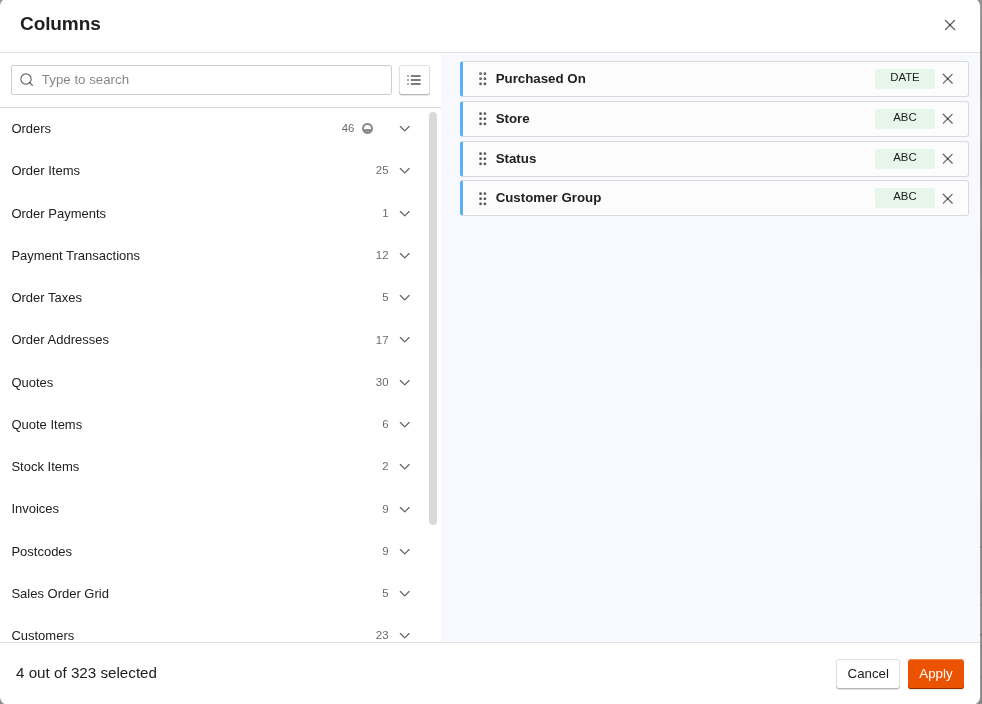
The columns in this popup are organized into groups, which mostly correspond to the tables those columns belong to. Use the search bar to find the column you want to add. The selected columns can be reordered by dragging, hidden from the table, or removed. Click Apply to update the report.
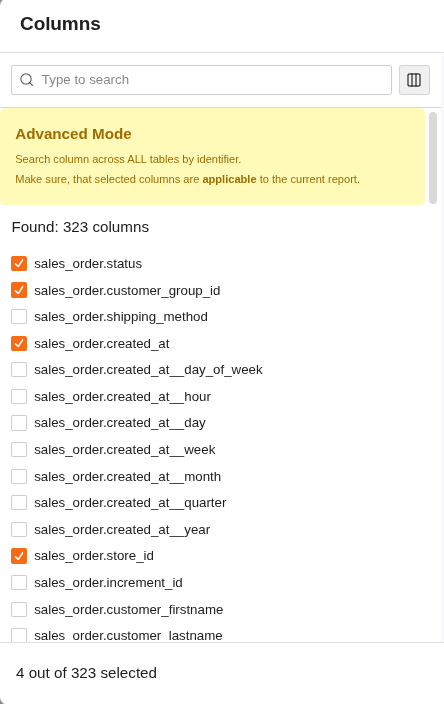
If a column cannot be found by its name, switch the popup to advanced mode with the button next to the search bar. In advanced mode, all columns are listed together, and you search by their identifier in the database. Make sure that the columns you select are applicable to the current report.
If a column, or the entire table it belongs to, cannot be found, create a configuration for it using the Config builder.