Reports list
The Reports page is where the Advanced Reports extension for Magento 2 starts. Go to Reports -> Advanced Reports -> Reports. The page lists the dashboards and reports your admin role may open, and links to the extension's tools.
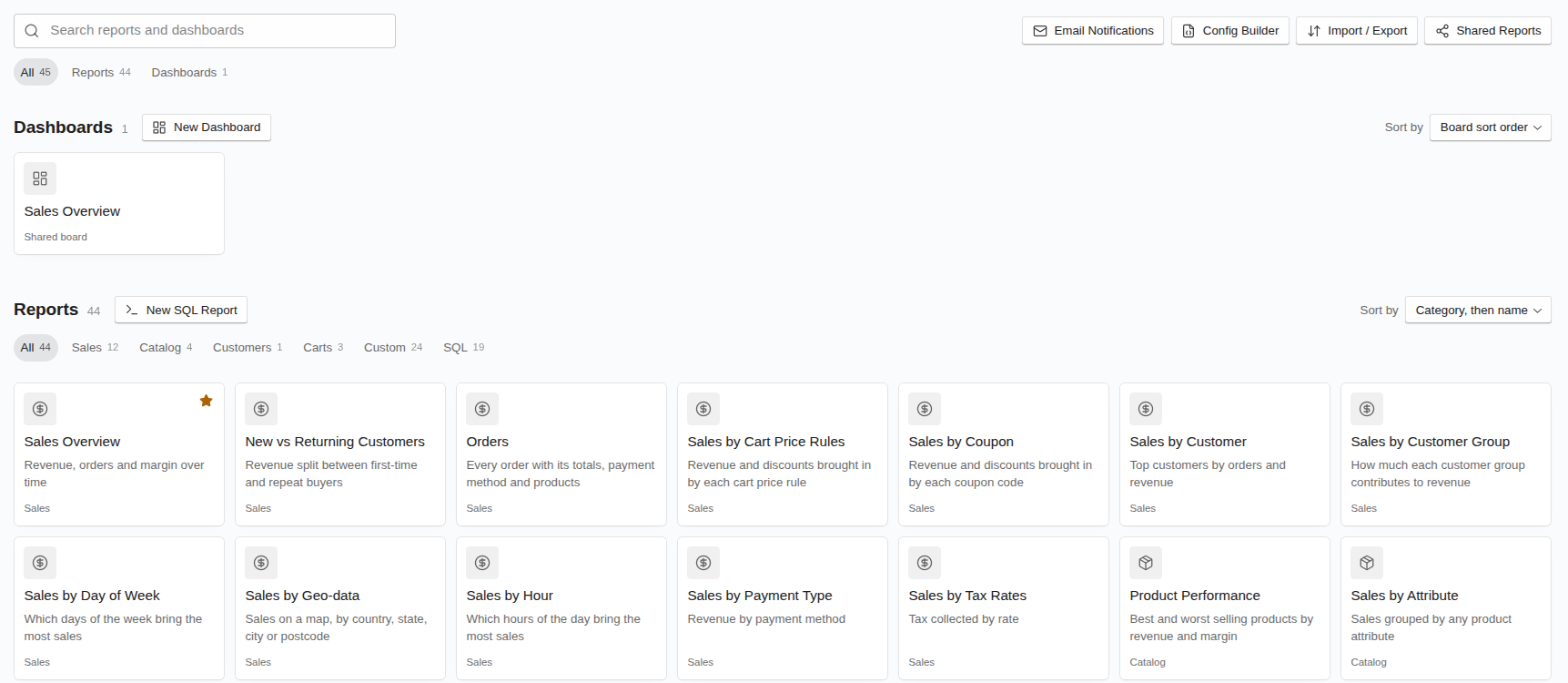
1. Search
The search field finds reports and dashboards by name. It ignores letter case and narrows both lists at once.
Under the search, All, Reports and Dashboards choose which of the two lists the page shows. Each one counts what the search leaves. These choices appear when there is at least one dashboard.
2. Tools
The buttons next to the search open the extension's tools. Each button appears only when your admin role has access to it (see How to restrict access to a specific report):
- Email Notifications: reports sent by email on a schedule.
- Config Builder: the Config Builder tool.
- Import / Export: moving reports and configs between stores.
- Shared Reports: every report with a public link. Here you can copy or open each link, or press Disable Sharing to stop a report's links from working. See How to share reports.
3. Dashboards
The Dashboards section lists the boards you may see. Each card says whether it is a Shared board or a Private board. New Dashboard creates a board, and appears only if your role has the Changing Dashboards permission. See How to create a new board.
Sort by orders the boards:
- Board sort order: the boards' own sort order, then the order set in the settings.
- Title, A to Z or Title, Z to A.
- Newest first or Oldest first.
4. Reports
The Reports section lists the reports you may open. The chips above the cards narrow the list to one category, such as Sales, Catalog, Customers, Carts or Custom, and count the reports in each.
When the store has reports written as SQL statements, an SQL chip lists them whatever their category, and each such card carries an SQL badge. New SQL Report creates one; it appears only while SQL reports are turned on and your role may write them. See How to create an SQL report.
While Enable SQL reports is set to No, the page says SQL reports are turned off above the list: such reports still show, but cannot run until the setting is turned on again.
Sort by orders the reports:
- Category, then name: grouped by category, then sorted by name within each one.
- Name, A to Z or Name, Z to A.
The order the page starts with is set by Sort reports by in the settings.
5. Favourites
Hover over a card and click the star to add a report or a dashboard to your favourites. Favourites always come first in their list, whatever the order picked in Sort by. Click the star again to remove it.
Favourites and the orders you pick in Sort by belong to your admin user: they are kept between sessions and do not change what other admins see.