Dashboard interface
The Advanced Reports extension for Magento 2 lets you build your own dashboards to display almost any metric from your store. Create several boards with different widgets to quickly analyze store activity such as sales, customers, and marketing efficiency.
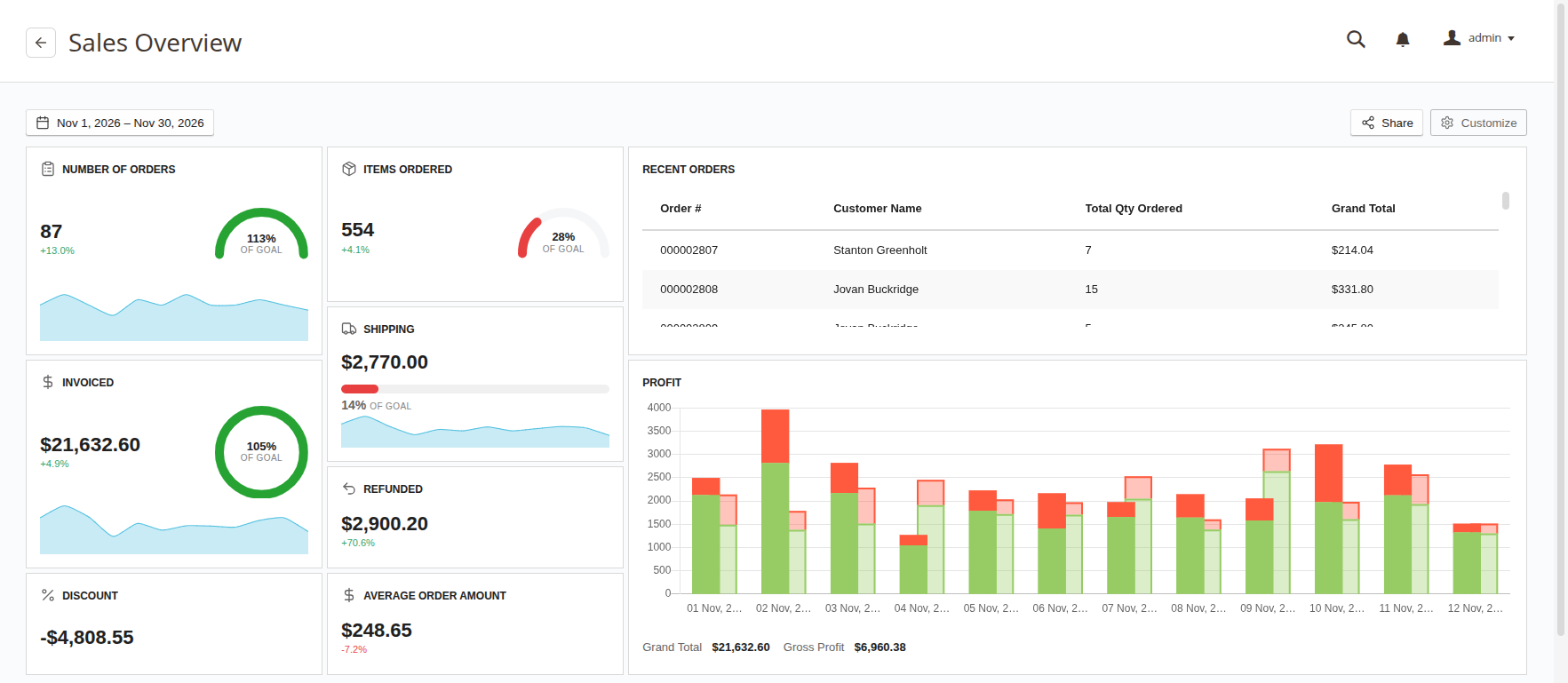
Opening a board
- Dashboard -> Advanced Dashboard opens the default board. If no board is marked as default, the first board in the list opens.
- All boards you can access are listed in the Dashboards section at Reports -> Advanced Reports -> Reports. Click a board's card to open it.
The back arrow next to the board title returns you to the Reports page.
Each board is either a Shared board (available for all admin users who can access dashboards) or a Private board (available only for the admin user who created it).
Toolbar
In view mode, the toolbar contains:
-
Date range: the period the board's widgets show data for. Choose a predefined period or set your own start and end dates.
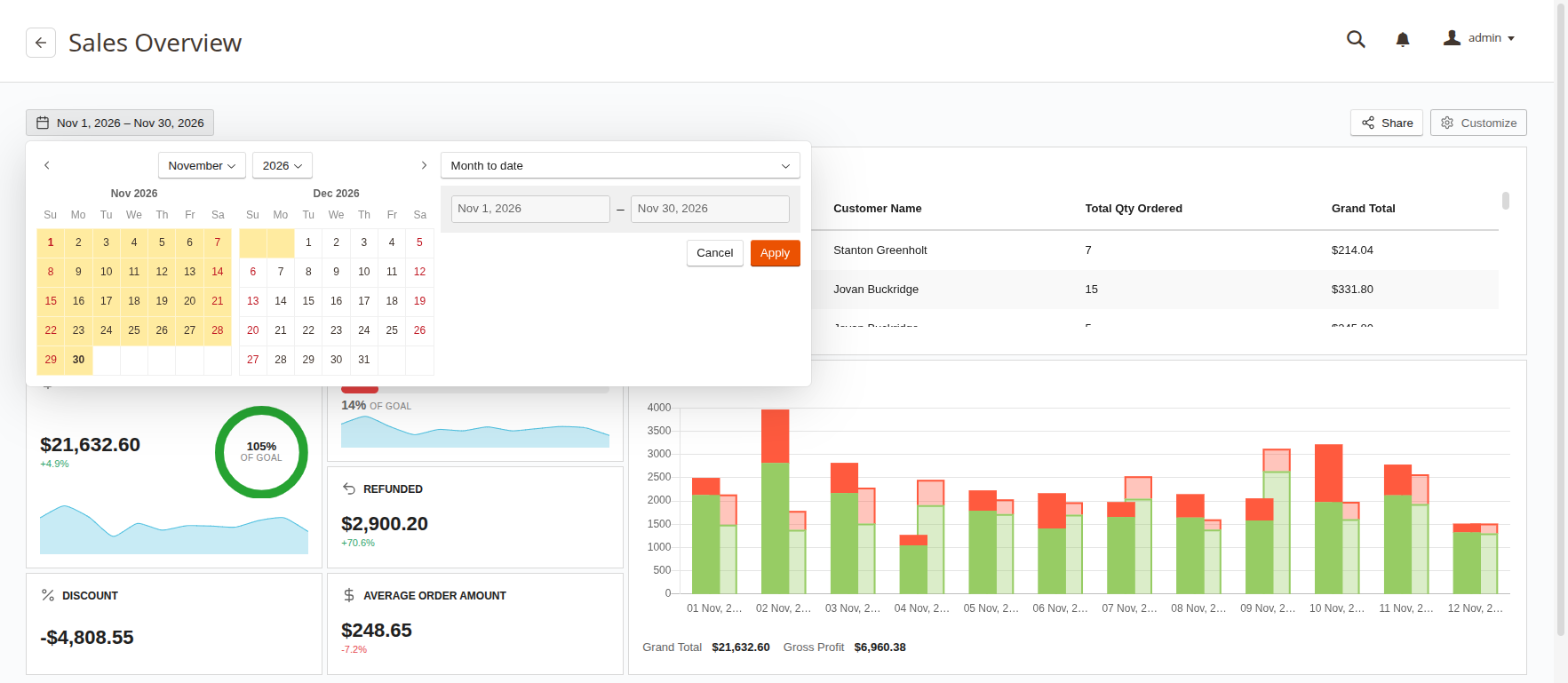
Date filter A widget can have its own date range. The board's date range doesn't affect such widgets. Learn more in the Widget editor section.
-
Share: open the Share Dashboard pop-up to give access to the board without logging in to the admin panel. Learn more in How to share dashboard.
-
Customize: switch the board to the customize mode to change it.
Which of these buttons you see depends on your admin role:
- Dashboards lets you open shared boards and your own private boards.
- Changing Dashboards adds the Customize button and lets you create, edit, copy, and delete boards.
- Sharing Dashboards adds the Share button.
An admin user without the Changing Dashboards permission sees each board as it was saved and can only choose the date range. The chosen range isn't saved with the board.
Customize mode
Press Customize in the toolbar to switch the board to the customize mode. Press it again to return to the view mode.
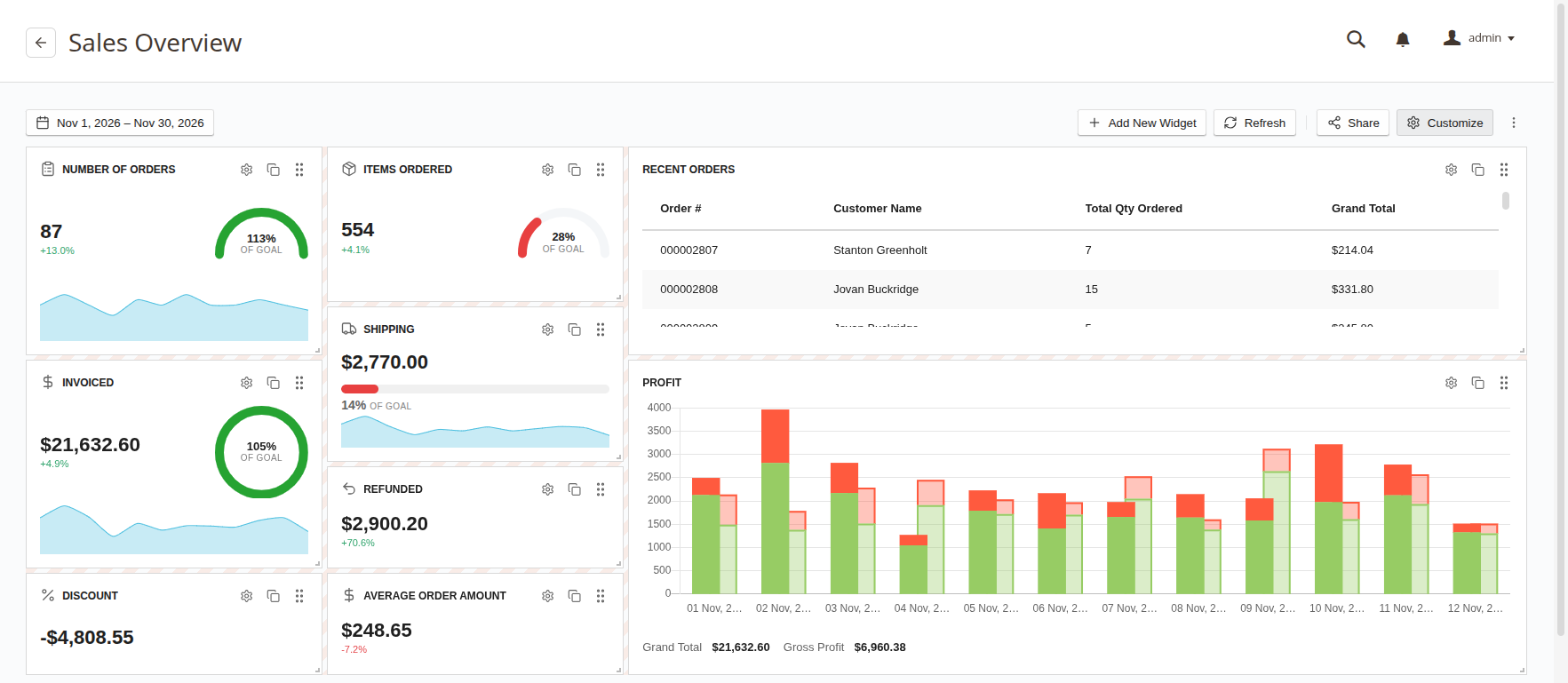
In the customize mode, the toolbar has these additional controls:
- Add New Widget: open the Widget Library to add a widget to the board. Learn more in How to add a new widget.
- Refresh: reload the data of all widgets on the board.
- Reset and Save: shown while the board has unsaved changes. Reset returns the board to its last saved version; Save stores the changes.
- The actions menu (three dots):
- Edit Board: open the Board settings pane next to the board.
- Make a copy: create a copy of the board named
<board title> (copy)and open it. The copy has the same widgets and type, isn't the default board, and isn't shared. - Delete Board: delete the board after confirmation and return to the Reports page.
Each widget also gets its own controls in the right top corner:
- Widget settings (gear icon): open the Widget editor.
- Duplicate widget: add a copy of the widget to the board.
- Drag handle: drag the widget to another place on the board.
To resize a widget, drag its bottom right corner.
When you change the date range in the customize mode, the new range is saved with the board the next time you press Save.
Board settings
The Board settings pane opens next to the board when you create a board or select Edit Board in the actions menu. Changes appear on the board as you type, and are stored when you press Save in the toolbar.
- General Information
- Title: the name of the board.
- Description: shown under the board name on the Reports page.
- Visibility
- Type: Shared board is available for all admin users; Private board is available only for the admin user who created it.
- Is default: the board that opens from Dashboard -> Advanced Dashboard. The setting belongs to the board, so a default shared board opens for every admin user who can access dashboards, and a default private board only for its owner. If several boards available to an admin user are marked as default, the first of them in the list of boards opens.
- Sort order: the board's position in the list of boards. A lower number means a higher position.
Configuration
The order of boards with the same Sort order is set at Stores -> Configuration -> Mirasvit Extensions -> Advanced Reports, in the Dashboards group:
- Sort boards by: order boards by Creation date or by Title.
- Sort direction: Ascending or Descending.
On the Reports page, this order is used when the Dashboards section is sorted by Board sort order.