How to adjust the kit block position on the page
The Product Kits extension can display kits on two page types:
- Product page — position is fully configurable via the Bind product kit block to setting.
- Shopping Cart page — position is fixed (appended to the main content area) and cannot be changed through configuration.
This guide covers adjusting the kit block position on the product page. The Bind product kit block to setting accepts any Magento layout container or block name, and the built-in debug mode helps you identify the right name without guessing.
Using debug mode
Add ?debug=kit to any product page URL to activate debug mode:
https://your-store.com/product-name.html?debug=kit
The page will display:
- A panel at the bottom listing all available layout containers and product blocks that can be used as injection points.
- A blue dashed highlight showing the current kit injection point — even if no kit is configured for the product, the placeholder is still visible so you know exactly where it would appear.
Hover over any name in the panel to highlight its position on the page.
Changing the kit block position
-
Navigate to Stores → Settings → Configuration → Mirasvit Extensions → Product Kits → Layout Settings.
-
Set Bind product kit block to to the container or block name you identified using debug mode (e.g.,
product.info.main). -
Set Bind position to before or after depending on where you want the kit to appear relative to that element.
-
Click Save Config.
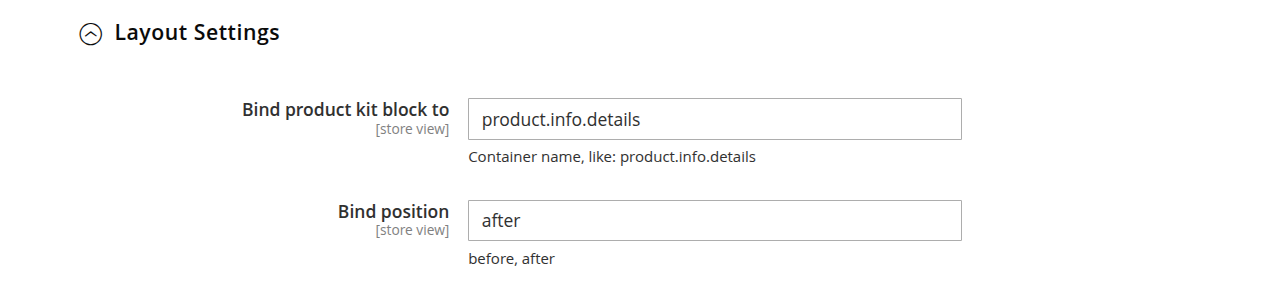
Use ?debug=kit after saving to confirm the kit block now appears in the expected position.