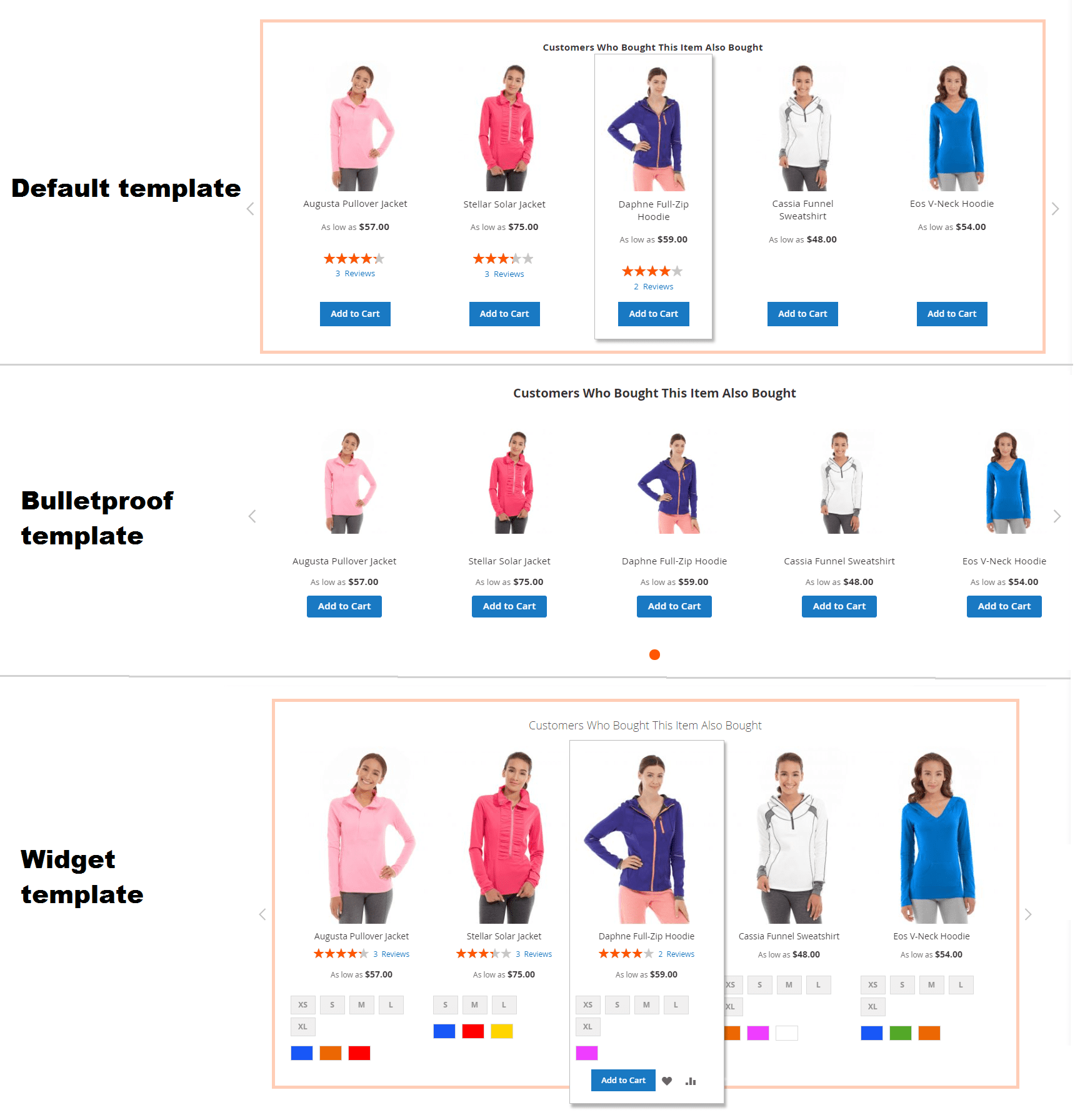
Product block
These settings control how related product blocks are displayed on your Magento store pages. Navigate to Marketing > Related products > Product blocks to view existing blocks or create a new one using the Add new block button.
General information
Basic details for managing the rule.
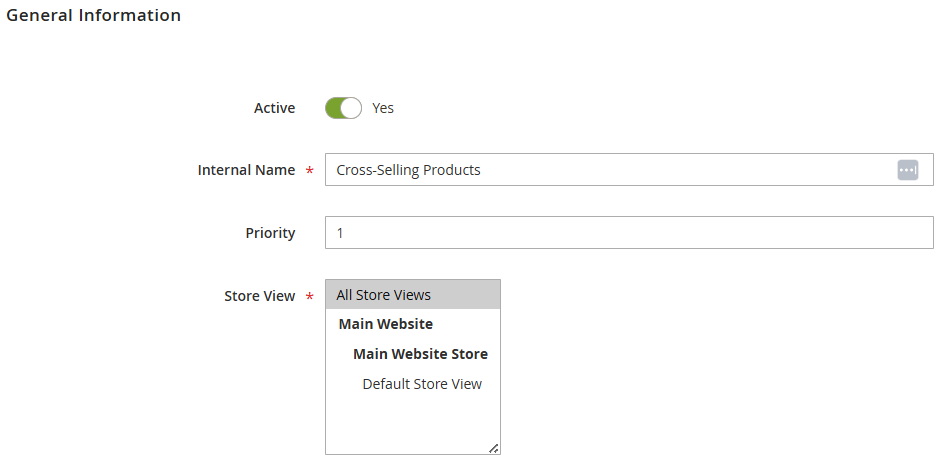
- Active (Yes/No): enable or disable the rule.
- Internal name: internal identifier for the rule (not visible to customers).
- Priority: determines which rule is applied first when multiple rules match. A lower number = higher priority.
- Ignore subsequent blocks (Yes/No): if enabled and this block renders successfully (i.e., it has matching products) on a given page position, no other blocks configured for that same position are rendered afterward.
- Store view: select which websites, stores, or store views the rule applies to.
Where to display
Choose where and how the block appears.
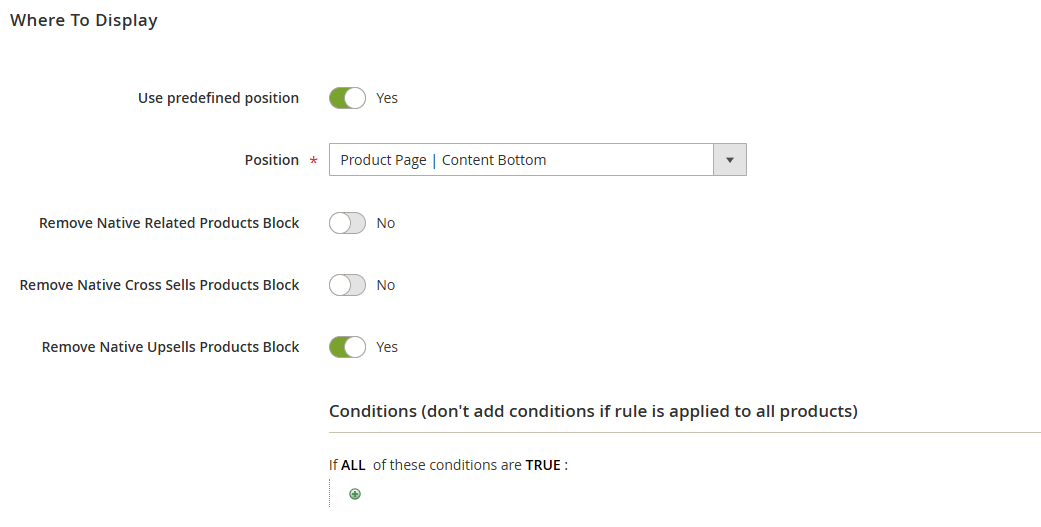
-
Use predefined position (Yes/No):
-
Yes: choose a Position from a predefined list, grouped by the page type the block will appear on:
- Product Page: Add into Native Related Block, Add into Native Upsell Block, Content Top, Content Bottom, Sidebar Top, Sidebar Bottom.
- Category Page: Content Top, Content Bottom, Sidebar Top, Sidebar Bottom.
- Shopping Cart Page: Add into Native Cross Sell Block, Content Top, Content Bottom.
- Customer Account Pages: Content Top, Content Bottom.
-
No: specify a custom placement using the syntax
page/container/before/after.- Example:
catalog_product_view/product.info.extrahint//-
- Example:
-
-
Remove native blocks:
- Remove native related products block
- Remove native cross-sells products block
- Remove native up-sells products block
Hides Magento’s default recommendation blocks.
After changing block positions or adding a new block, clear the Magento cache.
-
Conditions: define the conditions for applying the rule. Leave empty to apply the rule to all pages/products matching the selected position. The condition builder shown depends on the page type selected in Position:
- Product Page positions: a Product Attribute condition builder - e.g., If ALL of these conditions are TRUE: [Attribute Set is X, Category is Y, etc.]
- Category Page positions: a Category condition builder, limited to the category's ID.
- Shopping Cart Page positions: Magento's native Cart Price Rule condition builder (cart subtotal, items count/attributes, etc.).
- Customer Account Pages positions: a Customer condition builder based on Group or Gender.
No condition builder is shown when Use predefined position is set to No (custom position).
What to display
This section defines what products would be displayed in the block. You need to configure Product selection rules first to be able to choose what products to display.
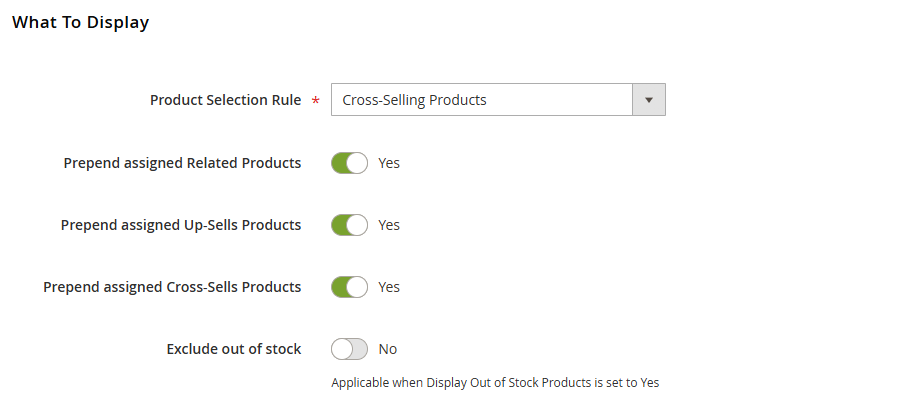
-
Product selection rule: assign a selection rule (e.g., cross-selling products, viewed together) to define which products appear.
-
Prepend assigned related/up-sells/cross-sells products: if enabled, manually assigned products will appear before automatically generated ones.
-
Exclude out of stock (Yes/No): exclude out-of-stock products from recommendations.
Note:Works only if Display out of stock products in Magento is set to Yes.
How to display
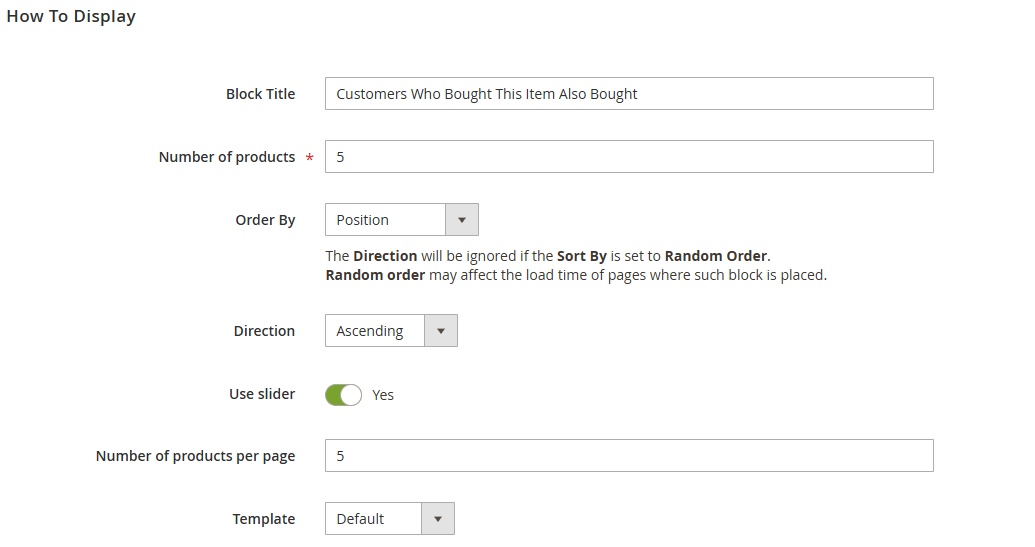
Control the appearance of the recommendation block.
-
Block title: heading displayed above the block (e.g., Customers who bought this item also bought).
-
Number of products: maximum number of items to display.
-
Order by: defines sorting logic (e.g., position, product name, price or random order).
Note:Random order may slightly increase page load time.
-
Direction: ascending or descending order. (Ignored if Random Order is selected.)
-
Use slider (Yes/No): enable to display products in a carousel slider.
-
Number of products per page: sets how many products are visible before scroll/slider navigation is added.
-
Template: choose the display template (default, bulletproof or widget).