Transactions
Every change to a customer's reward points balance — earning, spending, expiration, or a manual adjustment — is recorded as a transaction. The Transactions grid gives you a full, auditable history of these balance changes, and lets you create manual transactions yourself.
To view transactions, go to Marketing -> Promotions -> Reward Points -> Transactions.
Transactions grid
The grid lists every recorded transaction, with the following columns:
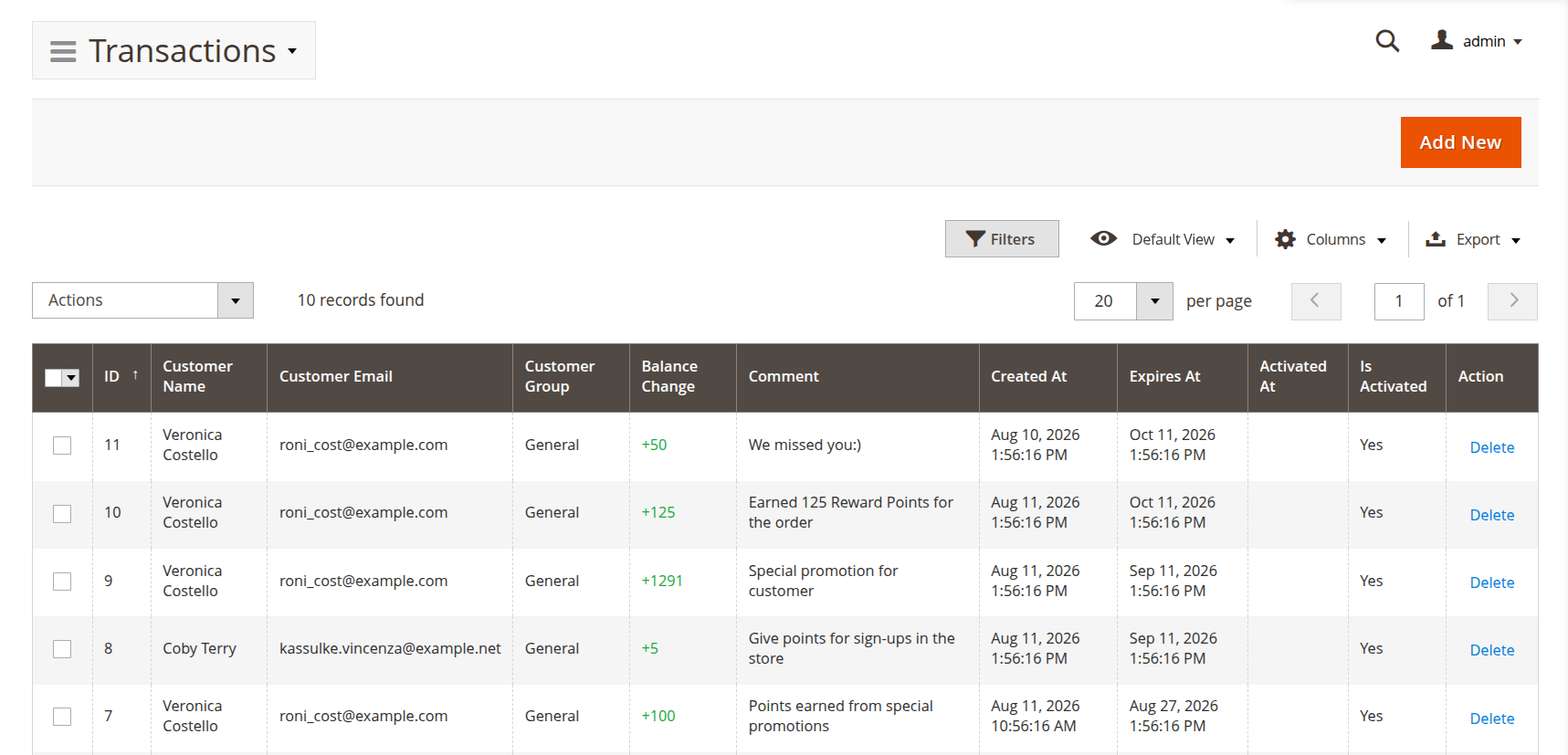
- ID: the unique identifier of the transaction.
- Customer Name, Customer Email: the customer the transaction belongs to.
- Customer Group: the customer group the customer belonged to at the time of the transaction.
- Balance Change: the number of points added (positive) or deducted (negative) by this transaction.
- Comment: the message recorded in the customer's rewards history for this transaction.
- Created At: when the transaction was recorded.
- Expires At: the date the earned points expire, if applicable.
- Activated At: the date the pending points became (or will become) available for the customer to spend.
- Is Activated: whether the transaction's points are already active (available to spend) or still pending.
Use the grid filters to narrow the list down, and the Columns control above the grid to show or hide columns.
Managing transactions
- Add New: opens the form for creating a manual transaction — see How to manually adjust a customer's reward points balance.
- Select one or more rows to reveal mass actions:
- Activate: immediately activates the selected pending transactions, making their points available to spend right away.
- Delete: permanently removes the selected transactions, along with the balance change they hold.
- Export: export the grid contents to CSV or Excel XML.