How to view social login analytics
The Social Login Analytics report shows how many customers have linked each social login provider, and how many orders, items and how much revenue those customers bring.
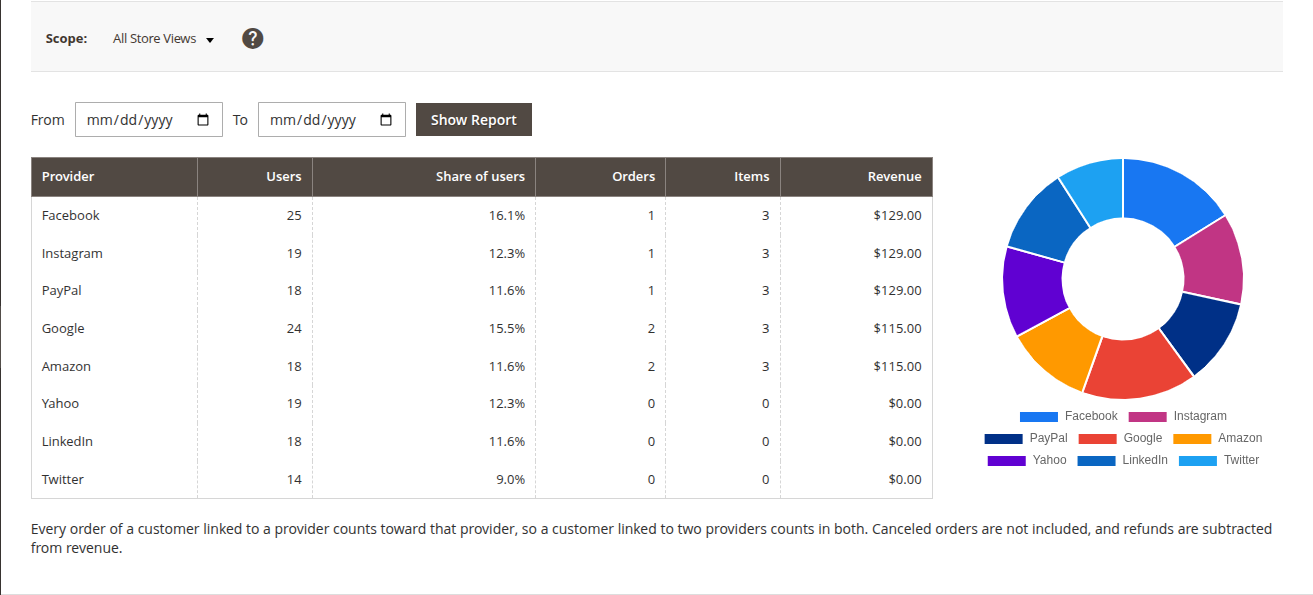
1. Open the report
- Go to Reports -> Customers -> Social Login.
The report lists every provider that at least one customer has linked, ranked by revenue. Click a column header to sort by it; click it again to reverse the order. A chart next to the table shows how the users are split between the providers.
2. Read the columns
- Provider - the social network the customer linked to their account.
- Users - the number of customers who linked this provider. A customer with several accounts at one provider counts once.
- Share of users - this provider's users as a percentage of all users in the table.
- Orders - the orders placed by those customers.
- Items - the number of items in those orders.
- Revenue - the grand total of those orders, including shipping and tax, less the amount refunded, in the base currency of the default scope. Orders from websites with another base currency are converted at each order's own rate.
Every order of a customer linked to a provider counts toward that provider. A customer linked to two providers counts in both, so the totals of all providers can be higher than your store's totals. Canceled orders and guest orders are not included.
3. Filter by period
- Choose dates in From and To.
- Click Show Report.
The orders are filtered by the date they were placed. The users are filtered by the date they linked the provider, so with a From date the column is named New users: the customers who linked an account in the period. The orders still count for every linked customer, including those who linked before the period.
When no provider has new users in the period, the chart is hidden.
4. Filter by store
- Choose a website or a store view in Scope.
The orders are filtered by the store view they were placed in. The users are filtered by the store view or the website the customer account was created in.
To give an admin role access to the report, allow the Reports -> Customers -> Social Login resource in the role's Role Resources.