How to add a new widget
First of all, the board should be in the Configure mode. To enable it, press the Customize button in the toolbar.
To add a widget into the board press the Add New Widget button. The extension will show a pop-up where you'll be able to choose one of the widgets from the extension's widgets library or create an empty widget and configure it from scratch.
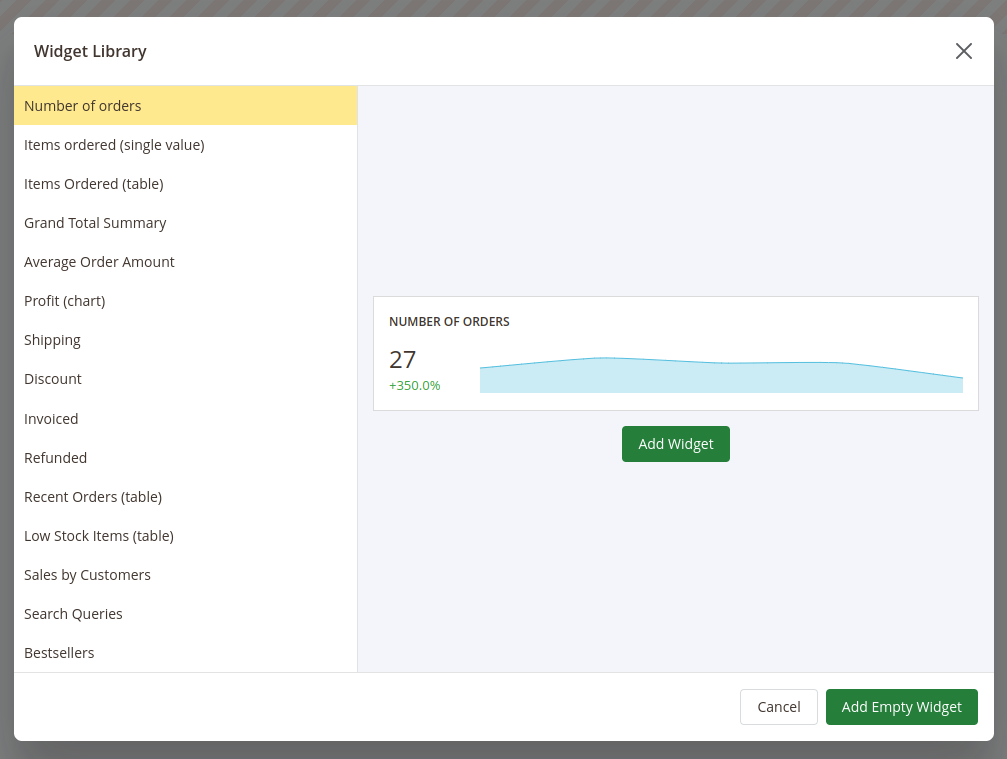
After adding a new widget you can adjust it even if the widget is added from the widgets library.
To change the place where the widget should be placed press on the icon in the right top corner of the widget, drag the widget and drop it in the place instead of the board field where you'd like for this widget to be placed in.
To adjust the size of the widget press on the bottom right corner of the widget and drag the cursor to change the size of the widget.
To configure the widget press the gear icon in the right top corner of the widget. The Widgets Editor will appear.
Duplicate a widget
To quickly create a similar widget, press the Duplicate icon (next to the gear icon) in the right top corner of an existing widget while the board is in Configure mode.
A copy is added to the board directly below the original, named <widget title> (copy), with all of its settings copied. The copy is independent — editing it does not change the original. Adjust, reposition, and save it like any other widget.
Duplicating is the fastest way to build several variations of the same view — clone a configured widget, then change only the metric, filter, or goal in the copy.