Prompts
Prompts are reusable message templates. Instead of retyping the same complex instruction every time, you define it once as a prompt and invoke it with a short slash command. When a prompt is invoked, Copilot sends the pre-built template as the first message of the conversation.
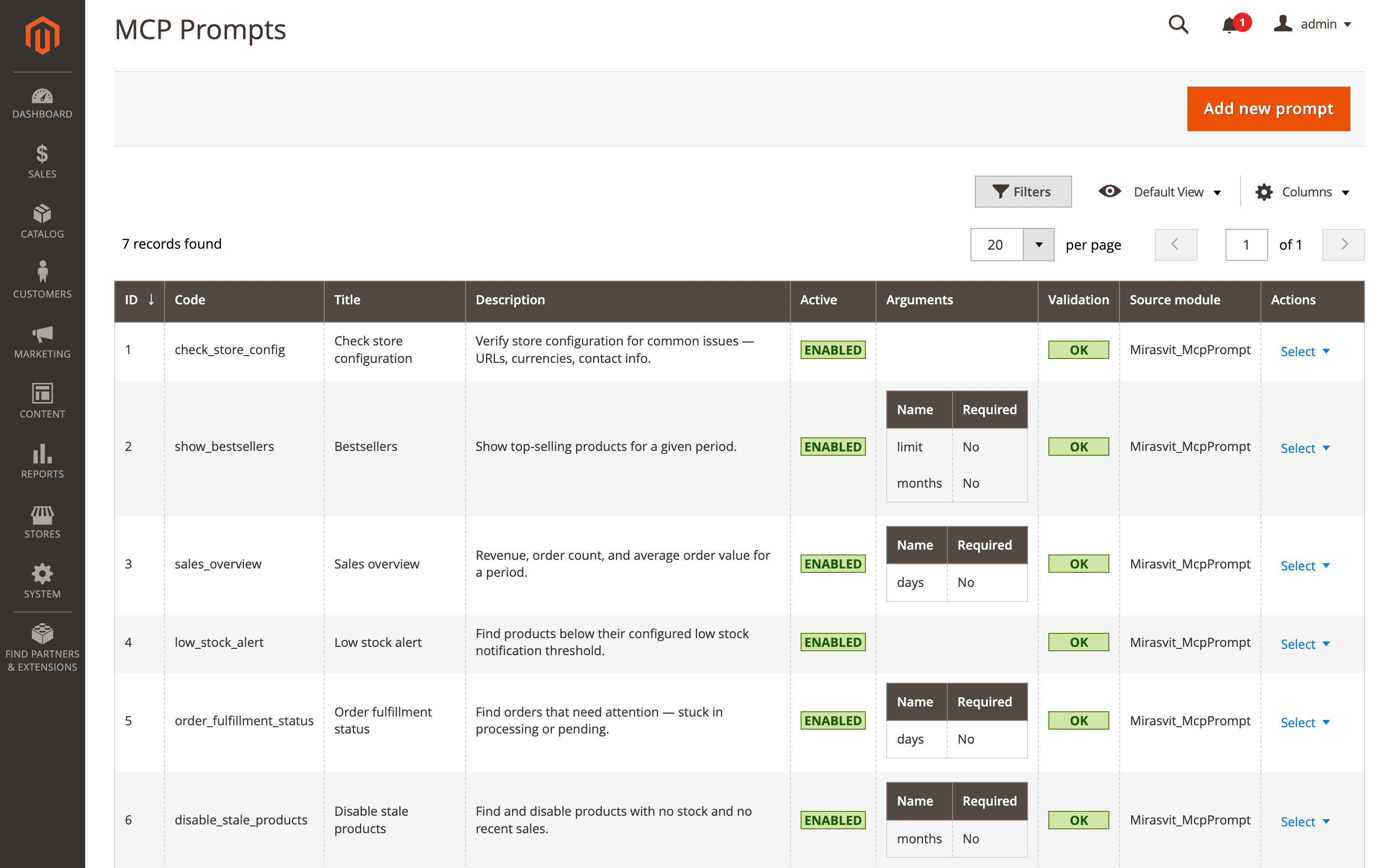
Prompts are defined and managed in the Mirasvit AI Agent Connector extension — the Copilot extension reads them through the shared prompts library. The same prompts are also available to any external AI client connected through the AI Agent Connector.
Invoking a prompt
In the chat input, type / followed by part of the prompt's code. An autocomplete list appears with matching prompts. Pick one with Enter or click, or keep typing to narrow the list.
-
Prompt without arguments — fires immediately. The chat displays the prompt's title, not the full template text.
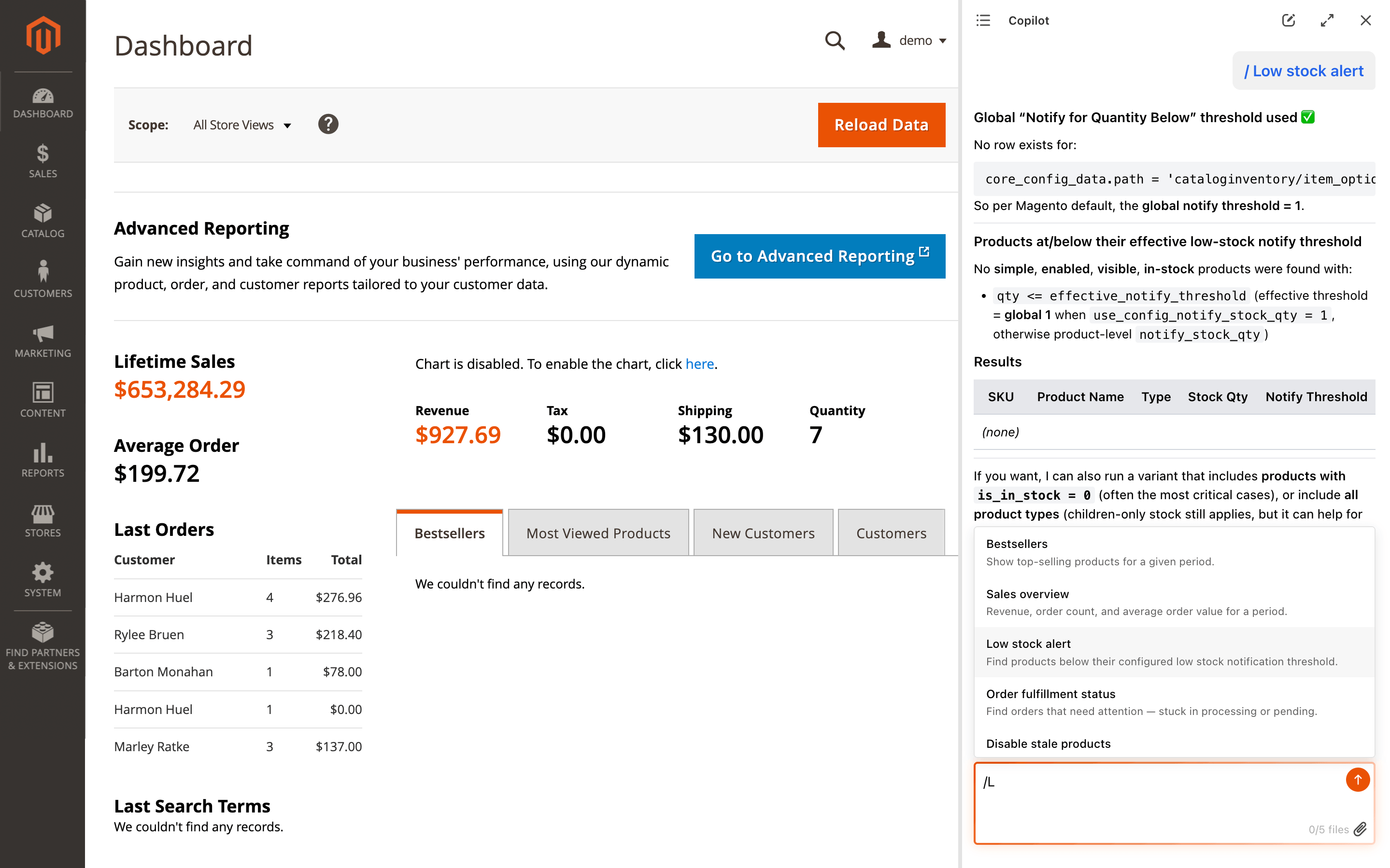
Prompt without arguments -
Prompt with arguments — switches the input to argument-entry mode. Each argument gets its own field with the argument name as a hint. Required arguments must be filled before the prompt can be sent. Press
Enterto send,Escapeto cancel.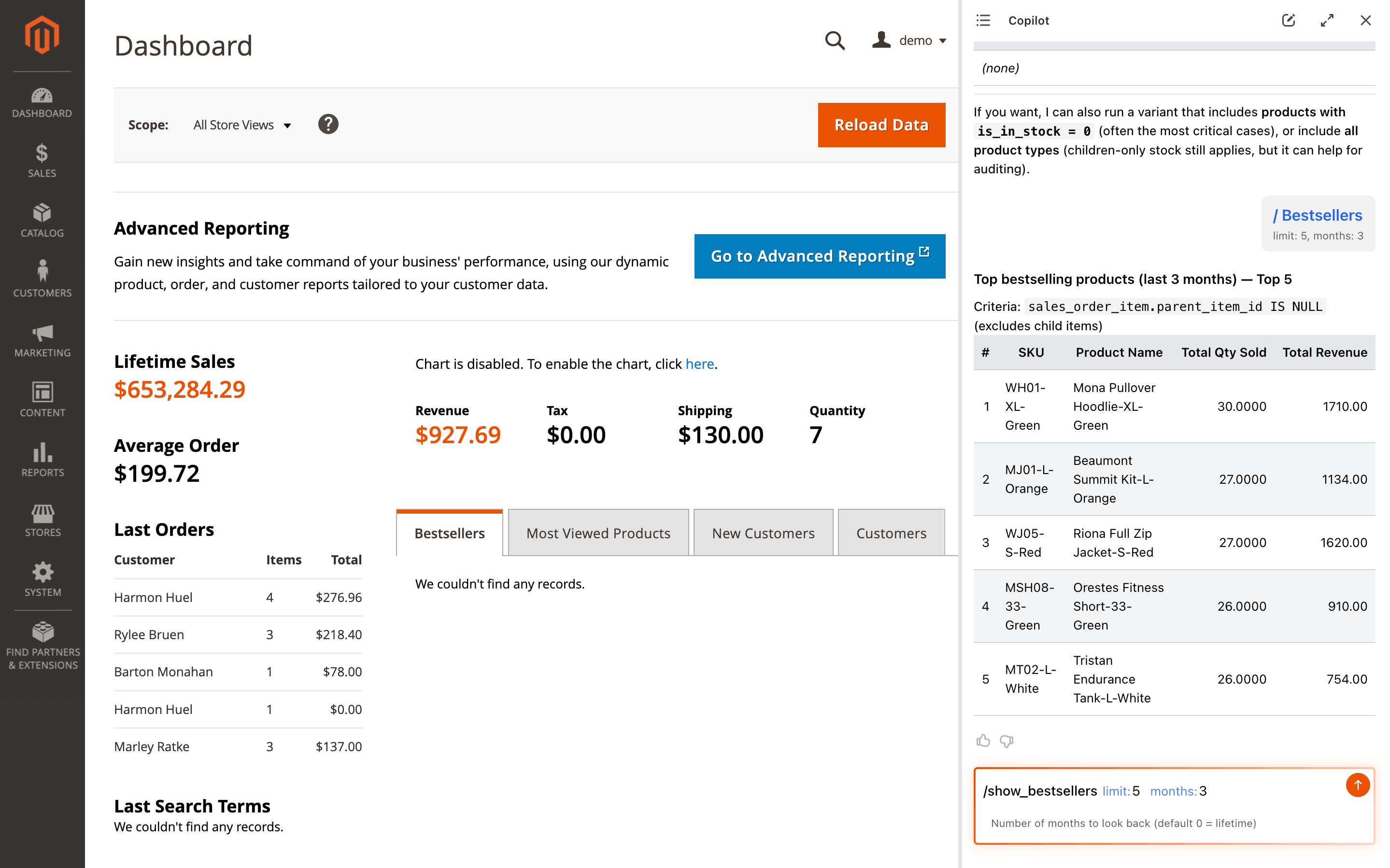
Prompt with arguments
On the welcome screen
Admins can surface selected prompts as clickable cards on the welcome screen. Cards appear above the default questions and can be toggled on or off per Copilot instance in the widget configuration panel — see Widget configuration → Welcome tab.
Clicking a card with an argument-free prompt fires it immediately. Clicking a card with arguments opens the chat input in argument-entry mode, so the admin fills the values and sends.
Pre-defined vs custom prompts
The extension ships with pre-defined prompts for common Magento tasks (bestsellers, sales overview, low stock, stuck orders, etc.). Pre-defined prompts are read-only — you can disable them or duplicate them for editing, but you cannot modify the original.
Custom prompts are fully editable. They can be created in the Prompts grid or through the REST API.
Prompt form
Open the Prompts grid from Stores → Configuration → Mirasvit Extensions → AI Copilot → Slash Commands and click the Configure Slash Commands button. On the grid page, click Add new prompt or any existing row to open the form.
The form header provides four buttons: Save, Back (cancel), Delete (custom prompts only), and Duplicate — the latter creates an editable copy of any prompt, which is the only way to customize a pre-defined prompt.
A validation banner may appear at the top with warnings about the prompt — e.g. when declared arguments don't match placeholders in the Content.
Fields are grouped into four collapsible fieldsets, all expanded by default.
General
- Title: display name shown in the admin grid, in slash autocomplete, and in the chat after the prompt is invoked. Required. Not used as an identifier — rename freely.
- Code: unique identifier that clients use to invoke the prompt. This is the string after
/in slash autocomplete (e.g./bestsellersmatches the prompt whose code isbestsellers). Required, must be unique. Use lowercase and underscores — avoid spaces and punctuation. Changing the code on an existing prompt breaks any saved references. - Active (Yes/No): enables or disables the prompt. Disabled prompts are hidden from clients — they don't appear in slash autocomplete or on the Copilot welcome-screen selector. For pre-defined prompts this is the only editable field.
Content
- Description: short summary shown in the client's prompt picker and autocomplete. One or two sentences. Helps users pick the right prompt before invoking it.
- Content: the prompt template — the actual text sent to the AI at invocation time. Use
{{argument_name}}to reference arguments declared below; placeholders are substituted with the user-provided values and unfilled optional placeholders are removed from the final text. Be specific — include table names, column names, filter conditions, API endpoints, and the expected output format. Required. See Create effective prompts for patterns.
Arguments
Arguments are optional parameters exposed to the client so users can parameterize a prompt — a number of days, a SKU, a category ID, and so on. Stored as a sortable list of rows; drag the handle on the left to reorder.
Required arguments must appear before optional ones. The system automatically reorders them on save, moving required rows to the top while preserving relative order within each group. This matters because many clients pass user input positionally.
Each row has three fields:
- Name: the placeholder name used inside the Content template. If the name is
limit, then{{limit}}in the content is replaced with the user-provided value. Required. Use single-word, lowercase, underscore-separated names. Must match the placeholders in Content exactly — mismatches trigger a validation warning. - Description: explains the argument's purpose and accepted values. Visible to both the user and the AI client. Include the default value inline, e.g.
"Number of days to look back (default 7)". - Required (Yes/No): whether the argument must be filled for the prompt to be invoked. Default No. Keep as few arguments required as possible — prefer optional arguments with clear defaults stated in the Content.
Some MCP clients split user input by spaces and map tokens positionally to declared arguments. Multi-word values like "last month" may be truncated to "last". Design arguments to accept single-word values — numbers, codes, or short identifiers. If a prompt declares any arguments, some clients require the user to provide at least one value before invoking the prompt, even when all arguments are optional.
Dependencies
-
Required tools: multi-select listing the MCP tools the prompt needs to run. If the authenticated admin's role lacks access to any listed tool, the prompt is hidden entirely — no slash autocomplete, no welcome-screen card. Common selections:
- Database-only prompts —
System / Database Reader - Read-then-write prompts —
System / Database Reader+System / REST API - Config-aware prompts —
System / Store Info+System / Database Reader
Leave empty only for prompts that need no tools (e.g. a pure writing-style prompt).
- Database-only prompts —
-
Source module: module that provides this prompt. Used for cleanup — if the named module is uninstalled or disabled, the prompt is automatically hidden. Set automatically for pre-defined prompts during
setup:upgrade; leave empty for custom prompts unless you want to tie the prompt to a module's lifecycle.
Prompt validation
The extension validates prompts automatically:
- Unused arguments — an argument is declared but its
{{placeholder}}is not found in the content. - Undeclared placeholders — a
{{placeholder}}appears in the content but no matching argument is declared.
Validation results appear in the Validation column of the Prompts grid ("OK" or "Needs attention") and as warning messages on the prompt edit page.
Module-aware filtering
Each pre-defined prompt records which Magento module provides it. If that module is disabled, the prompt is automatically hidden — even if it still exists in the database.
REST API
Prompts can be managed through the Magento REST API. All endpoints require admin authentication and the Mirasvit_McpPrompt::prompts ACL resource (or prompts_edit / prompts_delete for write operations).
| Method | Endpoint | Description | ACL |
|---|---|---|---|
| GET | /V1/mcp/prompts | List all prompts | prompts |
| GET | /V1/mcp/prompts/:id | Get prompt by ID | prompts |
| POST | /V1/mcp/prompts | Create a custom prompt | prompts_edit |
| PUT | /V1/mcp/prompts/:id | Update a prompt | prompts_edit |
| DELETE | /V1/mcp/prompts/:id | Delete a custom prompt | prompts_delete |
Create request body:
{
    "title": "My Prompt",
    "content": "Show top {{limit}} products",
    "description": "Custom report",
    "arguments": "[{\"name\":\"limit\",\"description\":\"Number of products\",\"required\":false}]",
    "requiredTools": "builtin_system_dbreader",
    "isActive": true
}
The code is auto-generated from the title with a unique suffix if needed.
Update for pre-defined prompts only allows changing isActive. All other fields are ignored.
Delete is blocked for pre-defined prompts.
Adding prompts from custom modules
Any Magento module can ship pre-defined prompts by placing a prompts.yaml file at etc/mcp/prompts.yaml. The extension discovers these files from all installed modules during setup:upgrade.
Example etc/mcp/prompts.yaml:
- code: my_custom_report
  title: Custom report
  description: Generate a custom sales report.
  content: |
    Generate a sales report.
    Query the sales_order table for orders in the last {{months}} months.
    Include order count, total revenue, and average order value.
  arguments:
    - name: months
      description: "Number of months (default 3)"
      required: false
  required_tools: builtin_system_dbreader
  is_active: true
The module field is set automatically from the module name — do not include it in the YAML.
When a module is uninstalled and setup:upgrade is run, any prompts from that module are automatically removed from the database.