Admin User — MCP Info
The MCP Info tab appears on the admin user edit page at System -> Permissions -> All Users -> [User]. It shows the user's MCP access status, connection summary, and AI client configuration.
MCP Access

- MCP Access: enables or disables MCP access for the user.
- Enabled: the user can authorize AI clients and use MCP tools.
- Disabled: the user cannot authenticate via OAuth or use any MCP tools. All active tokens are revoked immediately.
Changing this setting requires entering your current admin password for confirmation.
OAuth Connections Summary
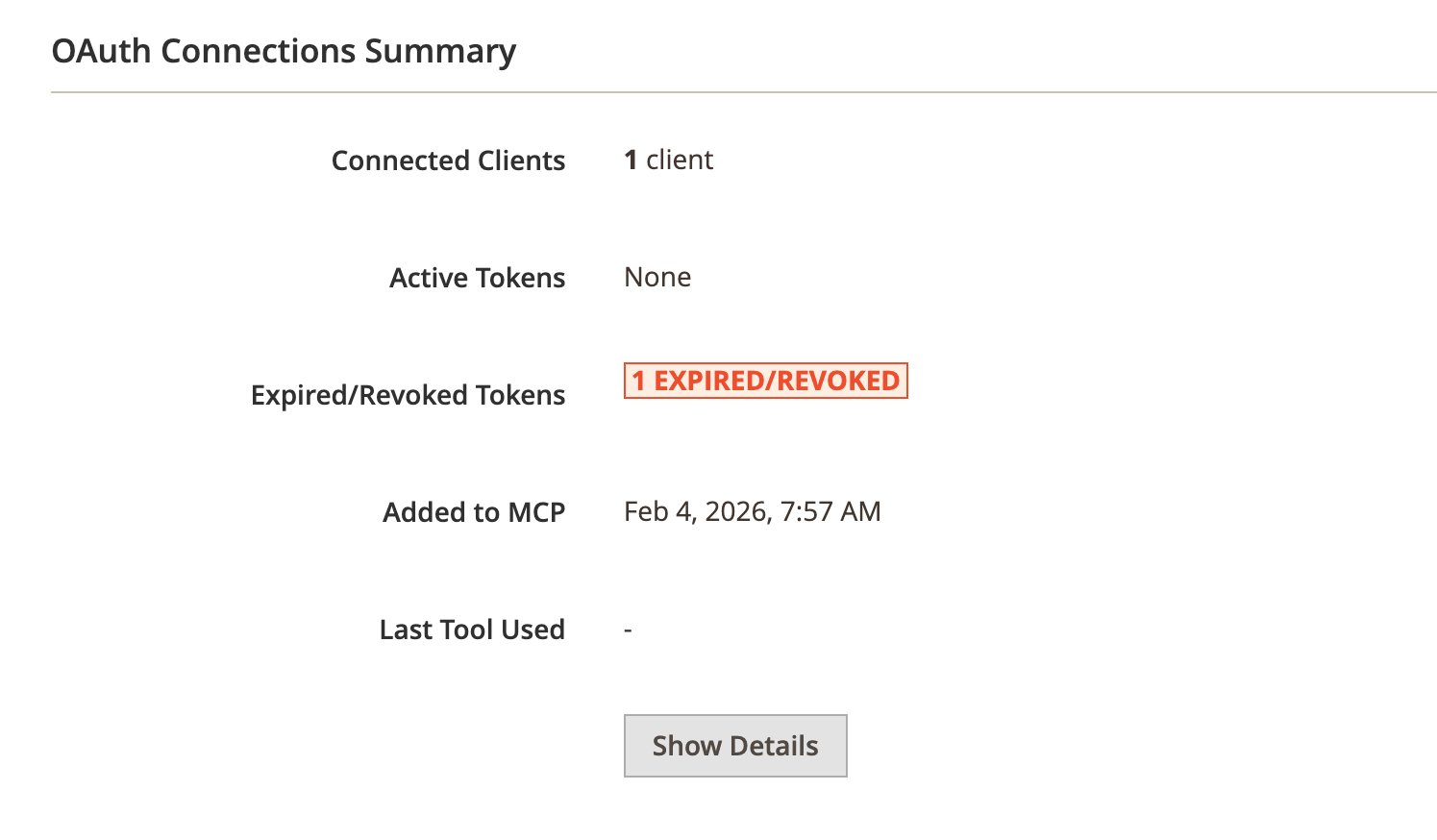
This section is displayed when MCP access is enabled. It shows:
- Connected Clients: number of AI clients that have been authorized.
- Active Tokens: number of currently valid tokens (green badge).
- Expired/Revoked Tokens: number of expired or revoked tokens (gray badge).
- Added to MCP: date when the user was first added to MCP.
- Last Tool Used: date and time of the most recent tool call.
Action buttons
When the user has active tokens, two buttons are available:
- Show Details: opens a modal with a detailed token grid showing each token's client name, status, creation date, and expiration.
- Revoke All Tokens: revokes all active OAuth tokens for the user. This action cannot be undone — the user's AI clients will need to re-authorize.
AI Client Configuration
This section displays setup instructions for each supported AI client in a tabbed interface. Each tab contains:
- MCP Server URL and OAuth Authorization URL pre-filled for the current store.
- Quick setup command — a copy-able command to configure the client in one step.
- Manual setup configuration — a copy-able JSON configuration for manual setup.
The tabs are:
- Claude Code
- Claude Desktop/Web
- Gemini CLI
- OpenAI Codex
- OpenAI ChatGPT
- Other — generic MCP client configuration and personal access token management
Other tab — Personal Access Tokens
The Other tab includes a Clients without OAuth support section for managing personal access tokens (PATs). This section is visible when PATs are enabled in Stores -> Configuration -> MCP Server -> Authentication -> Personal Access Tokens.
From this section, admin users can:
- Generate Token — creates a new PAT (requires password confirmation). The
Authorization: Bearerheader is shown for easy copying. - Show Token — reveals a previously generated token (requires password confirmation). Tokens are hidden by default to prevent unintentional exposure during screen sharing.
- Regenerate Token — creates a new token, automatically revoking the previous one (requires password confirmation).
- Revoke Token — revokes the active token.
The token inherits the admin user's ACL role permissions. See Other clients for setup instructions.