Settings
All settings on this page are located at Stores -> Configuration -> Mirasvit Extensions -> MCP Server.
For tool-specific settings (e.g., Database Reader), see the MCP Tools Settings page.
To apply changes, clear the Magento cache after modifying these settings.
General Settings

- Enable MCP Server: master switch for the MCP server endpoint. When set to No, AI clients will not be able to connect, and the MCP endpoint (
/mcp) will return an error. Default: Yes.
Rules for AI Agents
- Rules: your rules for every AI agent connected to the store, for example "Never remove product images" or "Never change data on store view
cz". The text is sent at the start of the instructions an AI client receives when it connects, before the list of tools. Empty by default.
Rules for the agents of one role are added on the role's MCP Info tab, see User Role. They come after this text and never replace it.
Keep in mind:
- The rules are advice to the AI model, not a permission. They do not stop a tool from making a change, on any store view. To limit what an agent can do, use its role's resources and write access.
- Every agent can reach every store view, whichever address it connected through. To protect a store view, name it in the rule.
- Some AI clients ignore or shorten the instructions a server sends, so put the most important rules first.
- A changed text reaches an agent when its client reconnects.
For a step-by-step setup, see Give AI agents your store rules.
Security

- Allowed IP Addresses: restricts which IP addresses can access the MCP endpoint. Enter one IP address per line. When empty (default), all IPs are allowed.
IP restriction is applied before OAuth authentication. If a request comes from a non-allowed IP, it is rejected immediately without checking the OAuth token.
Even when no IP restriction is configured, every request still requires a valid OAuth access token.
Authentication
The Authentication section contains two subsections: OAuth 2.1 and Personal Access Tokens.
OAuth 2.1
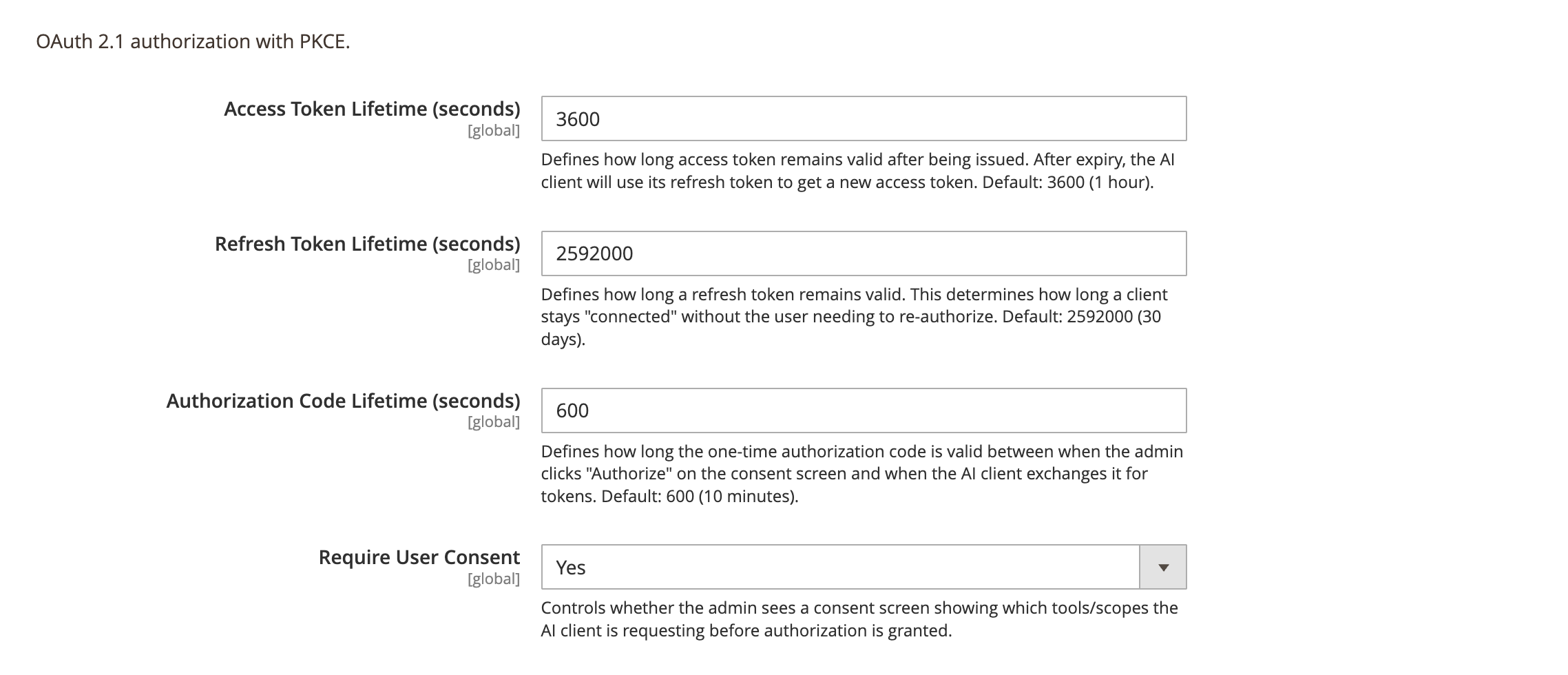
AI Agent Connector uses OAuth 2.1 with PKCE as the primary authentication method. AI clients never receive your admin password — they get a scoped access token through the OAuth authorization flow.
-
Access Token Lifetime (seconds): how long an access token remains valid after being issued. After expiry, the AI client automatically uses its refresh token to get a new access token. No manual action is required. Default: 3600 (1 hour).
-
Refresh Token Lifetime (seconds): how long the client stays "connected" without the admin user needing to re-authorize. Once the refresh token expires, the AI client must go through the authorization flow again. Default: 2592000 (30 days).
-
Authorization Code Lifetime (seconds): how long the one-time authorization code is valid between when the admin clicks Authorize on the consent screen and when the AI client exchanges it for tokens. Default: 600 (10 minutes).
-
Require User Consent: controls whether the admin sees a consent screen showing which tools and permissions the AI client is requesting before authorization is granted. When set to No, authorization is granted immediately. Default: Yes.
Token lifecycle
The OAuth flow works as follows:
- Authorization: the AI client opens a browser window. The admin sees a consent screen and clicks Authorize. An authorization code is generated (valid for the configured lifetime).
- Token exchange: the AI client exchanges the authorization code for an access token and a refresh token.
- API access: the AI client uses the access token for every MCP request.
- Automatic refresh: when the access token expires, the AI client automatically uses the refresh token to get a new access token. This happens transparently.
- Re-authorization: when the refresh token expires, the admin must authorize the client again through the consent flow.
Personal Access Tokens
Some AI clients (e.g. Manus.ai) do not support OAuth 2.1 for custom MCP servers. For these clients, admin users can generate a personal access token (PAT) — a static Bearer token that inherits the admin user's role permissions.
We recommend using OAuth 2.1 when possible for stronger security. Use personal access tokens only for clients that do not support OAuth.
-
Enable Personal Access Tokens: global switch for PAT authentication. When set to No, all PAT authentication attempts are rejected — existing tokens are preserved but cannot be used until re-enabled. Default: No.
-
Token Lifetime (seconds): how long a personal access token remains valid after generation. Set to 0 for no expiration. Default: 0 (no expiry).
How personal access tokens work
- An administrator enables PATs in this settings section.
- The admin user navigates to the MCP Info tab and opens the Other client tab.
- The user clicks Generate Token and confirms with their password.
- The token is displayed and can be copied. To view the token again later, the user must re-enter their password.
- The user pastes the token as a Bearer token in the AI client's configuration.
- The token inherits the admin user's ACL role — no separate permission configuration is needed.
- The token can be revoked at any time from the Other tab or the MCP Users grid.
Logging
-
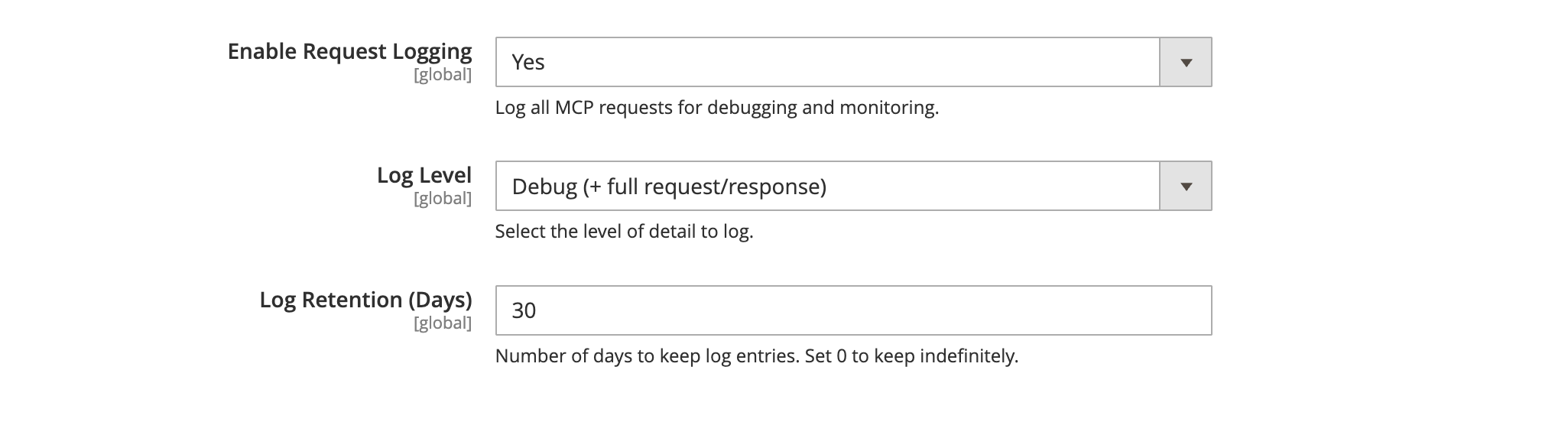
Enable Request Logging: enables logging of all MCP requests. Useful for debugging and monitoring AI client activity. Default: No.
-
Log Level: controls the amount of detail captured in logs.
- Basic: logs the method name, tool name, status (success/error), execution time, and IP address.
- Detailed: includes everything from Basic, plus the request arguments sent by the AI client.
- Debug: includes everything from Detailed, plus the full response data returned to the AI client.
Default: Basic.
The Debug level may generate large log entries, especially for tools that return significant amounts of data (e.g., database queries or REST API responses). Use it only for troubleshooting.
- Log Retention (Days): number of days to keep log entries. Set to 0 to keep logs indefinitely. Default: 30.