Event settings
The extension uses Events to determine when to trigger or stop the trigger. To set the events, navigate to Marketing -> Follow Up Email -> Manage campaigns -> Your campaign and click on the Event edit link.
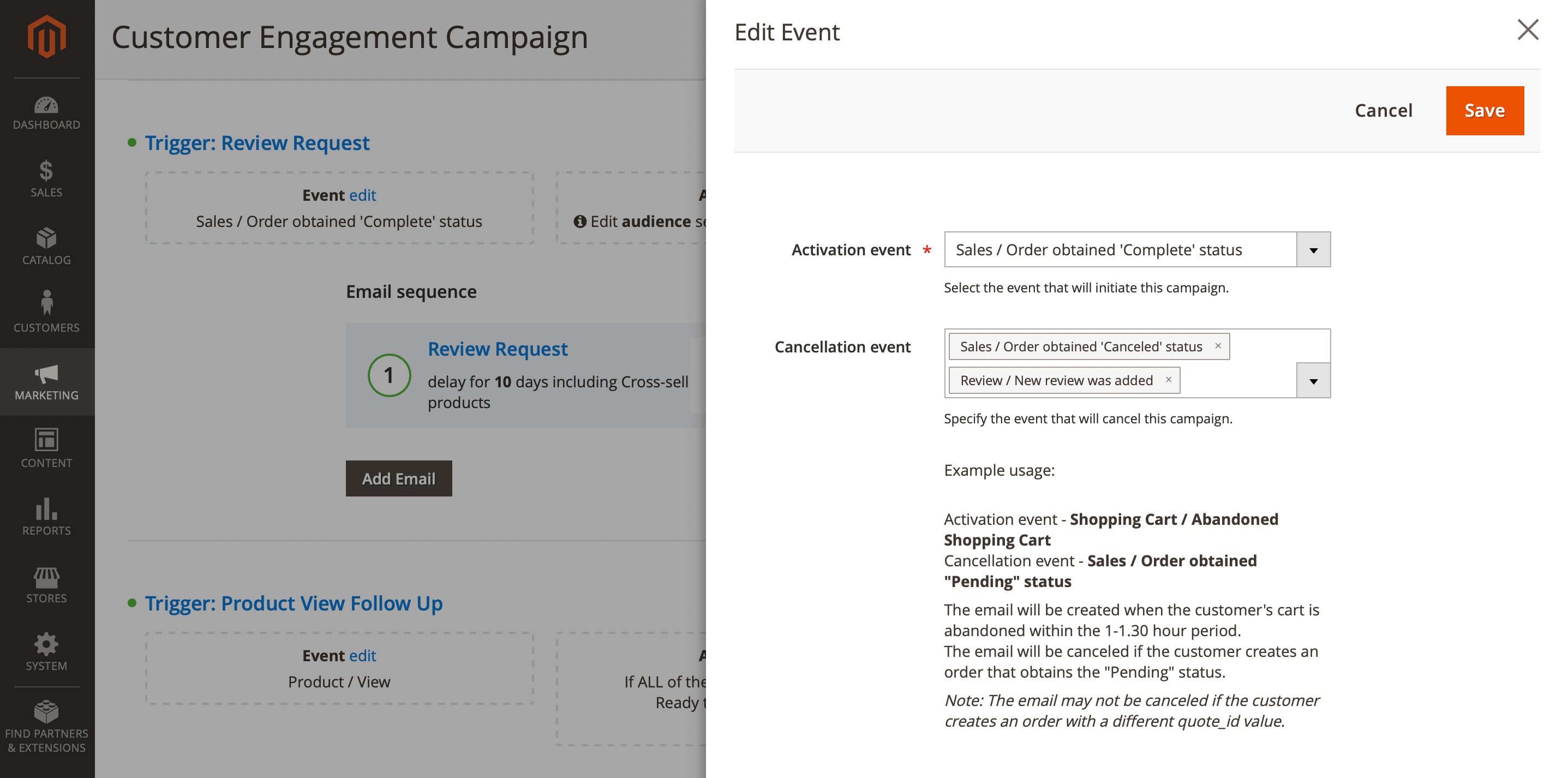
Activation and Cancellation events
The following events are available for selection as Activation or Cancellation events:
- Customer
- Customer / Logged in
- Customer / Logged out
- Customer / Sign up
- Customer / Change group
- Customer birthday
- Product
- Product / View
- Product / Added to Cart
- Product / Ordered
- Newsletter
- Newsletter / Customer was subscribed
- Newsletter / Customer was unsubscribed
- Newsletter / Customer subscription status change
- Shopping cart
- Shopping Cart / Abandoned Shopping Cart
- Sales
- Sales / Order status was changed
- Sales / Order obtained 'Canceled' status
- Sales / Order obtained 'Closed' status
- Sales / Order obtained 'Complete' status
- Sales / Order obtained 'Suspected fraud' status
- Sales / Order obtained 'On hold' status
- Sales / Order obtained 'Payment review' status
- Sales / Order obtained 'PayPal canceled reversal' status
- Sales / Order obtained 'PayPal reverse' status
- Sales / Order obtained 'Pending' status
- Sales / Order obtained 'Pending payment' status
- Sales / Order obtained 'Pending PayPal' status
- Sales / Order obtained 'Processing' status
- Sales / New order was created
- Sales / Invoice was created
- Sales / Shipment was created
- Sales / Credit memo was created
- Wishlist
- Wishlist / New product added to wishlist
- Wishlist / Wishlist was shared
- Wishlist / Product from the wishlist back in stock
- Wishlist / Product from the wishlist will be out of stock
- Wishlist / Product from the wishlist was discounted
- Customer Segment (requires Mirasvit Customer Segmentation Suite)
- Customer Segment / Customer was added to a segment
- Customer Segment / The customer was added to a segment '[Segment name]'
- Review
- Review / New review was added
- Review / Review has been approved
Multiple Cancellation events can be selected. The trigger will end when any of the cancellation events occur.
Event parameters
Some events expose configurable parameters in the event settings panel. Parameters control event-specific behavior and deduplication.
Deduplication window
Most events have a Deduplication window parameter. It defines the minimum time that must pass before the same event can fire again for the same recipient. This prevents duplicate emails when an event occurs multiple times in quick succession (e.g. a customer logs in several times a day).
| Event | Parameter | Default |
|---|---|---|
| Shopping Cart / Abandoned | Abandoned after (minutes) | 60 min |
| Shopping Cart / Abandoned | Deduplication window | 7 days |
| Customer / No Activity | Inactivity (days) | 30 days |
| Customer / No Activity | Deduplication window | 1 day |
| Customer / Logged in | Deduplication window | 1 day |
| Customer / Logged out | Deduplication window | 1 day |
| Customer / Sign up | Deduplication window | 1 year |
| Customer / Change group | Deduplication window | 1 day |
| Customer birthday | Deduplication window | 1 year |
| Product / View | Deduplication window | 7 days |
| Product / Added to Cart | Deduplication window | 1 day |
| Product / Ordered | — | Fires once per order per product (no window) |
| Sales / Order status | Deduplication window | 60 seconds |
| Newsletter / Subscription status change | Deduplication window | 1 day |
| Wishlist / New product added | Deduplication window | 30 seconds |
| Wishlist / Wishlist was shared | Deduplication window | 1 second |
| Wishlist / Back in stock | Deduplication window | 7 days |
| Wishlist / Low stock | Deduplication window | 7 days |
| Wishlist / Discounted | Deduplication window | 7 days |
| Customer Segment / Added to segment | Deduplication window | 7 days |
The Abandoned after (minutes) parameter for the Abandoned Shopping Cart event defines how many minutes of inactivity must pass before a cart is considered abandoned. Minimum value is 30 minutes.
The Inactivity (days) parameter for the No Activity event defines how many consecutive days without activity must pass before the event fires.
Example usage:
Abandined shopping cart
Activation event - Shopping cart / Abandoned shopping cart
Cancellation event - Sales / Order obtained 'Pending' status
The email will be created when the customer's cart is abandoned within the 1-1.30 hour period.
The email will be canceled if the customer creates an order that obtains the Pending status.
The email may not be canceled if the customer creates an order with a different quote_id value.
Review request
Activation event - Sales / Order status obtained 'Complete' status
Cancellation event - Sales / New order was created
The email will be created when the customer completes the order. The email will be canceled if the customer creates a new order.
New order was created
Activation event - Sales / New order was created
The email will be created every time the customer creates a new order, regardless of status.
Order obtained Pending status
Activation event - Sales / Order status obtained 'Pending' status
Cancellation event - Sales / Order status was changed
The email will be created when the customer's order obtains the Pending status.
The email will be canceled if the customer's order status is different from the Pending status.
Product was viewed
Activation event - Product / View
Cancellation event - Sales / Order status was changed
The email will be created when the customer views a product, and if the customer's email is known. The email will be canceled if the customer creates an order.
The email may not be canceled if the quote_id was not fetched during event triggering or if the customer creates an order with a different quote_id value.
Product added to cart — cross-sell
Activation event - Product / Added to Cart
Cancellation event - Sales / New order was created
The email will be created when a customer (with a known email) adds a product to the cart. Use it to send a cross-sell or upsell suggestion shortly after the add-to-cart action. The email will be canceled if the customer places an order.
This event requires the customer's email to be known at the time of adding to cart. For guests this means the email must already be captured (e.g. from a previous session or newsletter subscription).
Product ordered — review request or reorder reminder
Activation event - Product / Ordered
Fires once per product per order. Use it to send a product-specific review request, a care guide, or a reorder reminder with a delay of several days or weeks. Because the event fires per product, the template has access to {{ product.name }}, {{ product.sku }}, and all other product variables alongside the full order context.
This event fires for every visible item in the order. An order containing three products will create three separate event records — one per product.