General settings
In this section, you can configure email sending settings, customize coupon format, and manage debug mode.
The Follow Up Email settings are located at Marketing -> Follow Up Email -> Settings, and consist of the following sections:
Email sending configuration
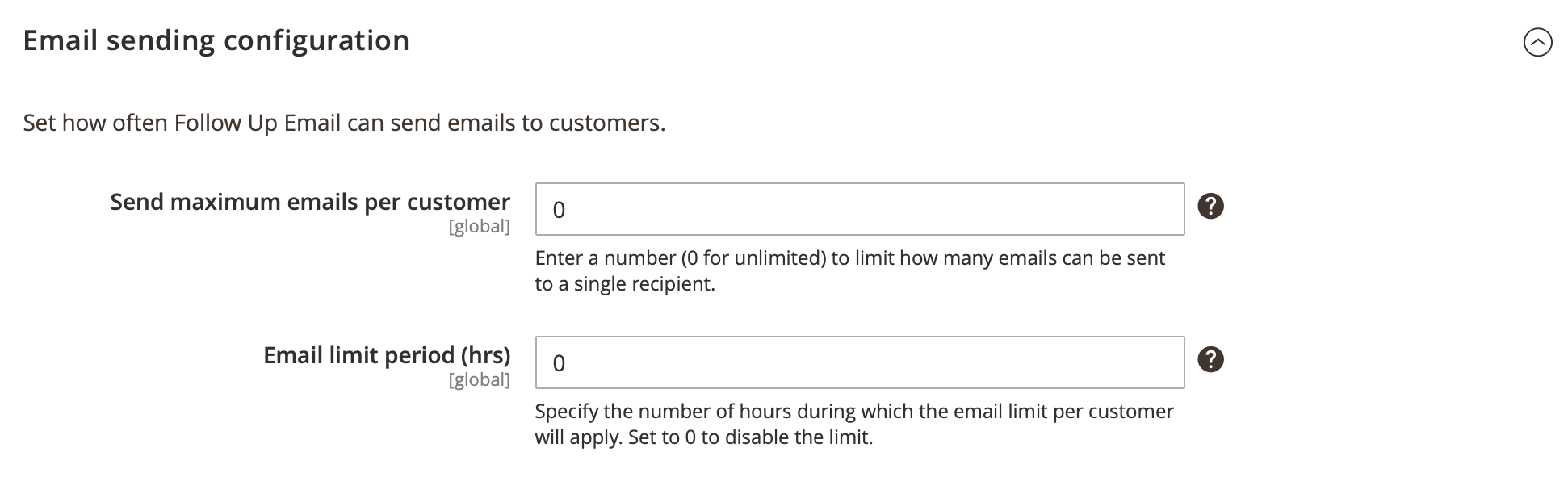
Set how often Follow Up Email can send emails to customers.
-
Send maximum emails per customer: sets a maximum number of emails allowed for a specified period.
Example:To restrict sending to 5 emails per address, enter 5. To allow unlimited emails, enter 0.
-
Email limit period (hrs): sets the period for the maximum amount of emails which can be set at Send maximum emails per customer.
Example:If Send maximum emails per customer is set to 1 and Email limit period (hrs) is set to 24 hours, the system will send no more than one emails to the same customer within that hours. Any additional Follow Up Emails within this timeframe will be blocked.
-
Unsubscribe redirect page: sets the CMS page a customer is redirected to after unsubscribing via an unsubscribe link.
-
Log customers in automatically from email links: controls whether the restore cart, checkout, reorder, and resume links in follow-up emails sign the customer in without a password.
- Yes (default): clicking a link signs the customer in and runs the action, as long as the email was sent within Automatic login link lifetime (days).
- No: links never sign anyone in. A customer who is not logged in is sent to the standard login page and, after logging in, is returned to the link, which then restores the cart, opens checkout, or re-adds the items. A resume link opens its target page without signing the customer in.
Guest cart links (carts with a captured email and no customer account) are restored without login in both modes. Unsubscribe, subscription preferences, and "view in browser" links are not affected by this setting.
-
Automatic login link lifetime (days): shown when Log customers in automatically from email links is set to Yes. Sets how many days after the email was sent its links can still sign the customer in. Older links work as in the No mode: the customer logs in first, and then the action runs. The default is
30. Enter0for no limit.Example:With the default value of 30, a customer who clicks a restore cart link from an email sent 31 days ago is asked to log in, and then sees their restored cart.
An email link never switches accounts. If a different customer is already logged in on the device, the link leaves their session and cart unchanged and shows the message "This link belongs to a different account. Please log in with the correct account to continue."
AJAX data capturing
Captures guest email addresses from any input field on the page — including third-party newsletter popups — so abandoned cart emails can fire even before the guest reaches checkout.
-
Enable AJAX data capturing: controls whether the capture script is injected on frontend pages.
- Yes — the script runs on every page and listens to all
email,username,firstname, andlastnameinput fields. When a guest types a valid email, it is saved to the session and assigned to their cart. - No — capturing is disabled.
- Not available for EU clients — capturing is disabled for visitors whose IP resolves to the EU continent (requires the MaxMind GeoLite2 database to be configured in Stores → Configuration → Mirasvit Extensions → Developer → IP Geolocation). If the database is not available, this option disables capturing for all visitors.
noteWhen the Mirasvit Event module is installed, this script is only active on Hyva-based themes. On Luma, Mirasvit Event handles capturing directly.
- Yes — the script runs on every page and listens to all
Coupon format settings
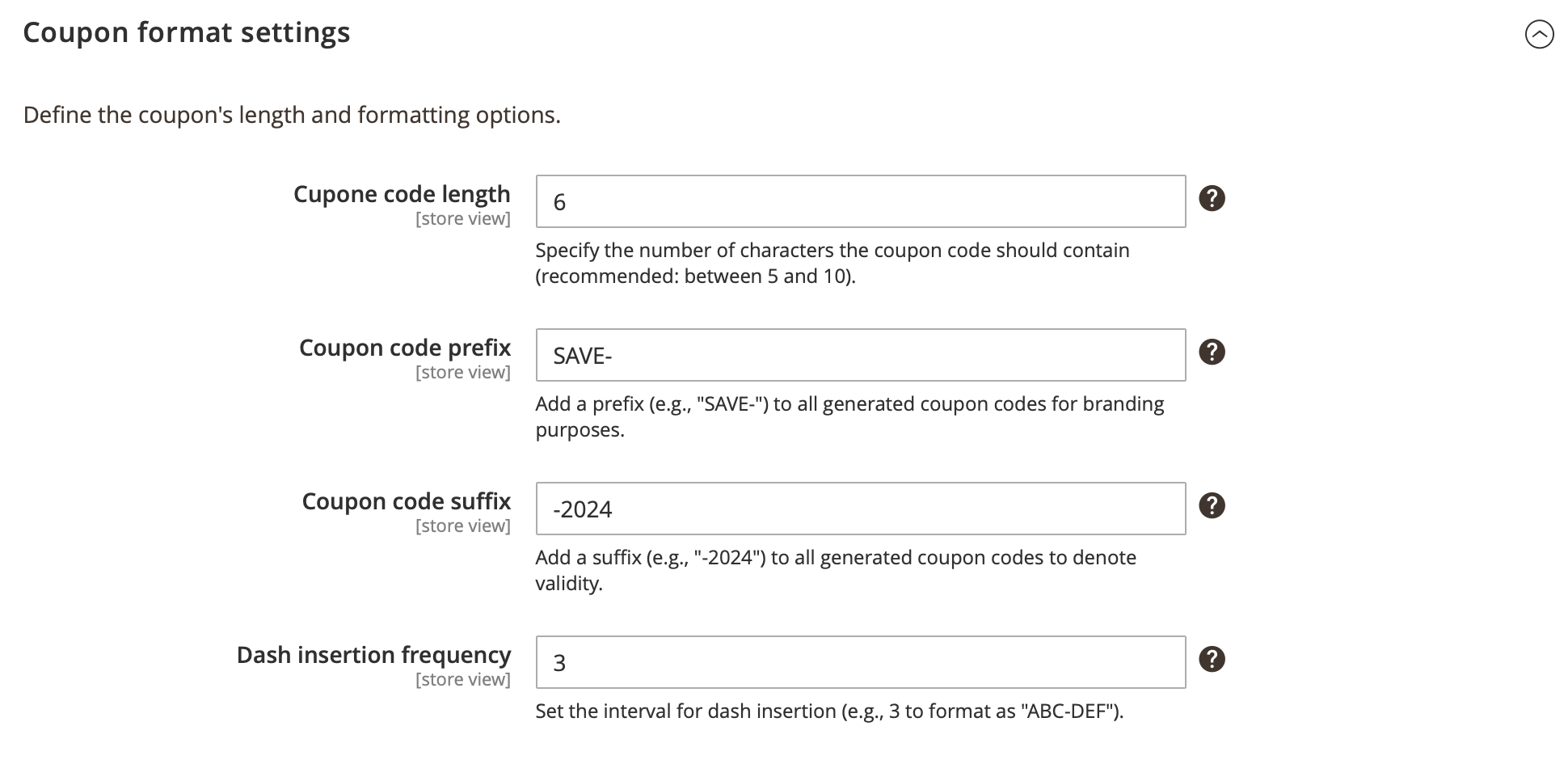
The Follow Up Email extension generates the coupon codes based on the selected shopping cart price rule. Using the settings below, you can configure an appearance of the generated coupon code.
-
Coupon code length: length of the coupon code, excluding prefix, suffix, and separators.
Example:Entering 6 will generate codes like
ABCDEF. -
Coupon code prefix: specifies common prefix used for coupon codes generated by Follow Up Email extension.
Example:Using a prefix
SAVEwill change the codes to:SAVE-ABCDEF. -
Coupon code suffix: specifies common suffix used for coupon codes generated by Follow Up Email extension.
Example:Using a suffix
-2024will change the code to:ABCDEF-2024. -
Dash insertion frequency: adds dash character every X symbol to the coupon code.
Example:Entering 3 will format the code to include a dash every three characters without affecting prefixes or suffixes.
Social media integration
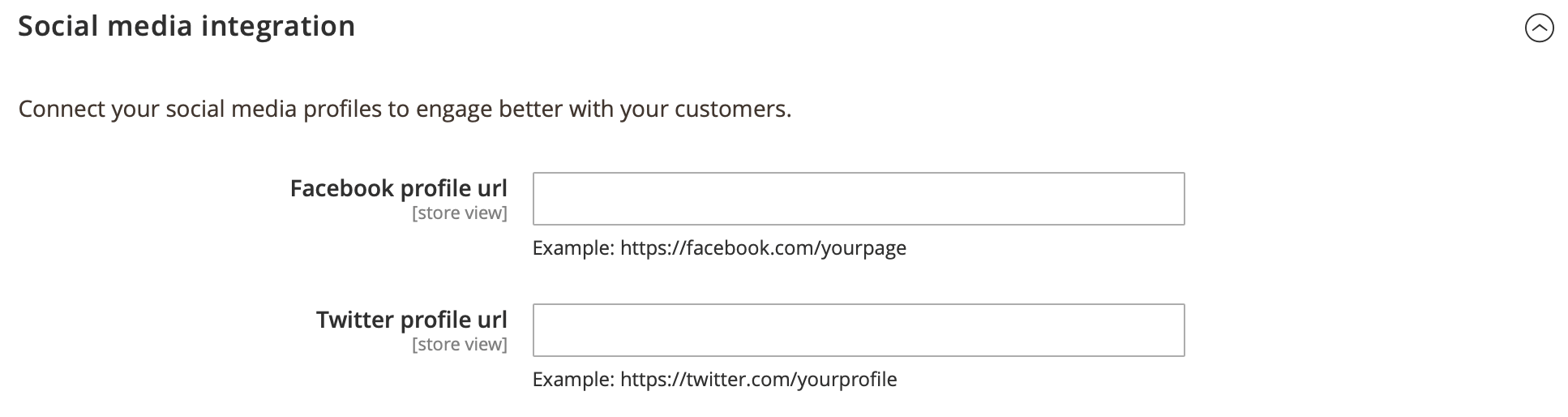
Add links to your social media profiles to enhance customer engagement. These URLs will be included in your triggered emails, allowing recipients to easily visit your official social media pages.
-
Facebook profile url: allows you to add a Facebook url to the trigger emails.
-
Twitter profile url: allows you to add a Twitter url to the trigger emails.
-
Contact Us URL: relative path or full URL used by the "Contact us" link in default email templates. Defaults to Magento's contact form path (
contact/). Set to your CMS page slug (e.g.contact-us) or a full URL if you have moved or disabled the Magento contact form.
Email sandbox
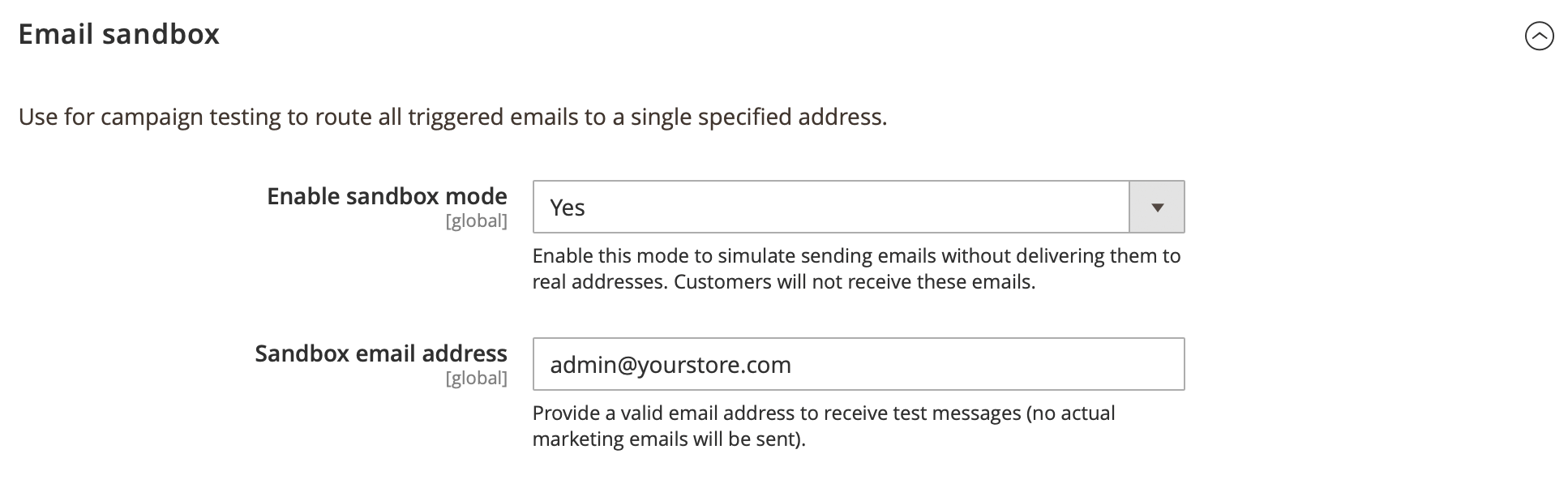
Use for campaign testing to route all triggered emails to a single specified address. Customers will not receive these emails.
-
Enable sandbox mode: if this option is enabled, all emails will be sent only to the Redirect Email.
-
Sandbox email address: sets a valid email address to receive test messages.
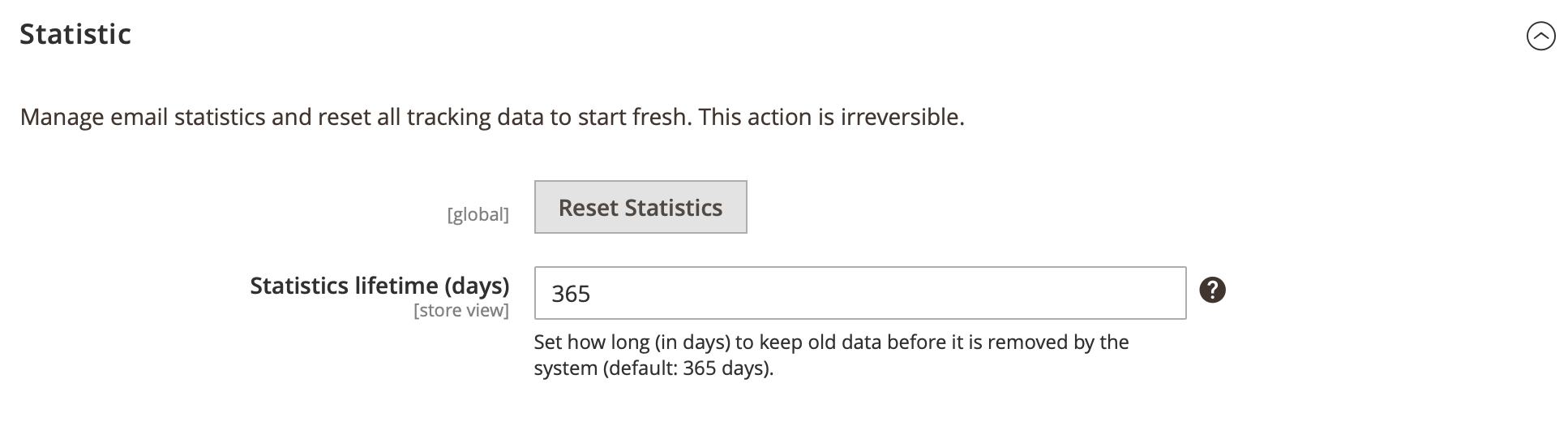
Statistic
-
Reset statistics: clears your all tracking data and start fresh with new statistics. This action cannot be undone.
-
Statistics lifetime (days): sets a number of days after which cron deletes old events and emails. The default is 365. Skips cleanup if set to 0.