Layout editor
The Blog MX layout editor allows you to customize the layout of each blog page type individually — no coding required. You can choose from predefined layouts or fully tailor the structure to your store’s needs. Go to Content > Blog MX > Layout editor, or click the Layout editor button in the Layout settings section of the module configuration.
Layout editor overview
The editor interface is divided into two main sections:
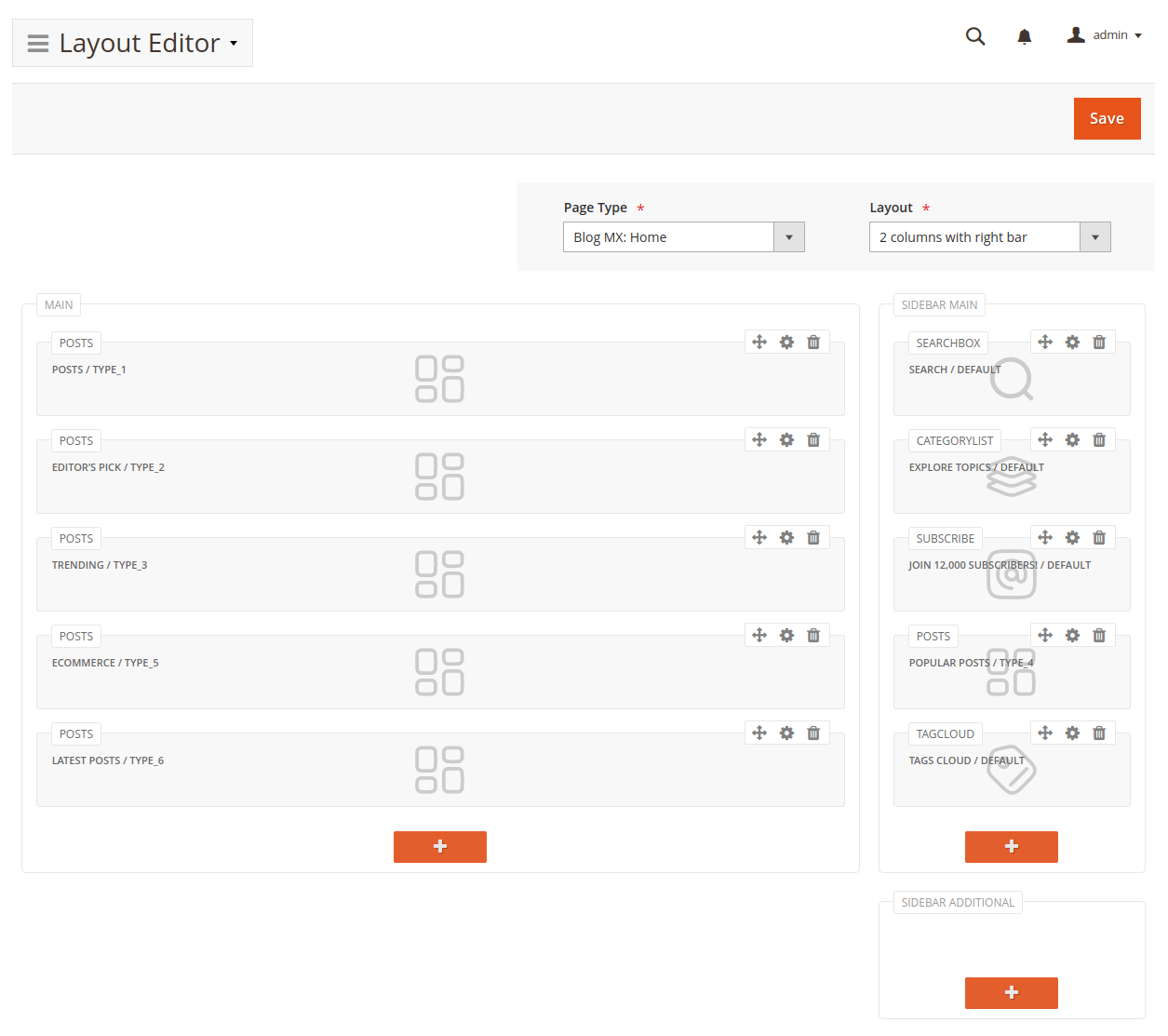
General settings
- Page type – select the type of blog page you want to configure (e.g., post view, author page, category page).
Make sure to save your changes before switching page types to avoid losing unsaved work.
-
Layout – choose the page layout structure:
- 1 column
- 2 columns with left sidebar
- 2 columns with right sidebar
- 3 columns
-
Scope – select the store view you are editing the layout for. Switching the scope reloads the editor for that store view (you are warned first if you have unsaved changes). See Per-store-view layouts and widget scope below.
-
Use Default – shown at store-view scope. When checked, the page inherits the Default Config layout and shows only widgets assigned to All Store Views. Uncheck it to give this store view its own layout and widget set. See Per-store-view layouts and widget scope below.
Layout structure editor
This section shows the layout containers, which vary based on the selected structure. Each container can hold blocks (widgets).
Per-store-view layouts and widget scope
Blog MX lets you give each store view its own blog layout and its own set of widgets. Two controls on the Layout editor form govern this:
- Scope – the store view whose layout you are editing. The Default Config scope holds the layout used by every store view that doesn't override it.
- Use Default – shown when a store view is selected. It decides whether this store view inherits the Default Config layout or uses its own.
How widgets are loaded
Unlike standard Magento — which merges the All Store Views widgets with the store-view-specific ones — Blog MX loads one set of widgets per blog page, depending on the Use Default setting for that page type and store view:
- Use Default = Yes (or editing at Default Config scope): the page loads only widgets assigned to All Store Views. Store-view-specific widget assignments are not shown.
- Use Default = No: the page loads only widgets assigned to that store view. Widgets assigned to All Store Views are not shown on that page.
This affects every widget type on blog pages, including core Magento CMS widgets such as the CMS Static Block widget. A widget assigned to All Store Views will disappear from a blog page whose store view has Use Default = No, and a widget assigned to a specific store view will not appear on a blog page using the default layout.
The Use Default setting is tracked separately for each page type, so one blog page (for example the home page) can use a store-specific layout while others (category, post) keep the default.
Choosing a setup
- Same widgets on all blog pages across all store views – keep Use Default = Yes for every page type and assign widgets to All Store Views. This is the simplest setup and matches a single-store configuration.
- Store-specific layout for a page – set Use Default = No for that page type at the store view, and assign the widgets you want to that store view. Remember that any All Store Views widgets will no longer appear on that page, so re-assign the ones you still want to the store view.
Managing blocks
Add a block
Click the + icon at the bottom of a container to insert a new widget block into that area.
Edit a block
Click the gear icon (⚙️) in the top right of a block to open its settings. You’ll first choose a widget type, then see the relevant configuration options based on your selection.
See Widgets for details on widget configuration.
Reorder blocks
Click and hold the drag icon (↕) to move a block to a different position or container.
Delete a block
Click the trash icon to remove a block from the layout.
Saving layouts
Once your layout is configured:
- Click Save to apply changes for the selected page type.
- Clear Magento’s cache for changes to appear on the frontend.
No layout changes will be visible until you click save and clear the cache.
Theme changes
Whenever a layout is saved, Blog MX generates corresponding widget instances for all active themes in the store.
If you switch to a new theme (or activate an unused one), you must manually regenerate layouts using the following CLI command:
bin/magento mirasvit:blog:update-layout
What it does:
This command updates Blog MX widgets for all currently active themes, ensuring layouts display correctly across all store views.