Blog widgets
Blog MX uses widgets to power the entire frontend display. Each widget type is designed to show specific blog content—like posts, authors, tags, and more. Widgets can be added to any page using Magento’s built-in widget system.
Common widget settings
The whole frontend of the extension is based on Widgets. The extension provides a bunch of Widgets of different types. Most widgets have the following configurations:
- Template: defines the layout/design of the widget. The CMS Block widget is an exception — it has no Template and displays the content of a selected CMS Static Block instead.
- Frontend title: optional heading displayed on the frontend.
- Default store view title: sets the name (title) that will be shown on the storefront.
- Title level: most widgets that display a Frontend title also let you choose the HTML heading tag (e.g.,
h2,h3) used to render it, so it fits your page's heading hierarchy.
Widget types
Most widget types are designed for configuring Blog pages. The widget of the type Posts can be used on any page of the store.
-
Author: the widget to display the author's bio. This widget has 2 templates available - Full and Short. Common places where this widget can be used are the Author page and the Post View page.
-
Category list: the widget with category links (navigation) of the blog. This widget has only one template.
-
Category content: the widget to display the description of the current blog category. Should be placed on a category page; it has no effect elsewhere.
-
Newsletter: the widget with standard email subscribe form. This widget has only one template.
-
Search box: the widget with the search bar to search through the blog. This widget has only one template.
-
Tag cloud: the widget to display tags configured in the blog. This widget has only one template.
-
RSS: the widget with the link to the RSS feed of the blog. This widget has only one template.
-
CMS Block: the widget to display a Magento CMS Static Block on any blog page. Instead of the common Template setting, this widget has a CMS Block setting where you select the static block to display (only active blocks are listed). The block content is rendered for the current store view and supports Magento directives and widgets. If the selected block is disabled or empty, nothing is displayed.
-
Post list: the widget to display the list of posts from the blog. The content of this widget depends on the page it was placed on. The Post List uses page context to display posts. If this blog is added to the category page it will display posts for that category. If this widget is placed on the search result page it will display posts that will match the search query.
-
Post view: the widget to display the content of the post. It should be placed on the Post View page. On any other page type, this widget won't be displayed.
-
Post comments: the widget does display comments for each post. It should be placed on the Post View page. On any other page type, this widget won't be displayed.
-
Related products: the widget to display products related to the current post (added in the configurations of the post). This widget won't work outside the Post View page.
-
Table of Contents: builds a clickable table of contents from the headings in the current post's content. Should be placed on the Post View page. In addition to the common settings, it has:
- Minimal number of links: the table is only displayed if at least this many headings are found in the post.
- Select heading only with ID: if Yes, only headings that already have an HTML
idattribute are included. - Heading levels to include: which heading tags (e.g.,
h2,h3) are scanned to build the table. - Display mode: Default (renders inline where the widget is placed) or Sticky (stays visible while scrolling).
-
Posts: this is the most complex widget provided by the extension. It can be placed on any page of the website. This widget has a few preinstalled templates. More information about them can be found in the Posts Widget Templates section. This widget, except the common settings Template and Frontend Title, has the following additional configurations:
-
Limit: how many posts to display
-
Filter: choose which posts to show:
- All posts
- By tags
- By categories
- By author
- Only pinned posts
- Only related posts
-
Sorting order: by creation date, updated date, name, or popularity
-
Use page context as filter: determines if widget behavior depends on the page it's placed on (e.g., tag page shows only posts with that tag)
-
The widget is set to display only pinned posts and placed on the category page. If the Use Page Context as Filter is enabled the widget will display pinned posts only from the current category. Otherwise, all pinned posts from all categories will be displayed in this widget.
For filters By tags, By categories, and By author this setting defines whenever the extension should use filter values from the widget configurations or from the page context.
The widget is set to filter posts by author and placed on the Author page. If the Use Page Context as Filter is enabled the widget will display posts by the current author. Otherwise, the widget will display posts by authors selected in the widget configurations.
Posts widget templates
Templates control how posts appear visually. Available templates include:
Type 1: single large post (not affected by post limit).

Type 2: one detailed post + list of small posts (vertical).
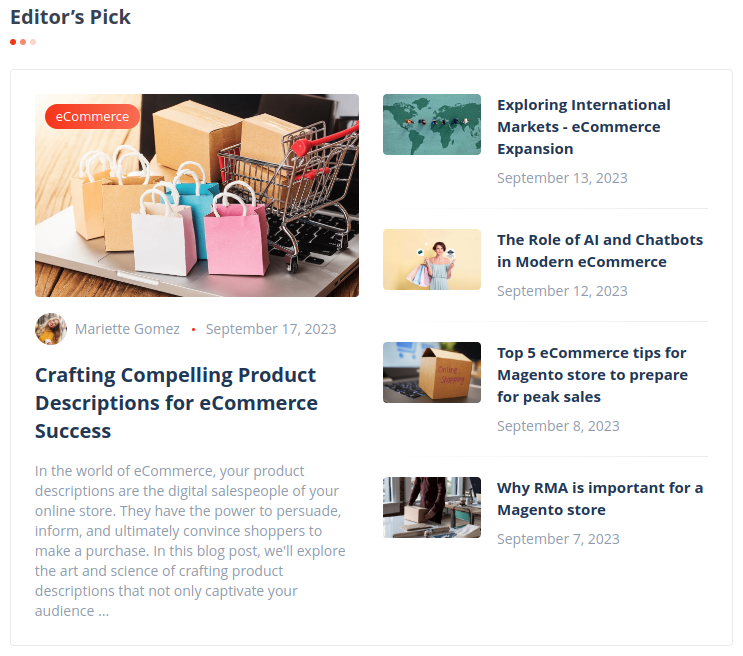
Type 3: two detailed posts + grid of small posts (2 per row).
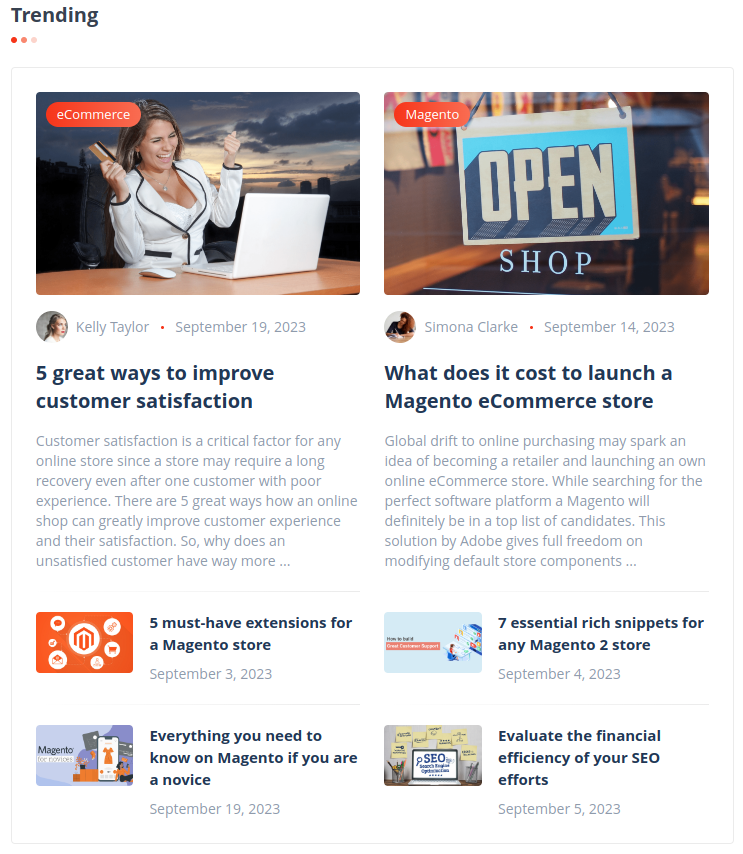
Type 4: sSidebar-friendly vertical layout.
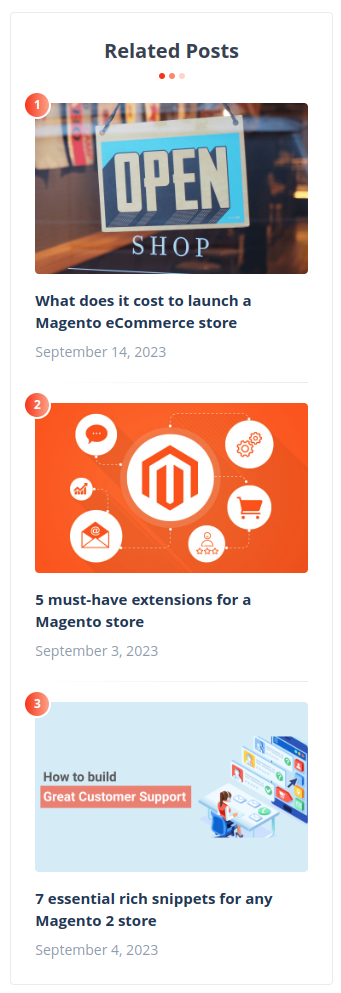
Type 5: card-style layout (2 posts per row with slider).

Type 6: detailed post list.
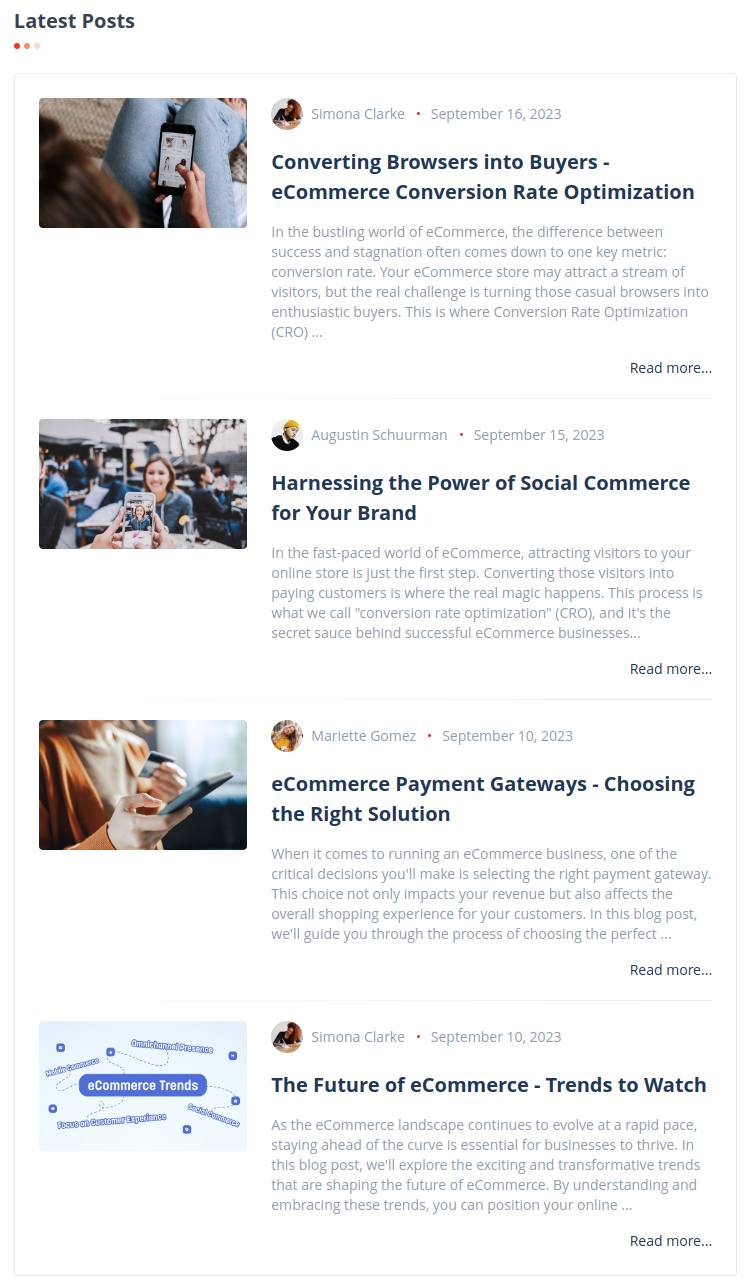
Type 7: compact cards (2 per row).
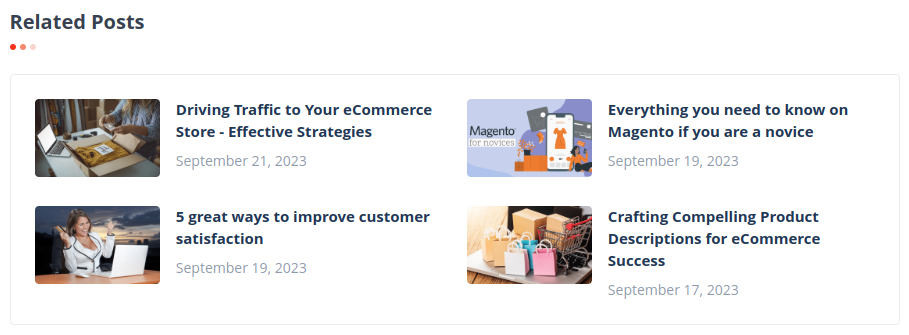
Type 8: sidebar posts (slider).

Content link widgets
Unlike the widget types above, these are inserted through the WYSIWYG editor's Insert Widget button (e.g., in a CMS page, CMS block, or email template) to create a link to a specific blog entity, rather than being placed as a standalone block:
- Post link: inserts a link to a chosen blog post.
- Tag link: inserts a link to a chosen blog tag.
- Category link: inserts a link to a chosen blog category.
Each has the following settings:
- Post / Tag / Category: opens a chooser to select the target entity.
- Anchor custom text: the link's visible text. If left empty, the entity's name is used.
- Anchor custom title: sets the link's
titleattribute. - Template: [Post/Tag/Category] link block template (renders as a block-level element) or [Post/Tag/Category] link inline template (renders inline within surrounding text).
These widgets are also compatible with Magento email templates.