Google Merchant Center
The Advanced Product Feeds extension can submit your feed directly to Google Merchant Center (GMC) through Google's Merchant API. Once configured, the extension registers the feed as a data source in your Merchant Center account and asks Google to fetch the feed file — no manual file uploads, FTP delivery, or scheduled fetch URLs are required.
This integration supports the full range of Merchant Center content types: Products, Supplemental Products, Local Inventory, Regional Inventory, Promotions, Product Reviews, and Merchant Reviews.
How it works
- You generate a feed file the same way you always have — manually, on a schedule, or via the REST API.
- When the Use Feed for Google Merchant option is enabled on the feed, the extension talks to the Merchant API and:
- On first submission — creates a new data source in your Merchant Center account, pointing it at the feed's public URL.
- On every subsequent submission — updates the existing data source (URL, fetch frequency, name) and asks Google to re-fetch.
- Google then fetches the feed from your store on the schedule you configure, and also immediately after each upload trigger.
The feed file itself is still served from pub/media/feed/<filename> — the integration only manages the data source registration and fetch trigger on Google's side.
Prerequisites
Before enabling Google Merchant Center upload, make sure that:
| Requirement | Details |
|---|---|
| PHP version | 8.1 or higher. The Google SDK does not support earlier versions. |
| Google SDK | The google/shopping-merchant-datasources Composer package is installed (see installation step below). |
| Merchant Center account | An active Google Merchant Center account with a numeric Merchant ID. |
| Google Cloud service account | A service account with the Merchant API enabled, granted access to your Merchant Center account. You'll download its key as a JSON file. |
| Registered Google Cloud project | The Google Cloud project must be registered once with your Merchant Center account (see Register your Google Cloud project). Without it, the Merchant API rejects every call. |
| Public feed URL | Your feed file must be reachable from the public internet so that Google can fetch it. |
Install the Google SDK
The Google Shopping Merchant Datasources SDK is shipped as an optional dependency so that the Feed module continues to install on older Magento or PHP stacks. To enable Google Merchant Center upload, install the SDK from your Magento root:
composer require google/shopping-merchant-datasources:^1.2
Until the SDK is installed:
- The Google Merchant API section on the feed edit page shows an install banner with the exact command.
- Cron-scheduled GMC uploads are skipped (and noted in the feed's History tab).
- Manual submission via the Submit to Google Merchant Center button is disabled.
Create a Google service account
- Open the Google Cloud Console and select (or create) the project you want to use for Merchant Center API access.
- Enable the Merchant API.
- Go to IAM & Admin → Service Accounts and create a new service account.
- Open the service account → Keys → Add Key → Create new key → JSON. Save the file — you will upload it to Magento in the next step.
- In Google Merchant Center, open Settings → Users, click Add user, and add the service account's email address (the
client_emailfield inside the JSON file) with Standard access or higher.
You can find the numeric Merchant ID in the top-right corner of the Merchant Center interface, or under Settings → Account information.
Register your Google Cloud project (one-time)
Before the Merchant API will accept any call, Google requires your Google Cloud project to be registered with your Merchant Center account. This is a one-time, account-level step that is separate from creating the service account, and the extension cannot perform it for you — Google only allows registration from a human Google (Gmail or Workspace) account with admin rights on the Merchant Center account, never from a service account key.
To register the project:
- Sign in to Google Merchant Center with an account that has admin access.
- Open Settings → Developer registration (also reachable through Settings → Advanced settings).
- Enter the Google Cloud project ID of the project where you enabled the Merchant API, and the developer email address, then confirm.
- Wait about 5 minutes for the registration to take effect before submitting a feed.
Full instructions are in Google's Register as a developer guide.
A Google Cloud project can be registered with only one Merchant Center account at a time. If your project is already registered elsewhere, use a different project for this Merchant Center account.
Store-level configuration
Configure your Merchant Center credentials once per store at Stores → Configuration → Mirasvit Extensions → Feed → Google Merchant Center.
| Field | Description |
|---|---|
| Merchant ID | The numeric Google Merchant Center account ID that owns the data sources. |
| Service Account Key (JSON) | Upload the JSON key file you downloaded from the Google Cloud Console. The file is stored under pub/media/feed/gmc/ and read at runtime to authenticate with the Merchant API. |
Both fields can be configured per website or store view, so you can submit different feeds to different Merchant Center accounts (for example, a separate account per country or brand).
The service account key grants programmatic access to your Merchant Center account. Treat it like a password — do not commit it to source control and restrict filesystem access to the pub/media/feed/gmc/ directory.
Mark the feed as a Google feed
The Google Merchant API tab is shown on the feed edit page only when the feed's Marketplace is set to Google Merchant Center. This keeps the form lean for marketplaces that don't have a direct API integration (eBay, Pinterest, Amazon, etc.) and prevents accidental Google submissions of unrelated feeds.
To enable the tab on an existing feed:
- Open Catalog → Advanced Product Feeds → Feeds → [feed].
- On the Feed Information tab, set Marketplace to Google Merchant Center.
- Click Save. The Google Merchant API tab now appears in the left navigation.
Feeds created from any of the built-in Google Shopping templates have Marketplace pre-filled to Google Merchant Center automatically, so the tab is visible right after the first save.
On upgrade, the module backfills Marketplace = Google Merchant Center for any existing feed whose name contains "google" (case-insensitive) or that already has the Google Merchant Center toggle turned on. Other feeds keep Marketplace empty and lose the GMC tab; if one of them really should submit to Google, set Marketplace on the feed manually and save.
Per-feed configuration
After the store-level credentials are saved and the feed's Marketplace is set to Google Merchant Center, open the feed at Catalog → Advanced Product Feeds → Feeds → [feed] and switch to the Google Merchant API tab.
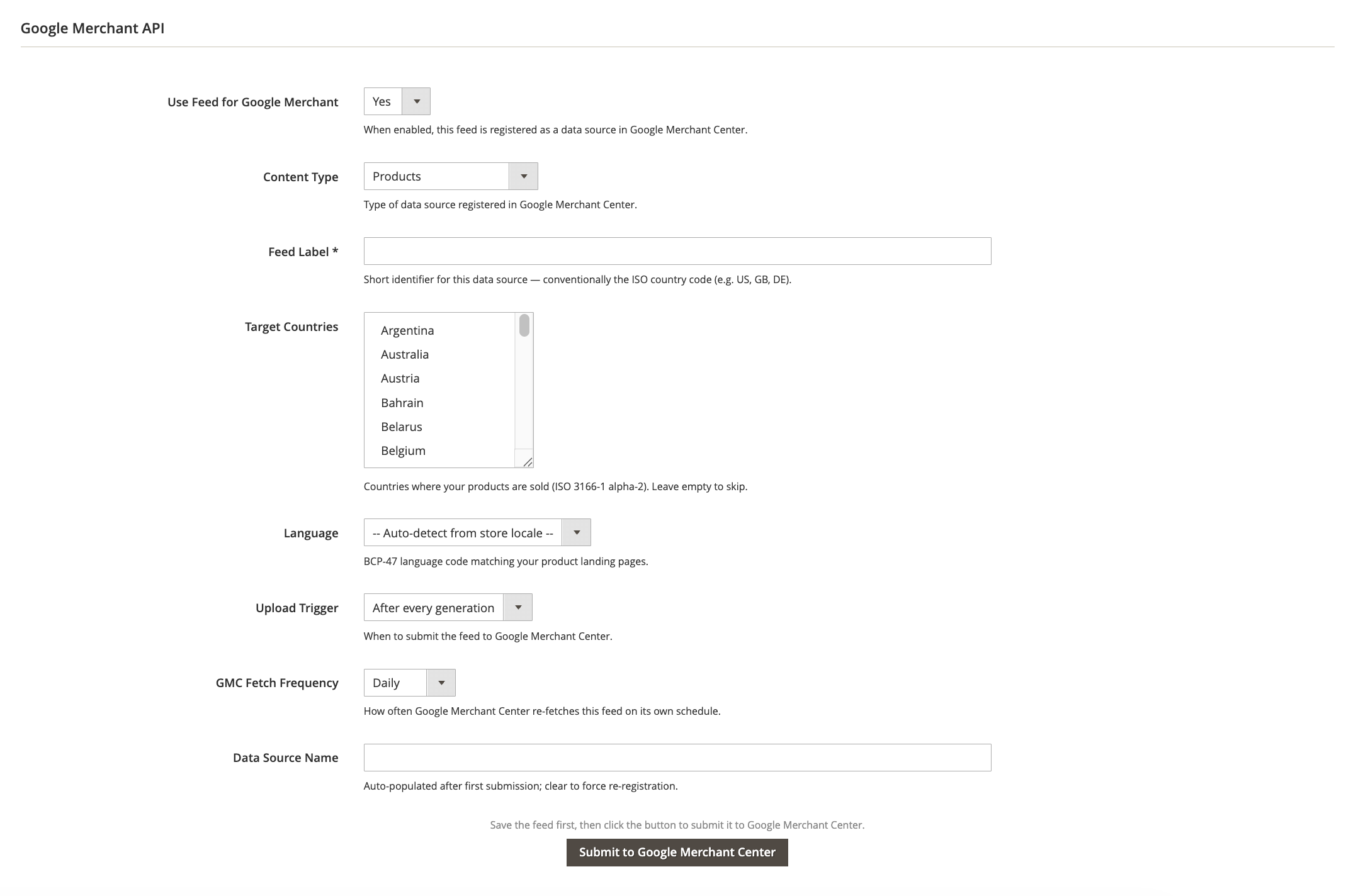
| Field | Description |
|---|---|
| Use Feed for Google Merchant | Master toggle. Set to Yes to register this feed as a data source in Merchant Center. |
| Content Type | The kind of data source to register in GMC. See the table below. |
| Feed Label | Short identifier for this data source (max 20 characters, letters/digits/hyphen/underscore). Conventionally the ISO country code, e.g. US, GB, DE. Required for Products, Supplemental Products, Local Inventory, and Regional Inventory content types. |
| Target Countries | Countries where the products are sold, in ISO 3166-1 alpha-2 format. Used by Products (multi-country) and Promotions (single country). Leave empty to inherit defaults from Merchant Center. |
| Language | BCP-47 language code matching your product landing pages (en, de, pt-BR, etc.). Leave on Auto-detect from store locale to derive it from the feed's store view. |
| Upload Trigger | Controls when the feed is submitted to GMC: After every generation (automatic upload after each feed export) or Manual only (you submit on demand via the button). |
| GMC Fetch Frequency | How often Google re-fetches the feed on its own schedule, independent of your Magento cron: Daily, Weekly, or Monthly. |
| Data Source Name | Read-only identifier of the data source in Merchant Center, auto-populated after the first successful submission. Clear this field to force the extension to register a brand-new data source on the next upload (useful if you have deleted the data source on Google's side). |
Submit and status
Below the form, you'll see:
- Last submitted — the timestamp of the most recent successful upload.
- Data source — the data source path inside Merchant Center (
accounts/.../dataSources/...). - Submit to Google Merchant Center — button that uploads the current feed file to GMC immediately. The button is disabled until the SDK is installed and the feed has been generated at least once.
The button uses the feed's saved settings. If you change any GMC field, click Save first, then submit.
Content Type reference
The integration supports every content type defined in the Merchant API v1. The table below summarises what each content type is for, which fields it requires, and which built-in feed template is pre-configured for it.
| Content Type | Description | Feed Label required? | Target Countries used? | Built-in template |
|---|---|---|---|---|
| Products | The main primary product feed for Shopping ads and free listings. | Yes | Yes (multi-country list) | Google Shopping, Google Shopping (configurable products), Google Shopping CSV Feed, Google Shopping TXT Feed |
| Supplemental Products | Adds or overrides attributes on products from a primary feed (e.g. a localized title or extra GTIN). | Yes | — | Google Shopping Update |
| Local Inventory | Per-store availability and price for Local Inventory Ads / free local listings. | Yes | — | Google Shopping Local Inventory Feed |
| Regional Inventory | Region-level price and availability overrides. | Yes | — | Google Shopping Regional Inventory |
| Promotions | Discounts and offers shown alongside your products. | — | Yes (single country) | — |
| Product Reviews | Customer reviews of individual products. | — | — | Google Shopping Review |
| Merchant Reviews | Customer reviews of your store as a whole. | — | — | — |
When you create a feed from one of the built-in Google templates above, the Content Type field is pre-filled automatically so you only need to set the Feed Label, country, and language.
On existing installations, the pre-fill defaults are not retro-applied. To pick them up for the bundled Google templates, run the Import Templates action from the templates grid after upgrading. Existing feeds keep their saved values.
Cron-based automatic upload
When Upload Trigger is set to After every generation, GMC submission is run as part of the standard feed export cron job — the same one driven by Scheduled Task.
The execution order for each scheduled feed is:
- Generate the feed file (filtration, export, finalization, validation).
- Deliver to FTP/SFTP if FTP delivery is enabled.
- Upload to Google Merchant Center if GMC is enabled and Upload Trigger is After every generation.
If the SDK is missing at the time the cron runs, the GMC step is skipped (not failed) and a row is added to the feed's History tab so you can see why it was skipped.
The GMC Fetch Frequency field only affects Google's own pull schedule. It is independent from how often the Magento cron pushes the feed. In most setups it is safe to set Fetch Frequency to Daily as a backstop and let Magento's scheduled task push updates more frequently.
Troubleshooting
"Google Merchant Center upload is unavailable"
The Google SDK is not installed, or the PHP version is below 8.1. Run the install command shown on the notice banner and clear the Magento cache.
"Google Merchant Center is not configured"
The store-level Merchant ID is empty or the uploaded Service Account Key (JSON) is missing/invalid. Re-check that the JSON file uploaded under Stores → Configuration → Mirasvit Extensions → Feed → Google Merchant Center contains both client_email and private_key fields.
"Your Google Cloud project is not registered with your Merchant Center account"
The Merchant API returned a 401 UNAUTHENTICATED error because the Google Cloud project behind your service account has not been registered with your Merchant Center account. Registration is a one-time, account-level step that the extension cannot do for you — it must be performed by a Merchant Center admin using a Google (Gmail/Workspace) account, not the service account key.
Follow Register your Google Cloud project (one-time), wait about 5 minutes, then submit the feed again. Google's full steps are in the Register as a developer guide.
"Feed file has not been generated yet"
Generate the feed at least once (via Generate in the admin or on schedule) before submitting to Merchant Center. The integration uploads only the feed URL — the file itself must already exist at pub/media/feed/<filename>.
NOT_FOUND right after creating a data source
Google's read replicas occasionally lag behind a freshly created data source. The extension automatically retries the fetch trigger up to three times with exponential backoff, so this is transient — no action is required.
"Feed Label is required by Google Merchant Center for this content type"
Set a non-empty Feed Label (e.g. US, DE) on the feed. Allowed characters: letters, digits, hyphen, underscore — maximum 20 characters. The content types that require it are Products, Supplemental Products, Local Inventory, and Regional Inventory.
A data source was deleted in Merchant Center, and the next upload fails
The extension still has the old data source path stored on the feed. Open the feed, clear the Data Source Name field, save, and submit again — the extension will register a new data source on the next upload.