
Magento 2 Checkout Extra Fee & Surcharge Extension
Keep your base prices low and add an extra fee only to the orders that cost more to serve: Cash on Delivery and card payments, small orders, heavy parcels, bulky products or express shipping.
Each fee rule has its own conditions, rate and label. Charge a fixed amount, a percentage or a rate per product, item or unit of weight, set minimum and maximum limits, and show every fee as a separate line in the cart, checkout, emails and invoices.
- Payment, COD and card processing fees
- Small order and minimum order fees
- Fees for selected products or by weight
- Seven ways to calculate a fee, with min and max limits
- Conditions by cart, address, day, time and stock
- Taxable fees with refunds in credit memos
- Hyvä Theme and Hyvä Checkout support
Add an extra fee at checkout only to the orders that cost more
Some orders cost a store more than others: cash on delivery, a card payment with a processing fee, a tiny order that still needs packing, a heavy parcel, a bulky item that needs special handling. If you build those costs into your prices, every customer pays for them, including the ones who never choose those options.
Checkout Extra Fee & Surcharge keeps your base prices clean and adds a fee only to the orders that match your rules. Each rule decides:
- when the fee applies: payment or shipping method, cart subtotal, weight, address, products in the cart, customer group, day and time
- how much to charge: a fixed amount, a percentage or a rate per product, item or unit of weight, with optional minimum and maximum limits
- what the customer sees: the fee's own label as a separate line in the cart, checkout, emails and invoices
You can run as many fee rules as you need, and one order can carry several fees at once.
What you can charge a fee for
Fees are built from conditions and rates, so one extension covers the fee types stores usually ask for:
- Payment method fee. Add a fixed fee for Cash on Delivery, or a percentage of the order subtotal for a card or PayPal payment to cover the processing cost.
- Small order fee. Charge a fixed fee when the cart subtotal is below the amount you set, so small orders still cover packing and handling.
- Product or handling fee. Add a fee only for selected products, for example a setup, disposal or oversize fee, charged once per product or for every unit in the cart.
- Weight fee. Charge a rate per unit of weight for heavy orders, or only for the heavy products in the cart.
- Shipping method or destination fee. Add a fee for express shipping, a specific carrier, or delivery to selected countries, regions, cities or postcodes.
- Customer group fee. Apply a fee to wholesale or guest customers only, and leave other groups untouched.
Conditions can be combined, so a fee can apply, for example, only when a customer picks a certain payment method together with a certain shipping method.
Seven ways to calculate a fee
Each rule has one or more rates. Pick the one that matches the cost you need to cover:
- Fixed amount per order
- Percentage of the order subtotal
- Fixed amount per matching product
- Fixed amount per item (every unit counts)
- Rate per unit of weight, using the weight attribute you choose
- Percentage of the product price
- Percentage of the discounted product price, so a fee doesn't grow with your promotions
A rule can hold several rates at once, for example a fixed amount plus a rate per unit of weight. Product-based rates count only the products that match the rule's product conditions.
Minimum and maximum fee limits
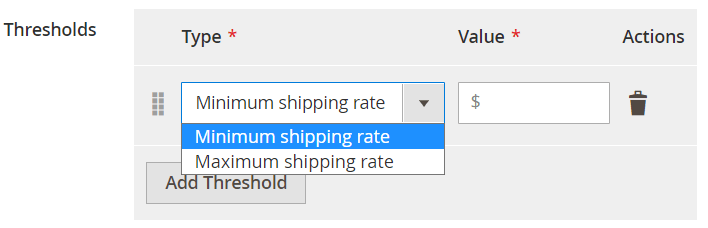
Set a minimum, a maximum or both for every rule. A minimum makes sure a percentage fee never drops below a sensible amount on a small order; a maximum caps a per-item or per-weight fee on a large one.
Conditions that decide when a fee applies
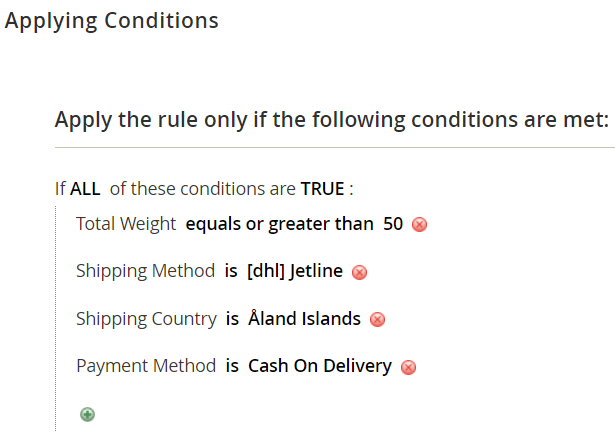
Rule conditions work like Magento cart price rules: you can combine product attributes, product subselections and cart attributes. Cart conditions include subtotal (excluding or including tax), total quantity, total weight, payment method, shipping method, and shipping postcode, region or country.
On top of the cart price rule set, the extension adds conditions that let a fee follow how the order will be fulfilled:
- Day of week and time of day, for weekend or after-hours fees
- Shipping city and company name
- Backordered items in the cart (all items or at least one)
- Stock source that has the products in stock
- Number of orders the customer has already placed, for example to treat first orders differently
Rules run by priority. Turn on "Stop further rules processing" in a rule when its fee shouldn't be combined with the ones below it.
Fees by customer group and store view
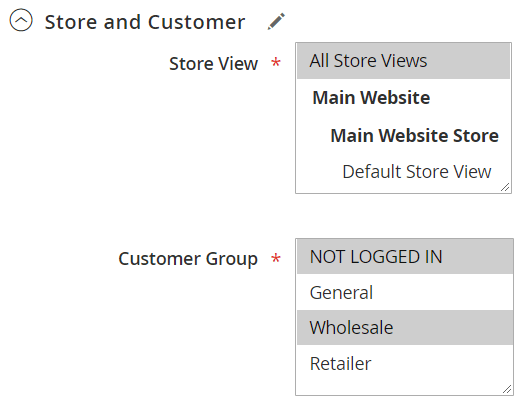
Each rule is limited to the customer groups and store views you select. Stores with several storefronts on one Magento backend can set different fees for each store view, and charge only the groups whose orders cost more to process.
Where customers and admins see the fee
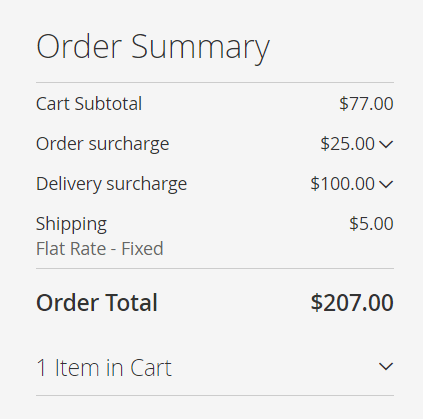
Every fee has its own label, and each one appears as a separate line in the order totals. You choose its position among the totals in the checkout settings. The fee is shown:
- in the cart, at checkout and on the order success page
- in order, invoice and credit memo emails
- in the customer account and on printed orders and invoices
- on the admin order, invoice and credit memo pages, and in PDF invoices and credit memos
Tax, refunds and payment providers
- Taxable fees. Mark a rule as taxable, and the fee is taxed at the highest rate that applies to the products in the cart for the shipping address. It works with catalog prices set either including or excluding tax. Invoice and credit memo totals match the order total.
- Refunds. When you create a credit memo, the fee is refunded with the order, and you can change the fee amount to refund only part of it.
- PayPal and Klarna. The fee is passed to PayPal Express Checkout and to Klarna (Kustom) Checkout, so the amount the customer approves there matches the order total.
Works with Hyvä Theme and Hyvä Checkout
The extension supports both Hyvä Theme and Hyvä Checkout, so fees show in the Hyvä cart and checkout totals as they do in Luma. It is also compatible with Mage-OS, and its admin forms follow WCAG 2.2 AA.
To set up your first fee rule step by step, see the user manual. If you need to charge a customer after an order has been placed, for example for an extra service agreed by phone, see Extra Payment.
Save time by starting your support request online and we'll connect you to an expert.
How do I add an extra fee at checkout in Magento 2?
Magento has no built-in way to add a custom fee to an order. With this extension you create a fee rule in the admin: give it a label, choose the customer groups and store views, set the conditions (for example a payment method or a cart subtotal) and the rate. The fee then appears as its own line in the cart and checkout totals, with no code changes. The user manual walks through the first rule step by step.
Can I charge an extra fee for Cash on Delivery?
Yes. Create a rule with the condition "Payment Method is Cash On Delivery" and a fixed amount or a percentage of the subtotal. The same works for any other payment method, for example a card processing fee or a PayPal fee.
Can I add a minimum order fee (small order fee)?
Yes. Add a cart subtotal condition, for example "Subtotal less than 30", and a fixed rate. Customers who reach the amount pay no fee. You can choose whether the subtotal includes tax.
Can I add a fee only for specific products?
Yes. Use the rule's product conditions to select the products by SKU, category or any attribute, then choose a rate per product, per item, per unit of weight or a percentage of the product price. The fee is calculated only for the matching products in the cart.
Can one order have several fees?
Yes. Every rule that matches the cart adds its fee, and each fee shows as a separate line with its own label. Rules run by priority, and "Stop further rules processing" keeps a rule's fee from being combined with lower-priority rules.
Is the fee taxable?
You decide per rule. A taxable fee is taxed at the highest rate that applies to the products in the cart for the shipping address, and invoice and credit memo totals match the order total. A non-taxable fee is added without tax.
Is the fee refunded when I issue a credit memo?
Yes. The credit memo includes the fee, and you can change the fee amount to refund only part of it. The order keeps track of how much of the fee has already been refunded.
Can customers choose an optional fee, such as gift wrapping or insurance?
No. Fees are added automatically when the order matches a rule's conditions; there is no checkbox for customers to opt in. Fees change straight away when the customer switches the payment or shipping method.
Does it work with Hyvä Theme and Hyvä Checkout?
Yes. The extension supports both Hyvä Theme and Hyvä Checkout, and the fee shows in the Hyvä cart and checkout totals. It also works with the standard Luma checkout.
Can I get the fee through the API?
The fee total is added to the order as the mst_surcharge extension attribute, so it is available through the Magento REST API, for example for an ERP integration. GraphQL is not supported.
Is the extension translated?
Yes. The storefront and admin texts come translated into 15 languages, including German, French, Spanish, Italian, Dutch, Polish and Japanese. To show a fee label in another language, create a separate rule for that store view.
mirasvit/module-surcharge-hyva is gone: the surcharge rows in the Hyvä cart totals and in the Hyvä Checkout price summary are now part of Surcharge itself. There is no second package to find and keep in step, and on a Luma store the Hyvä part simply stays dormant. Composer removes the companion package by itself when you upgrade.Hyva_MirasvitSurcharge is gone, not renamed — Hyva_MirasvitSurcharge was the Magento module inside mirasvit/module-surcharge-hyva; its templates and layouts now live inside Mirasvit_Surcharge. You only need to act if you referenced Hyva_MirasvitSurcharge yourself — in a custom di.xml, a layout file, or a deployment script that enables modules by name.Hyva_MirasvitSurcharge::checkout/cart/surcharge.phtml is now Mirasvit_Surcharge::checkout/cart/surcharge-hyva.phtml, and Hyva_MirasvitSurcharge::checkout/price-summary/total-segments/surcharge.phtml is now Mirasvit_Surcharge::checkout/price-summary/total-segments/surcharge-hyva.phtml. Both stay Hyvä-only: Luma draws the same rows with its own Knockout templates, which did not change. An override at the old path is simply not read, with no error to say so.bin/magento hyva:config:generate and rebuild your theme's Tailwind CSS, so the build picks up the surcharge templates from their new location.mst_surcharge_purchase table's order_id column (referencing sales_order), applied automatically during setup:upgradecreated_at column and two indexes (on quote_id and order_id) to the mst_surcharge_purchase table. They are applied automatically during setup:upgradeamount_excl_tax, base_amount_excl_tax) to the surcharge purchase table via db_schema.xml — run bin/magento setup:upgrade after updating. Orders placed before the update keep their original values.Blog

 Andriy Kovalenko
We are committed to being open and transparent with our customers. When you purchase our module, you automatically receive one year of free support service and free updates.
Why is this important?
- Seamless Installation and Configuration: We understand that setting up a new module can take time to configure according to your specific needs. That’s why we offer a full year of free support. Our experienced team is here to assist you with installation, configuration, and any questions you might have. We're eager to share our expertise to ensure you get the most out of your purchase.
- Stay Updated with Magento (Adobe Commerce) Releases: Magento releases new versions approximately every three months. These updates can sometimes introduce compatibility challenges. To keep your store running smoothly, we provide a year of free access to the latest versions of our modules, ensuring that you can upgrade Magento and our modules without encountering any obstacles.
- Subscription Included: Renewing your subscription ensures continued access to the latest updates and support from our team. This means you can be confident that any issues you encounter with the extension will be resolved quickly and efficiently. You can cancel your subscription at any time without any additional fees.
These are our primary. A major portion of our new clients come from referrals from our existing clients. Our professional team of developers, marketers and support staff have invested the best knowledge and experience in the field into our work, so you know you can come back to us again and again.
One year free and high quality support. We go to great lengths to provide maximum satisfaction with every module you have purchased in our store. By helping you with installation, configuration, answering your every question, we do all our best to eliminate any possible problems.
30-days money back guarantee. If you are not satisfied with our extension performance for any reason, we provide a full refund.
We constantly add new features to all our modules, and are always interested in hearing your opinion and implementing your suggested features in our future developments.
We provide an expanded user guide for every aspect of our extension, so you can find answers for all your burning questions.
You can customize extension according to your needs and requirements.
The Module is easy to install and upgrade, just follow our step-by-step user guide. Additionally, the extension is ready to use with the Hyvä theme.
No core modifications. The extension has been tested in a Magento Cloud environment and is fully compatible with it.