
Magento 2 Product Finder: Year, Make, Model Parts Search
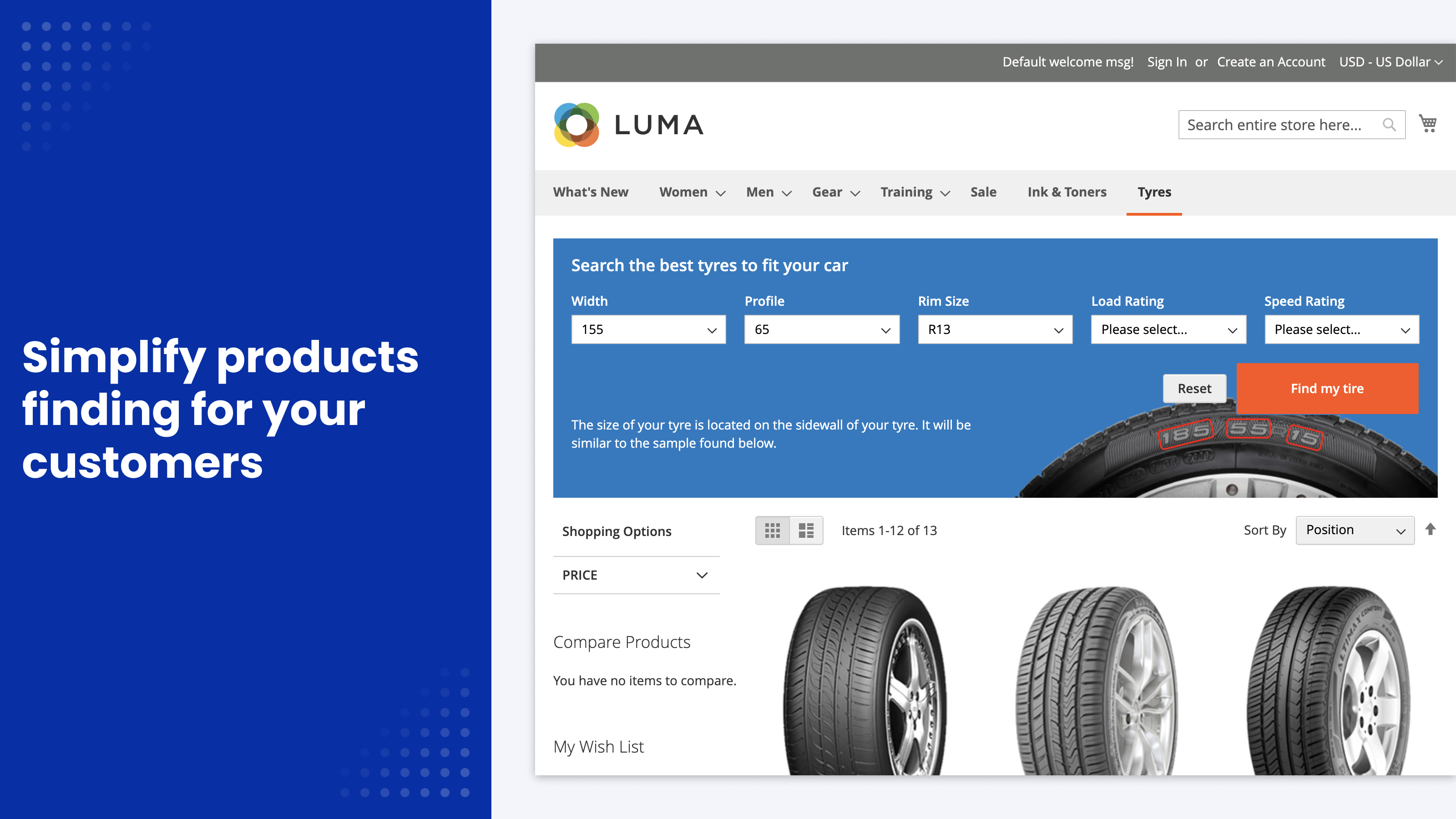
Product Finder adds a Year, Make, Model style search to stores that sell spare parts, tyres or printer cartridges.
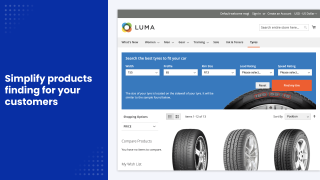
Shoppers pick their vehicle or device step by step, each dropdown shows only compatible values, and the results open as a regular catalog page they can filter further.
- Dependent Year, Make, Model dropdowns
- Import fitment data from CSV
- Build filters from product attributes
- Results with layered navigation
- Several finders on any page
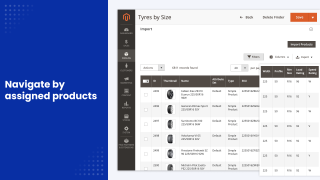
Business Value
Opportunity: Stores that sell vehicle spare parts, tyres or printer cartridges have thousands of products that look almost the same. Shoppers know their car or printer, not the part number.
Neither the default search nor layered navigation lets them search that way, so they give up or order the wrong part.
- Solution: Magento 2 Product Finder adds a Year, Make, Model style parts finder to your store. Shoppers pick their vehicle (or printer, or tyre size) step by step, each choice narrows the next list to compatible values, and they see only the parts that fit.
- How it works: You create a finder with the filters you need (e.g., Year, Make, Model, Engine, Category), fill it from product attributes or a fitment CSV, and place this guided product selector on the homepage, a category or any CMS page.
Main Advantages
Dependent Year, Make, Model Dropdowns
- Each dropdown shows only the values that exist on products matching the earlier choices, so shoppers never end up with a combination that has no results.
- Shoppers don't have to fill in every filter. A single option is enough to see results, unless you mark a filter as required.
- Non-required filters can also update from the selection that follows them, so every list stays consistent.
- Options load from the finder's own index with server-side caching, and a cron job keeps the index up to date, so dropdowns don't query the whole catalog on every click.
Results Shoppers Can Filter, Share and Bookmark
- The results open as a regular catalog page with layered navigation and sorting, so shoppers can narrow them further by price, brand or any other filter. You can also send the results to a category you choose.
- The selection is saved in a clean, readable URL. Customers can go back to it, share it or bookmark it, and the finder remembers their choice during the session.
Configure the Filters for Your Products
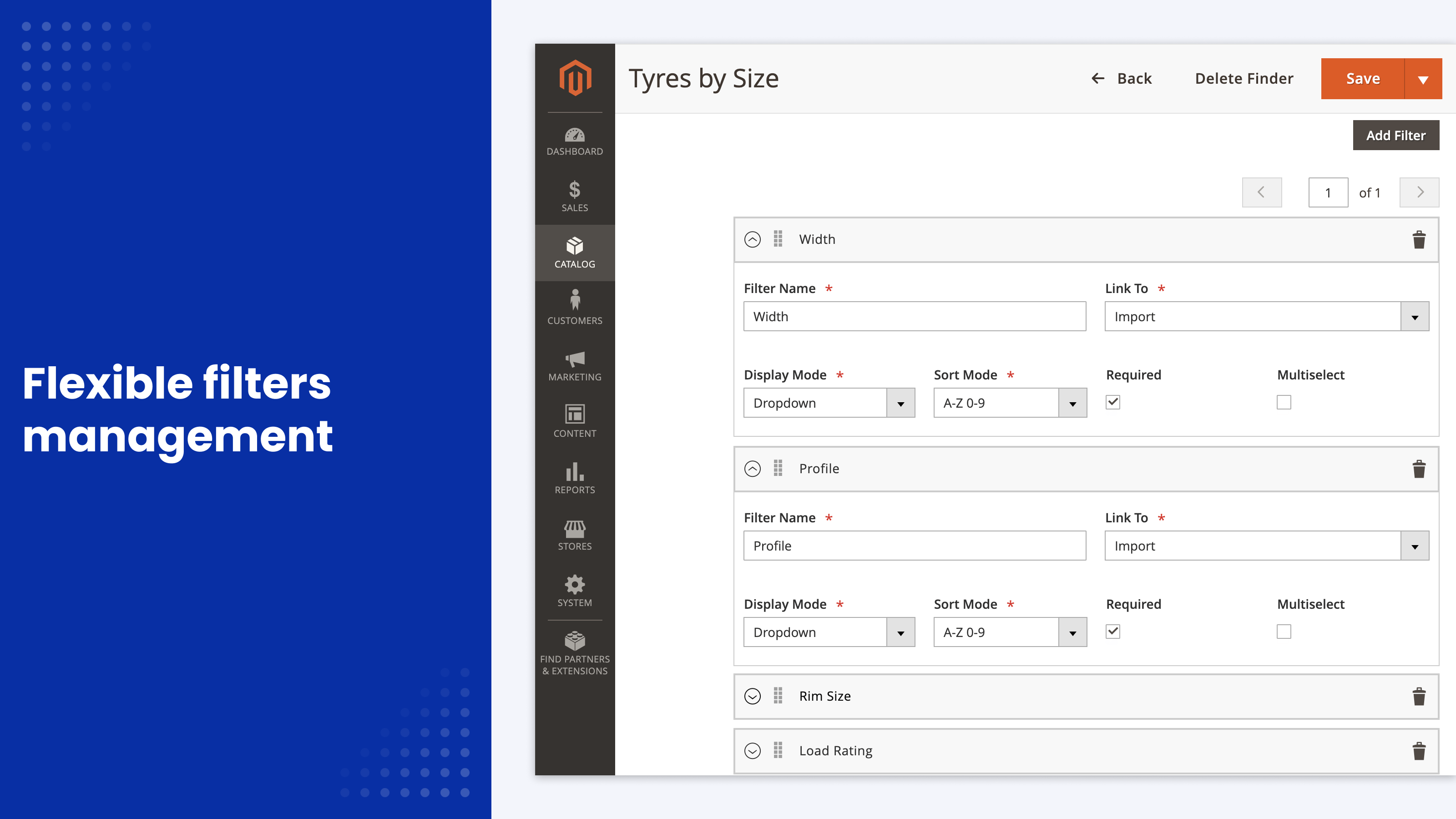
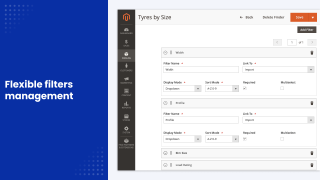
- Add as many filters as your products need: vehicles, tyre sizes, printer models or device types.
- Fill a filter from an existing product attribute without any import, or from your own fitment table.
- Sort values A–Z, Z–A, 0–9, 9–0 or keep the import order. Numeric sorting puts years and sizes in the right order.
- Show each filter as a dropdown or as labels, and let shoppers pick several values in one filter.
- Make filters required, and add a Find button if shoppers should apply all their choices at once.
- Use conditions to limit a finder to certain products, for example a single category.
Import Fitment Data from CSV
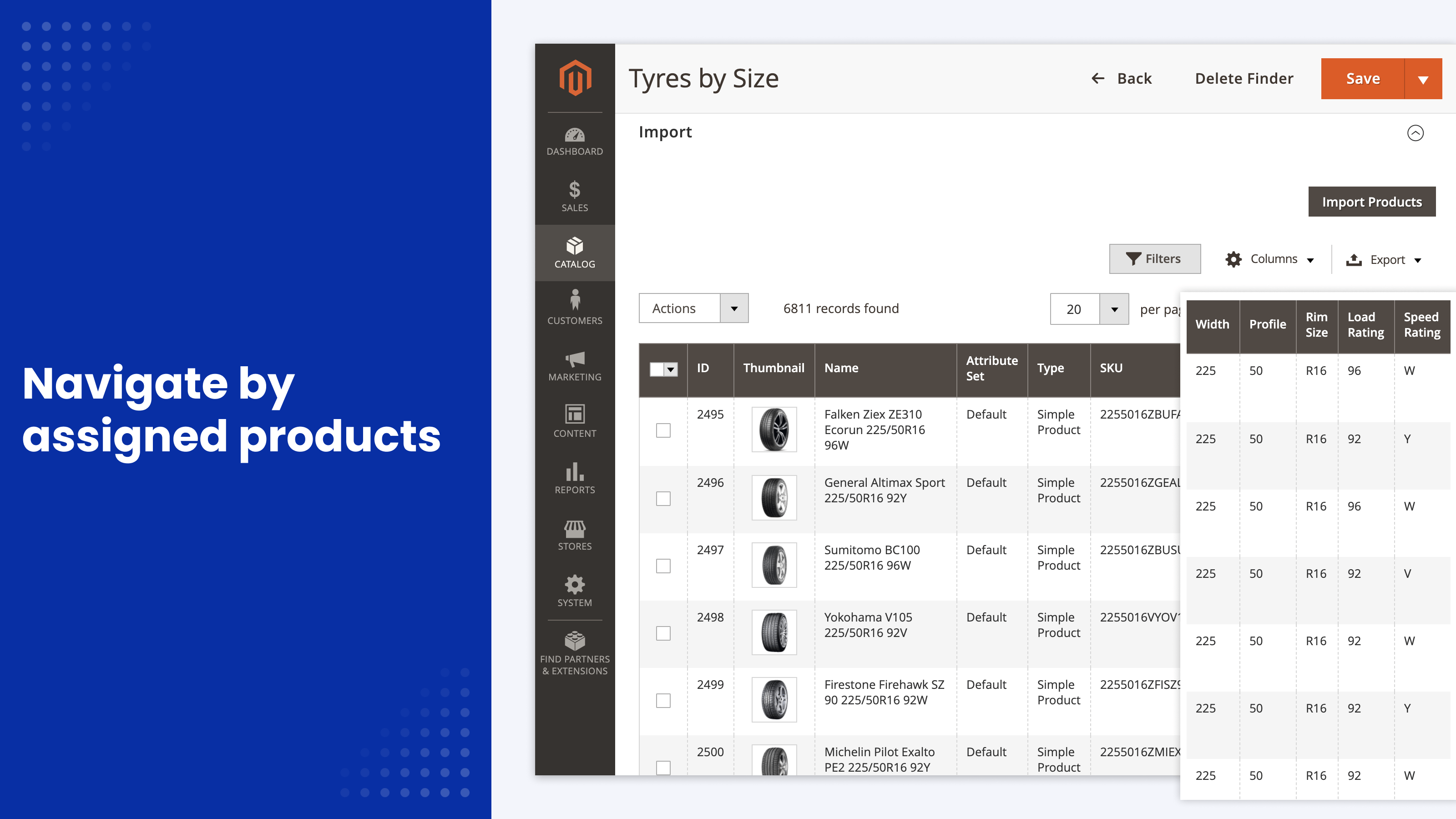
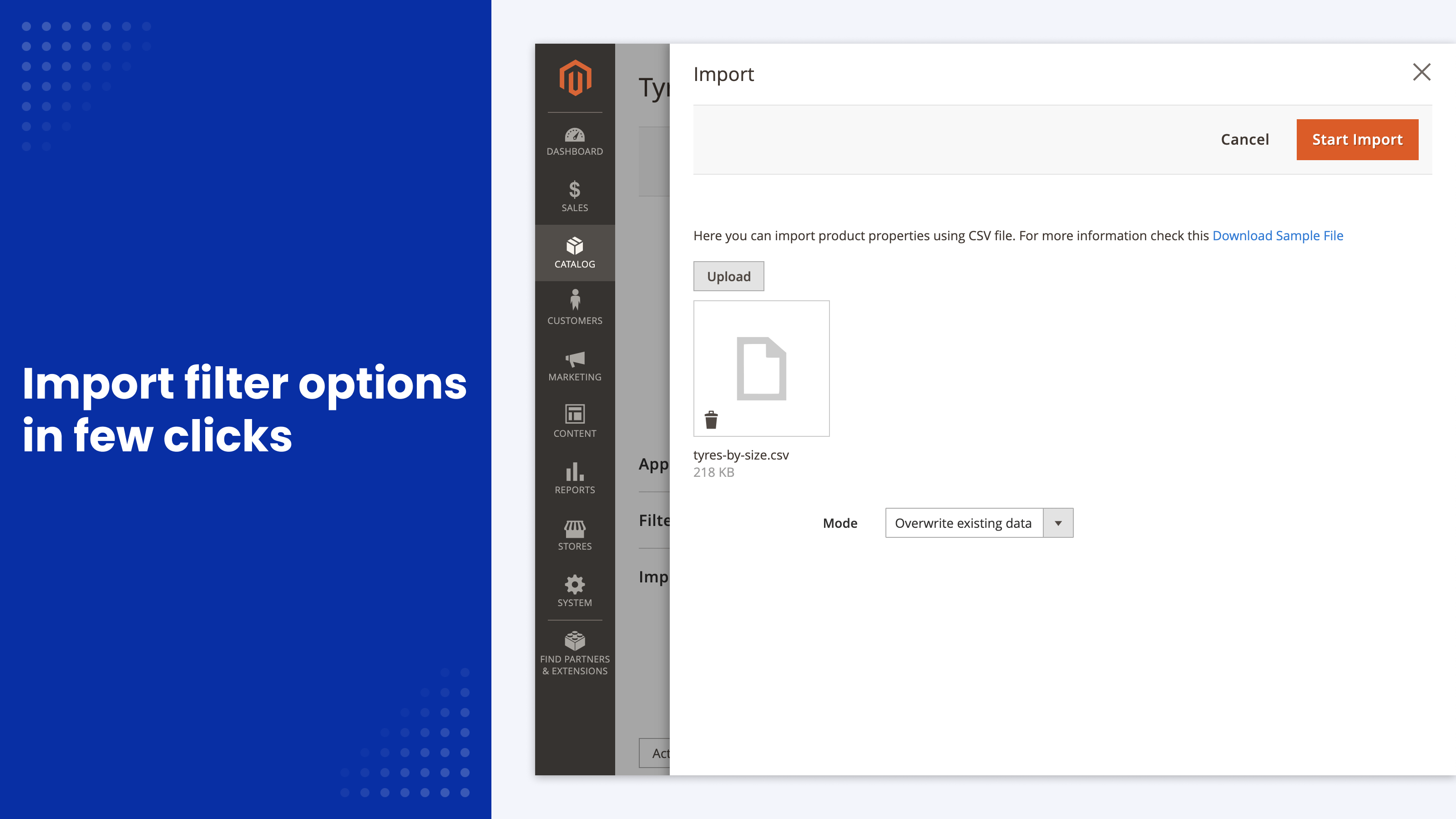
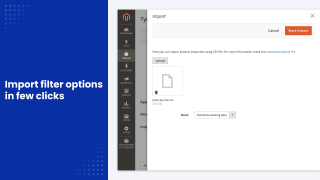
- Each CSV row is a product SKU followed by a value for every filter, such as the year, make and model the part fits. A sample file is available in the admin, so you don't have to set up the values manually.
- Choose whether an import overwrites the existing data or adds to it, and export the table back to CSV for editing.
- Run large imports from the command line. See how to set up a finder and import products and the CLI reference.
Place Finders Anywhere on Your Site
- Add a finder to the homepage, a category or any CMS page or block as a widget, so shoppers start their search on the first screen.
- Create several finders, such as one for tyres and one for wheels, each with its own filters. Several blocks can sit on one page, and the results come from the block the shopper used.
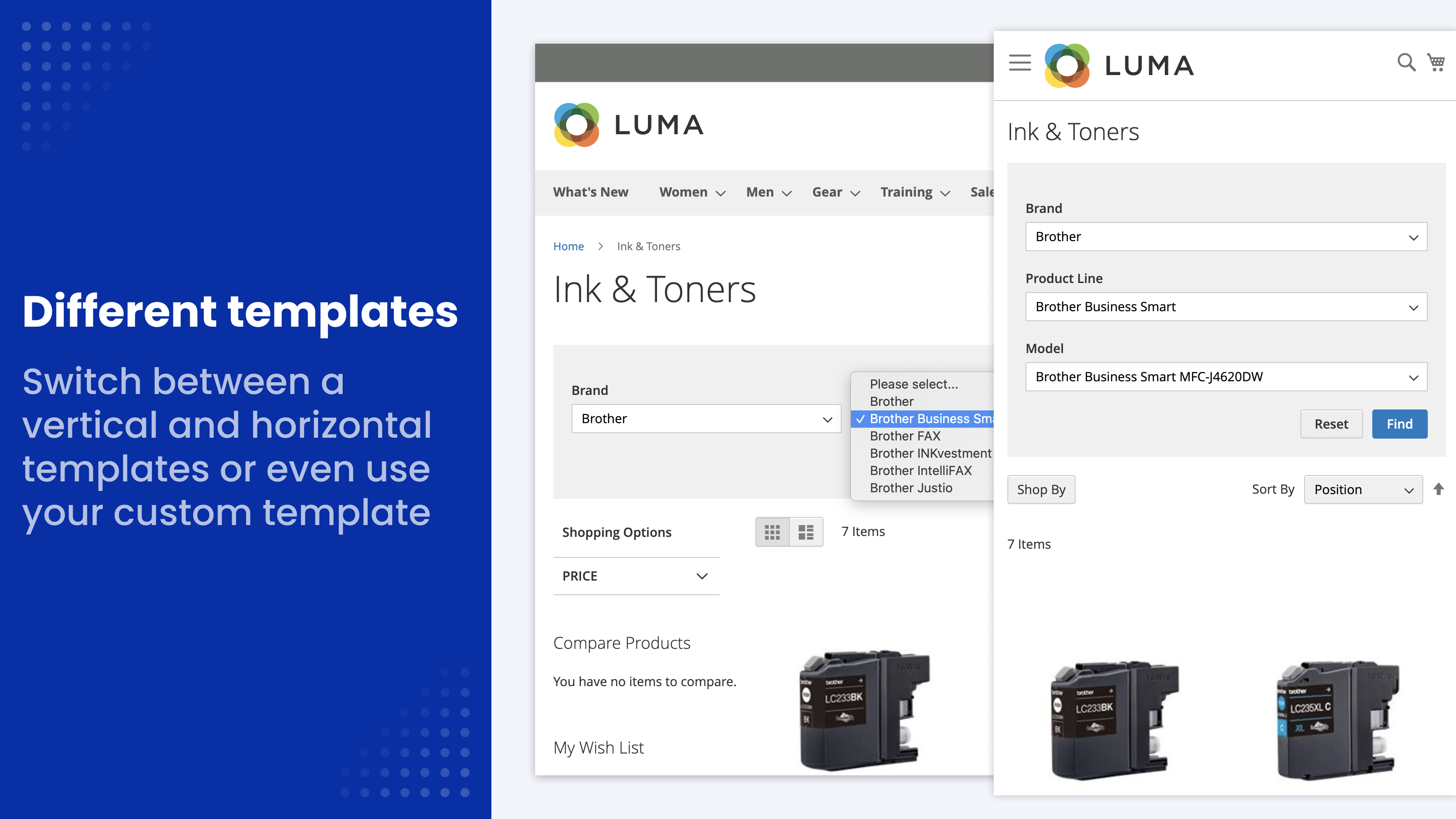
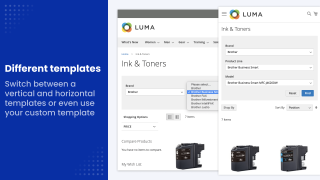
- Choose a horizontal or vertical template, or override it in your theme like any other block.
- The finder works with Hyvä and Luma themes, and its templates support keyboard navigation and ARIA labels (WCAG 2.2 AA).
Save time by starting your support request online and we'll connect you to an expert.
Are the Year, Make, Model dropdowns dependent on each other?
Yes. Each dropdown shows only the values that exist on products matching the earlier choices, so a shopper who picks a year sees only the makes available for that year, and so on. Shoppers can also search with a single filter unless you mark a filter as required.
What does the fitment CSV file look like?
Each row is a product SKU followed by a value for every filter of the finder, in the order of the filters (for example, the year, make and model the part fits). You can download a sample file in the admin, choose to overwrite or append data, and export the table back to CSV. Large files can be imported from the command line. See the setup guide.
Can I build a finder from existing product attributes without a CSV?
Yes. Each filter can take its values either from a product attribute or from an imported fitment table, so a finder can use the catalog data you already have.
Where are the search results shown?
The results open as a regular catalog page with layered navigation and sorting, so shoppers can narrow them further. You can also send the results to a specific category. The selection is kept in a readable URL that shoppers can bookmark or share.
Does Product Finder work with Hyvä?
Yes. Product Finder works with Hyvä and Luma themes. You can try it in the Hyvä demo.
Can I have several finders, for example for tyres and for wheels?
Yes. You can create any number of finders, each with its own filters, and place them on the homepage, category pages or any CMS page or block as a widget. Several finders can sit on one page.
mirasvit/module-finder-hyva is gone: the finder block, its dropdown and label filters and the Product Finder widget now work on Hyvä from Product Finder itself, styled to look as they did with the companion package. There is no second package to find and keep in step, and on a Luma store the Hyvä part simply stays dormant. Composer removes the companion package by itself when you upgrade.Hyva_MirasvitFinder is gone, not renamed — You only need to act if you referenced it yourself: in a custom di.xml, a layout file, or a deployment script that enables modules by name.Mirasvit_Finder::finder/horizontal.phtml, finder/vertical.phtml, filter/dropdown.phtml, filter/label.phtml and js.phtml. An override at a Hyva_MirasvitFinder:: path is simply not read, and an older Luma copy that loads Mirasvit_Finder/js/finder or chosen.js no longer works.bin/magento hyva:config:generate, then rebuild styles.css. Until then the finder shows unstyled: filters stack in a column and label filters look like plain text. If your theme's CSS is built in CI or a deployment pipeline, updating the module alone is not enough, so run that build too./tyres.html sent shoppers on a store view that has its code in the URL (for example /hyva/) to the default store view./hyva/tyres/finder/width-115&profile-70.html answered 404 Page Not Found.Tote® now read "Tote®" after the filter options refresh, just as on first page load.
 Andriy Kovalenko
 We are committed to being open and transparent with our customers. When you purchase our module, you automatically receive one year of free support service and free updates.
Why is this important?
- Seamless Installation and Configuration: We understand that setting up a new module can take time to configure according to your specific needs. That’s why we offer a full year of free support. Our experienced team is here to assist you with installation, configuration, and any questions you might have. We're eager to share our expertise to ensure you get the most out of your purchase.
- Stay Updated with Magento (Adobe Commerce) Releases: Magento releases new versions approximately every three months. These updates can sometimes introduce compatibility challenges. To keep your store running smoothly, we provide a year of free access to the latest versions of our modules, ensuring that you can upgrade Magento and our modules without encountering any obstacles.
- Subscription Included: Renewing your subscription ensures continued access to the latest updates and support from our team. This means you can be confident that any issues you encounter with the extension will be resolved quickly and efficiently. You can cancel your subscription at any time without any additional fees.
These are our primary. A major portion of our new clients come from referrals from our existing clients. Our professional team of developers, marketers and support staff have invested the best knowledge and experience in the field into our work, so you know you can come back to us again and again.
One year free and high quality support. We go to great lengths to provide maximum satisfaction with every module you have purchased in our store. By helping you with installation, configuration, answering your every question, we do all our best to eliminate any possible problems.
30-days money back guarantee. If you are not satisfied with our extension performance for any reason, we provide a full refund.
We constantly add new features to all our modules, and are always interested in hearing your opinion and implementing your suggested features in our future developments.
We provide an expanded user guide for every aspect of our extension, so you can find answers for all your burning questions.
You can customize extension according to your needs and requirements.
The Module is easy to install and upgrade, just follow our step-by-step user guide. Additionally, the extension is ready to use with the Hyvä theme.
No core modifications. The extension has been tested in a Magento Cloud environment and is fully compatible with it.