
Magento 2 AI Image Editor
Supplier photos arrive with mismatched backgrounds and sizes. Magento 2 AI Image Editor, powered by Photoroom, lets you fix them inside the Magento admin, without an external editor. With this extension, you can:
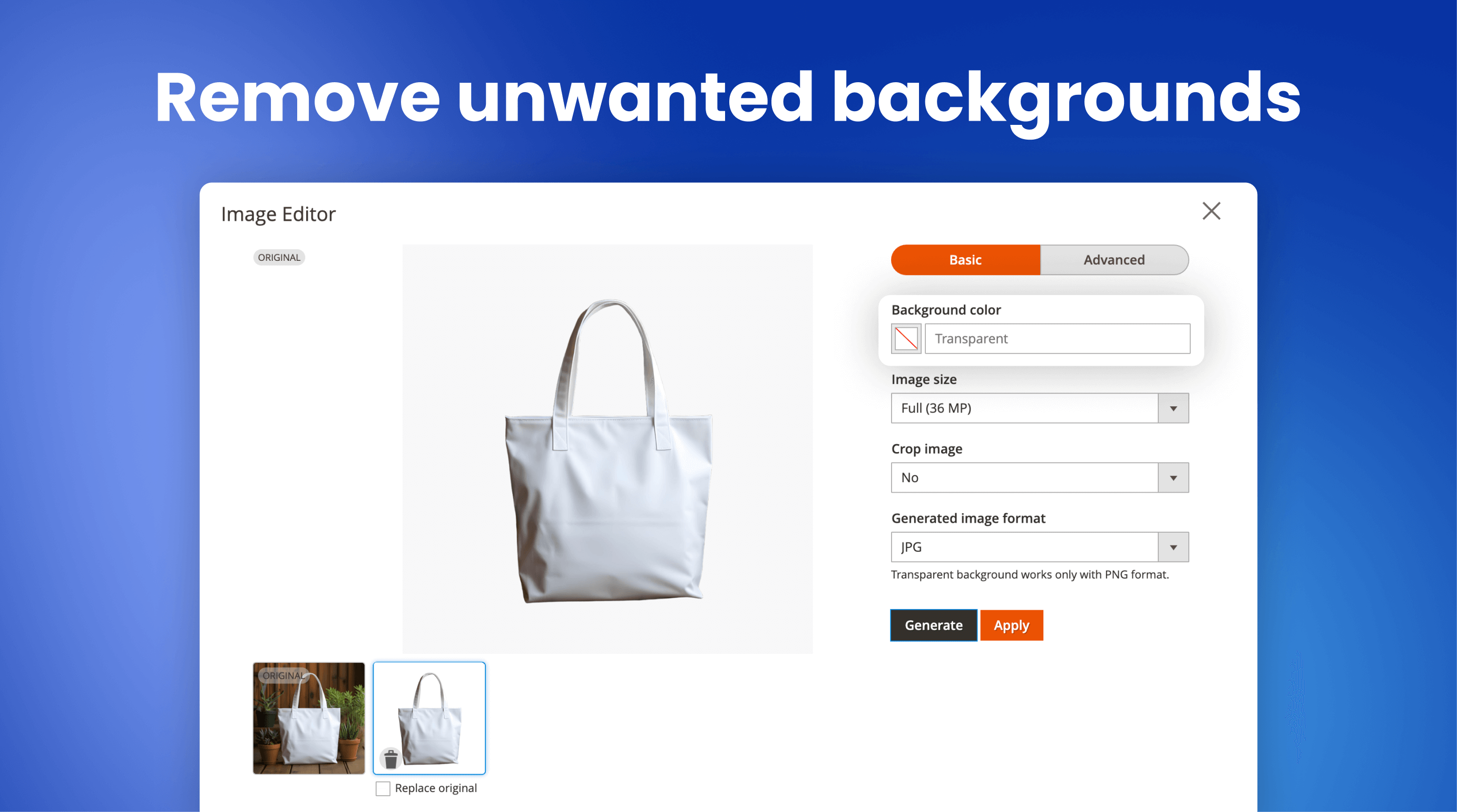
- Remove or replace product photo backgrounds
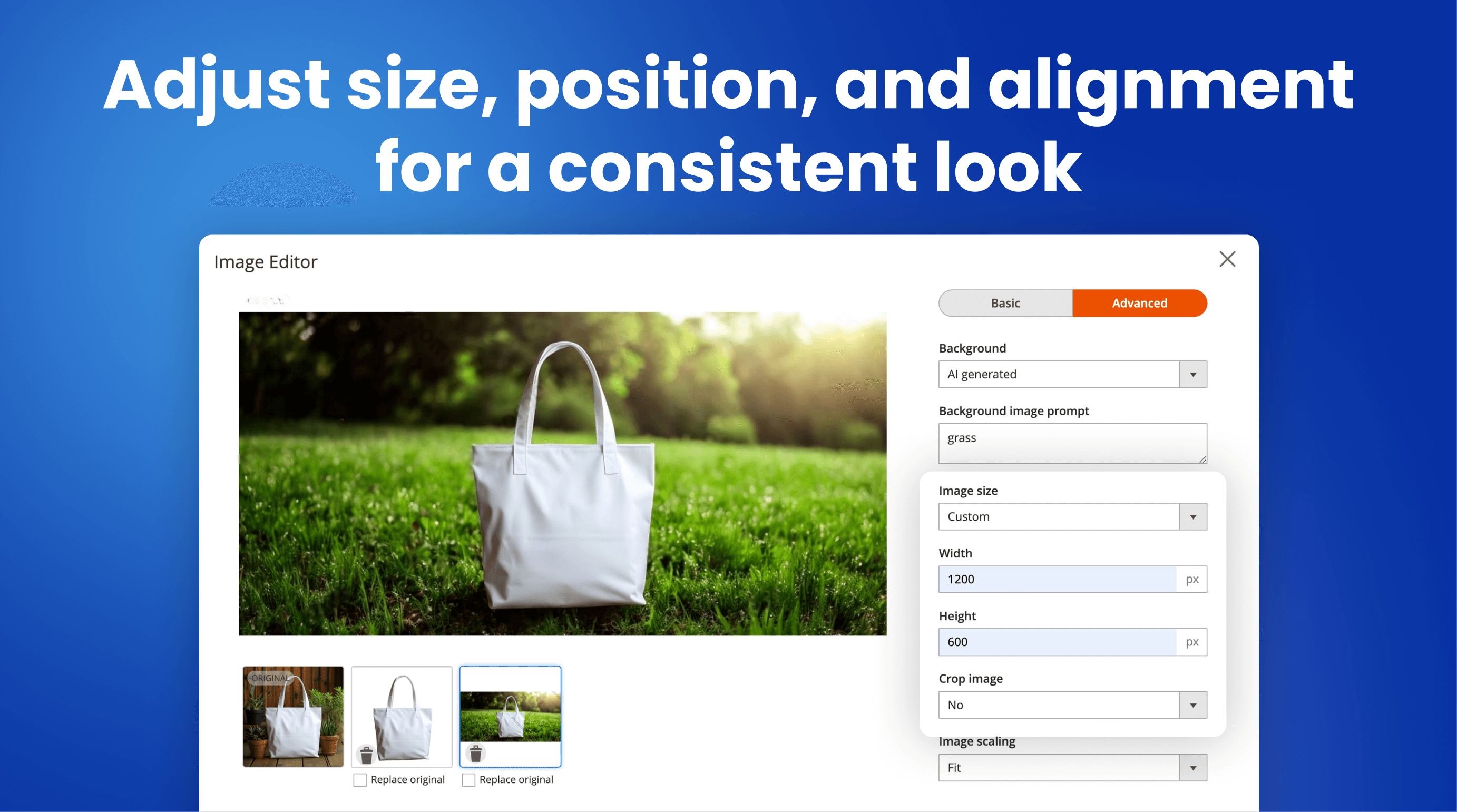
- Generate AI backgrounds from a text prompt
- Add soft, hard or floating AI shadows
- Remove text, logos and watermarks
- Reuse the same settings across the catalog with presets
- Replace originals in place with all image sizes regenerated
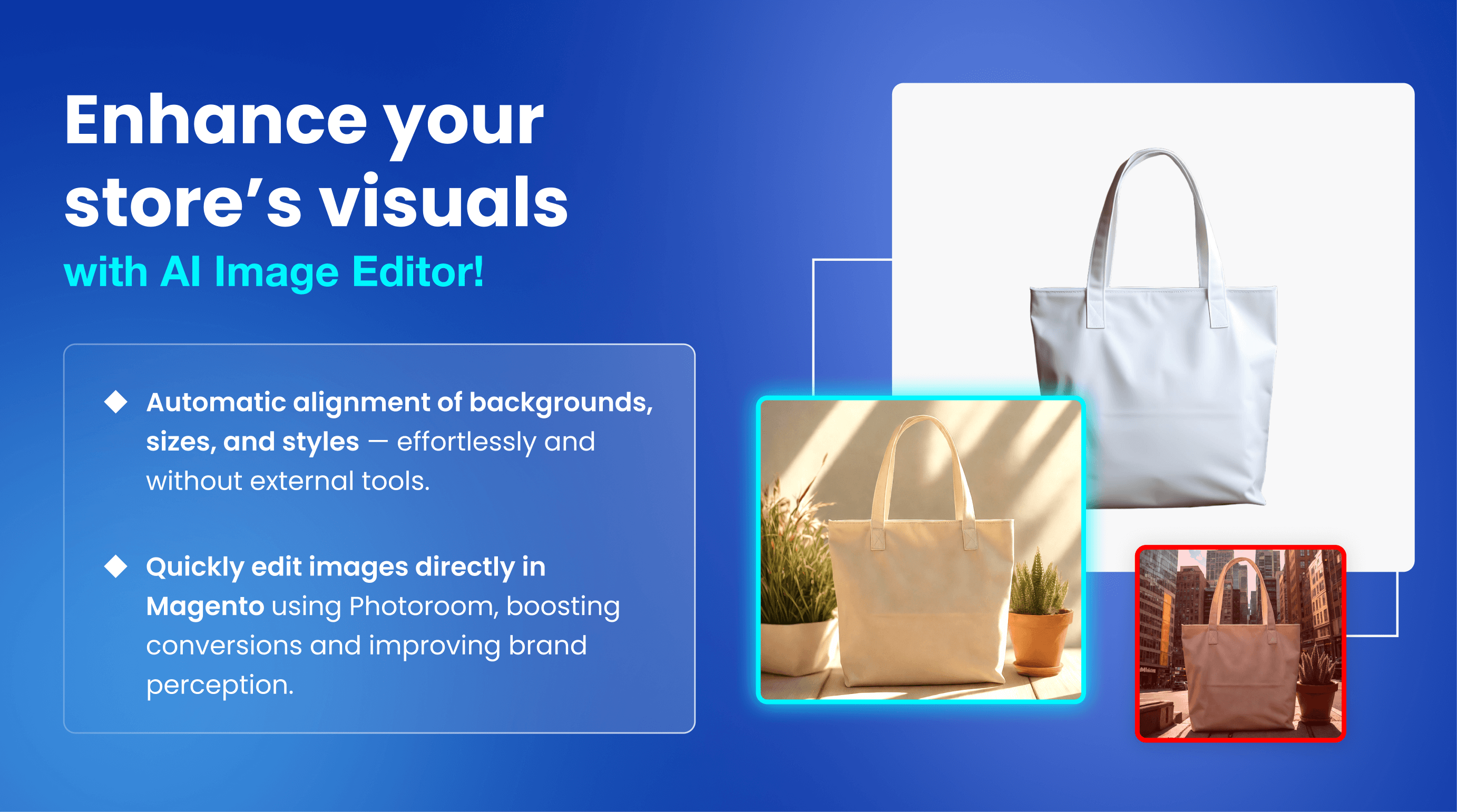





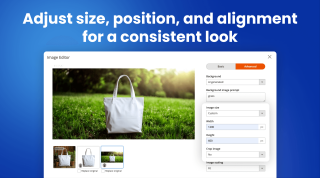



Supplier photos arrive with different backgrounds, sizes and framing. Fixing them means downloading each file, editing it in another tool and uploading it back to the product, so a catalog rarely looks consistent.
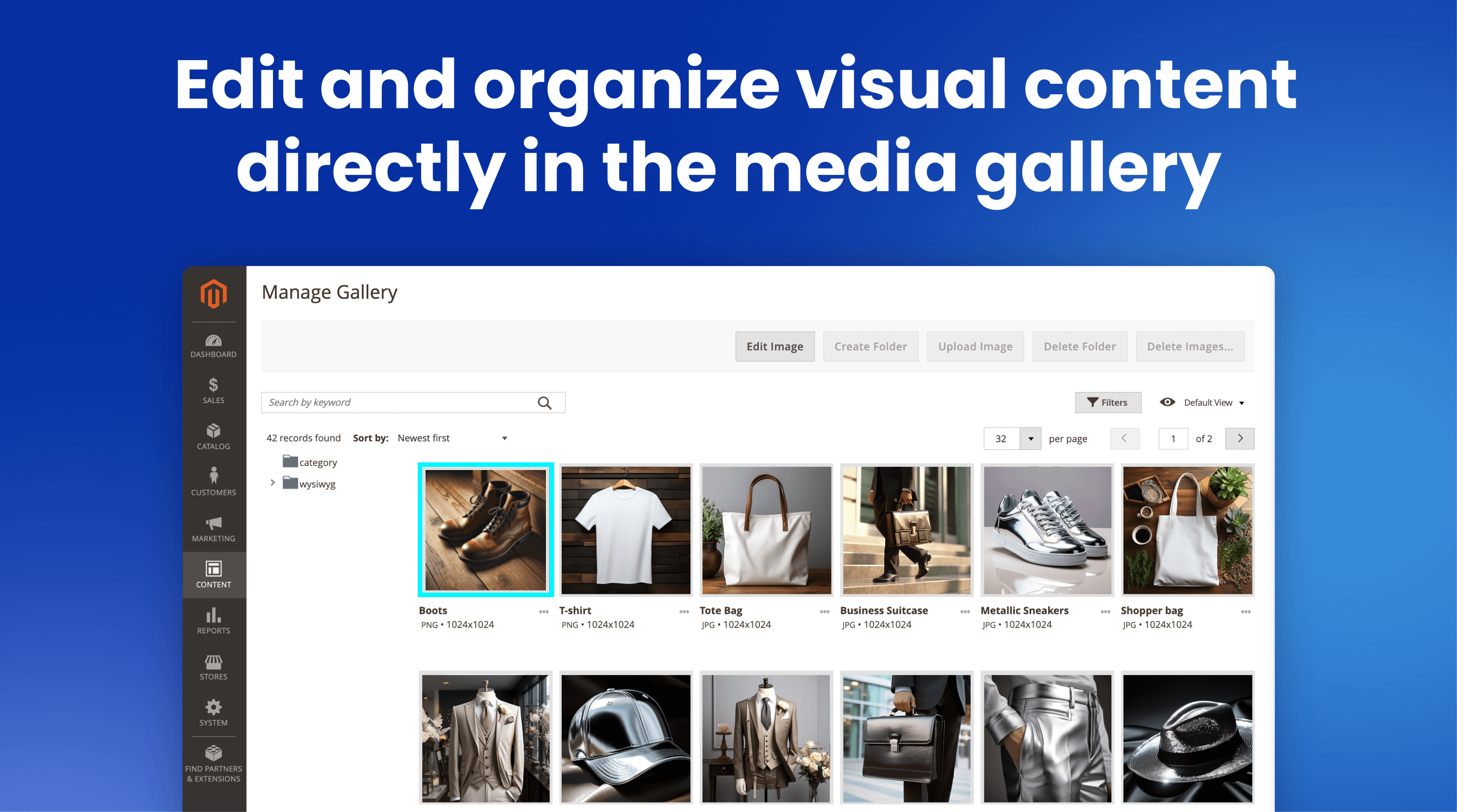
The extension adds an Edit Image button to the product gallery and the Media Gallery. Remove the background, replace it with a color, your own image or an AI background described in a prompt, add an AI shadow and resize the photo. Then replace the original in place: Magento regenerates every product image size for you. Editing runs on the Photoroom API, an AI service built for product photos.
Main features of the Magento 2 AI Image Editor
- Background removal with a transparent PNG or a solid color
- AI backgrounds generated from a text prompt
- Your own image as the new background
- AI shadows: soft, hard or floating
- Text, logo and watermark removal
- Exact output size, alignment, padding and margin
- Presets that apply the same settings to every photo
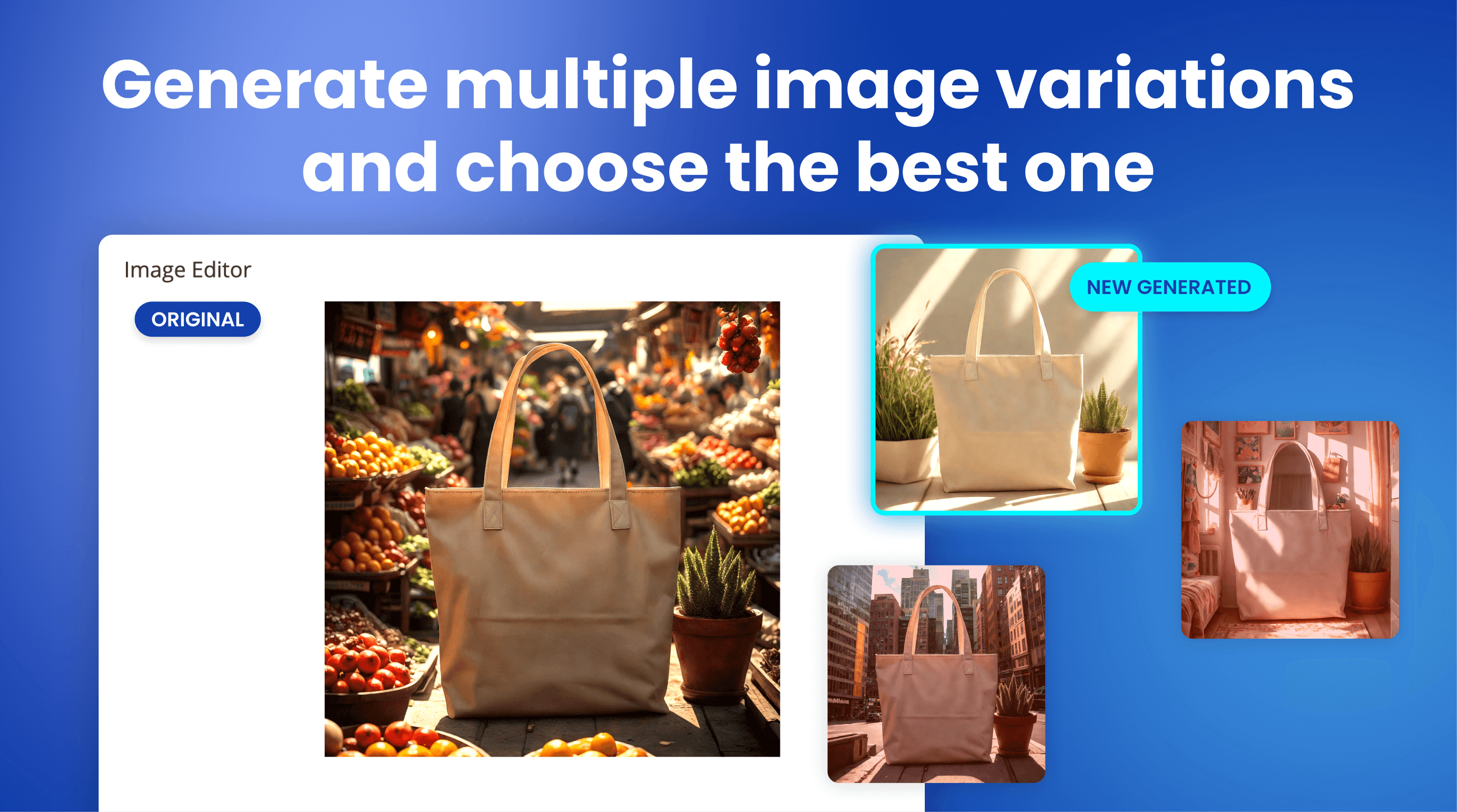
- Several variations per image, keep the ones you like
- Replace the original file in place, image sizes regenerated
- Works in the product gallery and the Media Gallery
Who It's For
Stores that add products often
Whether one admin runs the whole store or a content team prepares dozens of new products a week, photos get fixed right where the product is edited, without an external editor.
Catalogs built from many photo sources
Backgrounds, sizes and product position follow the same settings, so photos from different suppliers end up looking like one catalog.
How AI Image Editor Works
The extension connects to Photoroom. It edits your existing photo rather than generating a new one, and it offers two modes that call different Photoroom APIs:
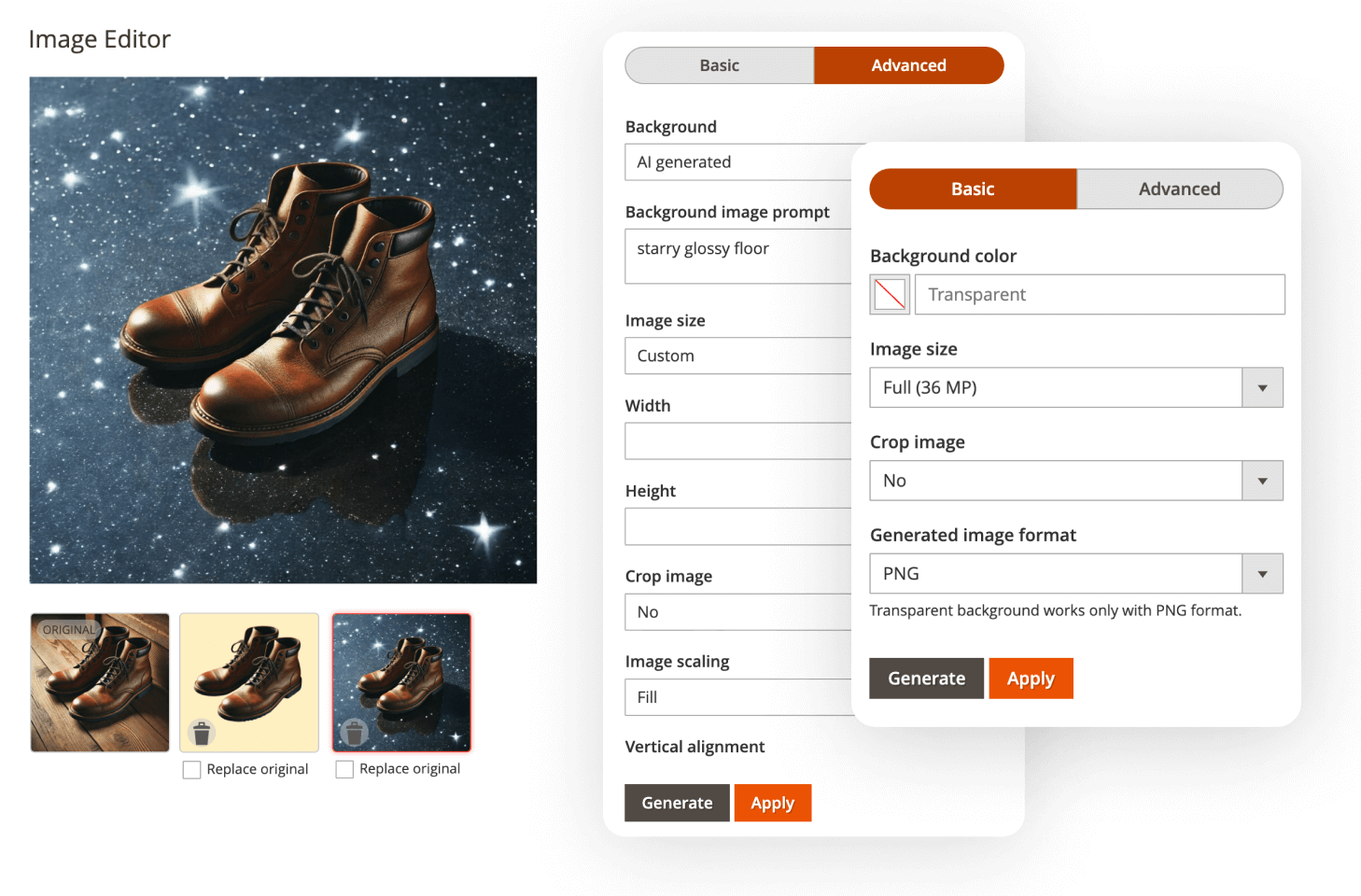
- Basic Mode uses the Remove Background API: remove the background or fill it with a color, crop to the product, choose the size and save as JPG or PNG (transparency needs PNG).
- Advanced Mode uses the Image Editing API and adds AI backgrounds, AI shadows, text removal, exact sizing and positioning.
Both modes work with any Photoroom plan, and you pay the price of the API you call. At the time of writing, that is about $0.02 per image in Basic Mode and $0.10 in Advanced Mode. To try the extension without charges, add a Photoroom sandbox key: results come with a watermark. The settings page also shows your Photoroom account status and remaining credits.
You switch between the modes right in the editing window.
How to Edit an Image
Step 1: Open the image
Open the editor from either place where your images live:
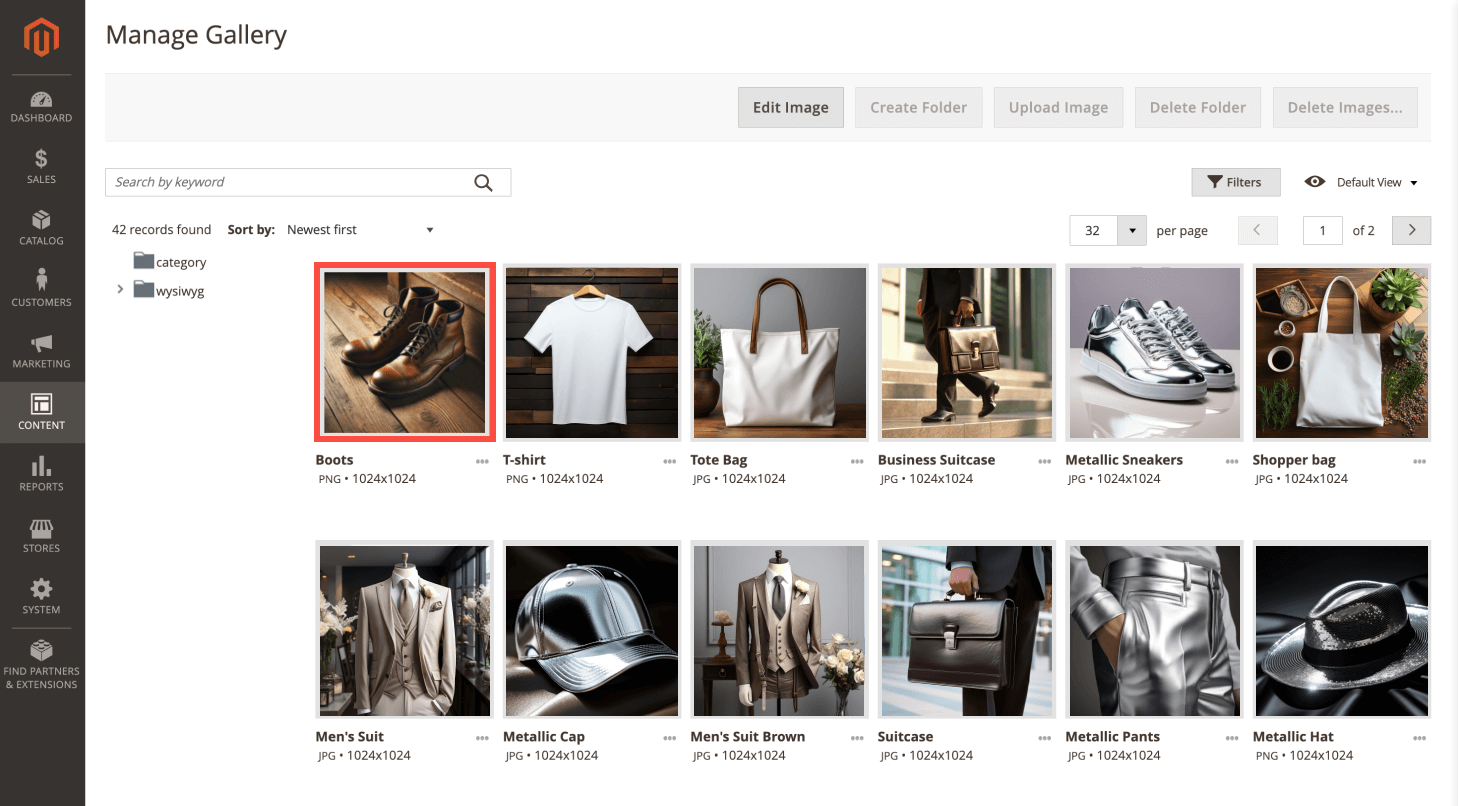
- Media Gallery: go to Content > Media > Media Gallery, select the file and click "Edit Image." This covers images used in categories, CMS pages and blocks.
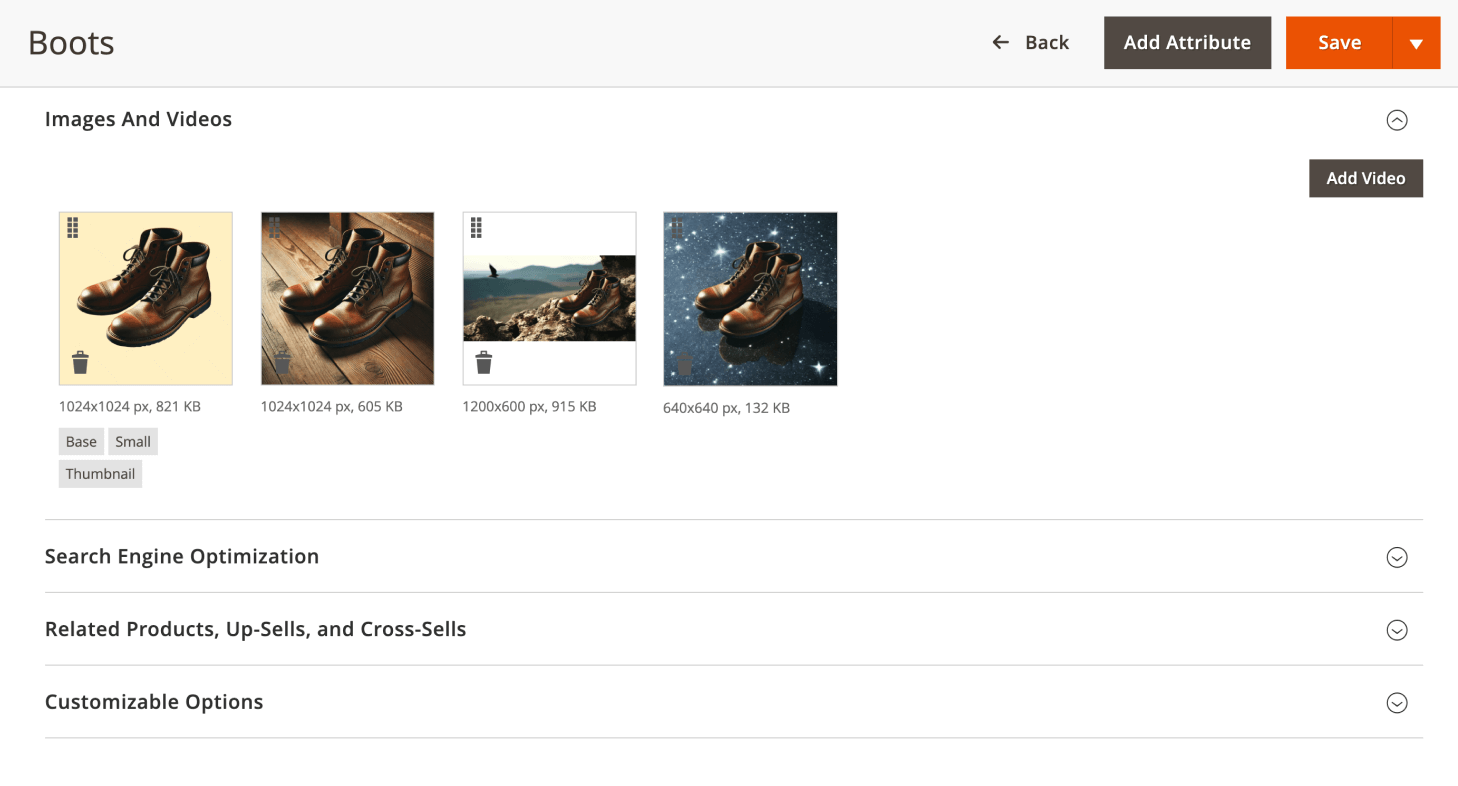
- Product gallery: go to Catalog > Products, open the product, click a thumbnail in Images and Videos and click "Edit Image."
Step 2: Set up the edit
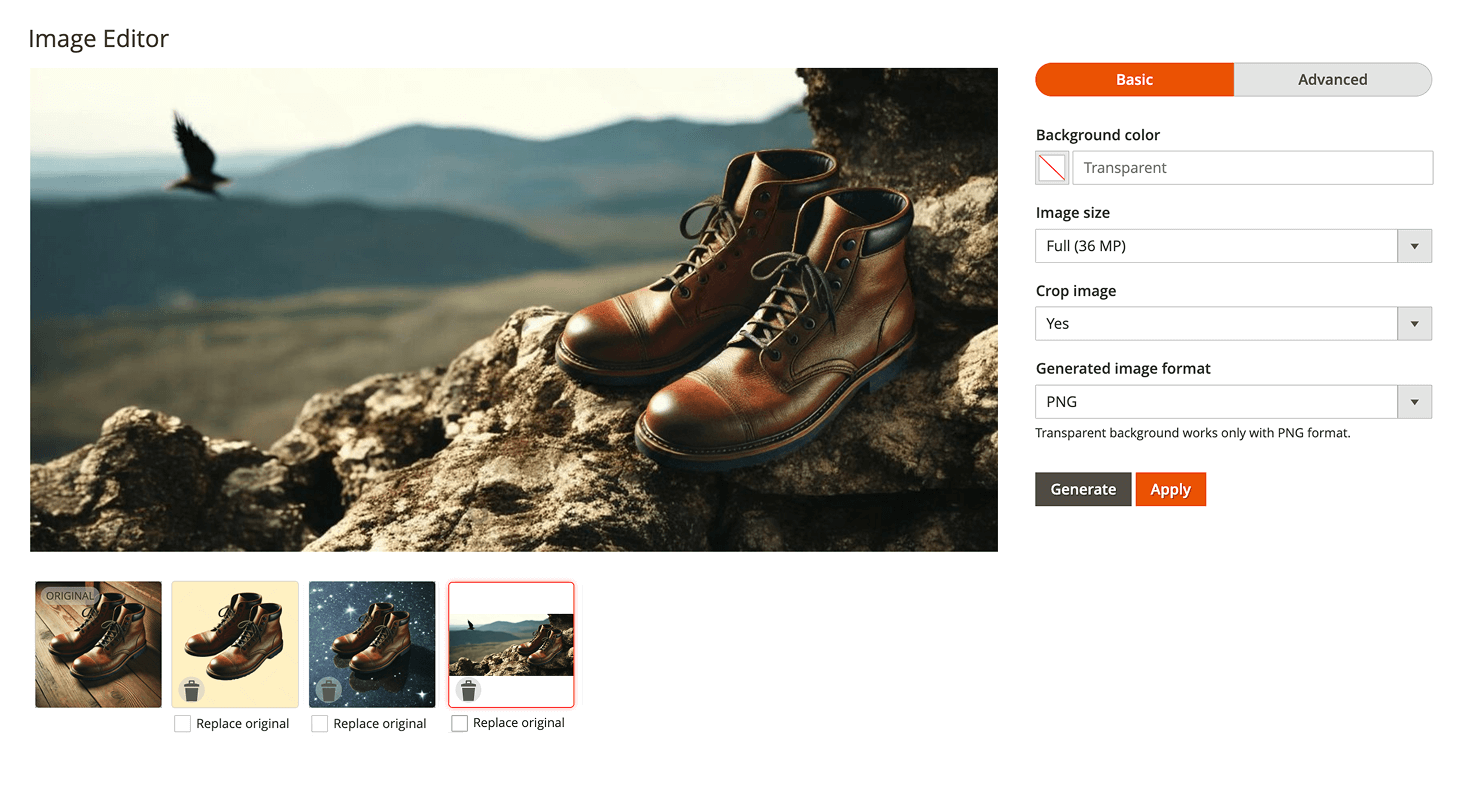
In Basic Mode, remove the background or pick a background color (leave it empty for a transparent PNG), turn cropping on or off, choose the image size and the format. In Advanced Mode, you also get the background, shadow, sizing and text removal options described below.
Click "Generate" to get a variation. Change the settings and generate again to compare several versions side by side.
Step 3: Apply the versions you want
- Tick "Replace original" on a variation to overwrite the original file with it. The option appears when the variation keeps the original format.
- Other variations you keep are added as new images. Delete the ones you don't need.
Click "Apply" to save. The file keeps its name and path, so pages that use it don't change, and for a product image the extension regenerates all its sizes (Base, Small, Thumbnail, Swatch).
What You Can Do in Advanced Mode
Advanced Mode follows the same steps and adds these tools to the editing panel:
- Backgrounds: keep the original, remove it, fill it with a color, upload your own background image or describe a scene in a prompt and let AI generate it.
- AI shadows: soft, hard or floating, so the product sits naturally on the new background.
- Text removal: remove logos and watermarks, natural text such as labels, or both.
- Size and position: keep the original size, crop to the product or set an exact width and height; fit or fill scaling, vertical and horizontal alignment, padding and margin.
Presets for a Consistent Catalog
Once a photo looks right, save its settings as a preset straight from the editor and load it for the next image. Presets work in both modes and live under Content > Image Editor > Presets, where you can edit or delete them. Separate permissions let you decide who can edit images and who can manage presets.
The editor interface is available in 16 languages. For setup details, see the user manual. Once the photos are ready, AI Assistant can use them to write product descriptions, and our post on preparing product images with AI shows the editor on real examples.
Save time by starting your support request online and we'll connect you to an expert.
Why use AI Image Editor if free AI photo editors exist?
With a separate editor, every photo makes a round trip: download it, edit it, upload it back to the product. AI Image Editor works inside the Magento product gallery and Media Gallery, replaces the original file in place and regenerates all product image sizes, so there is nothing to re-upload. Presets keep the same look across the whole catalog.
Do I need a Photoroom account, and what does it cost?
Yes, editing runs on the Photoroom API, so you need a Photoroom API key. Photoroom charges per image: at the time of writing, about $0.02 for Basic Mode (Remove Background API) and $0.10 for Advanced Mode (Image Editing API), which adds AI backgrounds, AI shadows and text removal. Check the current prices on the Photoroom pricing page.
Can I try the extension without paying for Photoroom?
Yes. Add a Photoroom sandbox key and turn on sandbox mode in the extension settings. Sandbox calls are free within Photoroom's sandbox limits, but the results carry a watermark. The settings page also shows your account status and remaining credits.
What types of visual content can I edit?
Product images from the product gallery, plus any image in the Magento Media Gallery: category images, CMS pages, blocks and other store content. The extension saves results as JPG or PNG; PNG keeps transparent backgrounds.
Does the extension compress images or speed up my pages?
No, it doesn't compress files or convert them to WebP. You control the output size and format, so you can avoid oversized images, but for compression use a dedicated image optimization tool.
Can I restore the original image after editing?
You can save an edited image as a new file or replace the original. Once replaced, the original can't be restored, so save a new file first if you may need it.
Can I edit images in bulk?
No, you edit one image at a time. To get the same result across many photos, save your settings as a preset and load it for each image.
Where can I find detailed instructions?
Installation, settings and usage are covered in the user manual.

 Roman Lobovskyi
 We are committed to being open and transparent with our customers. When you purchase our module, you automatically receive one year of free support service and free updates.
Why is this important?
- Seamless Installation and Configuration: We understand that setting up a new module can take time to configure according to your specific needs. That’s why we offer a full year of free support. Our experienced team is here to assist you with installation, configuration, and any questions you might have. We're eager to share our expertise to ensure you get the most out of your purchase.
- Stay Updated with Magento (Adobe Commerce) Releases: Magento releases new versions approximately every three months. These updates can sometimes introduce compatibility challenges. To keep your store running smoothly, we provide a year of free access to the latest versions of our modules, ensuring that you can upgrade Magento and our modules without encountering any obstacles.
- Subscription Included: Renewing your subscription ensures continued access to the latest updates and support from our team. This means you can be confident that any issues you encounter with the extension will be resolved quickly and efficiently. You can cancel your subscription at any time without any additional fees.
These are our primary. A major portion of our new clients come from referrals from our existing clients. Our professional team of developers, marketers and support staff have invested the best knowledge and experience in the field into our work, so you know you can come back to us again and again.
One year free and high quality support. We go to great lengths to provide maximum satisfaction with every module you have purchased in our store. By helping you with installation, configuration, answering your every question, we do all our best to eliminate any possible problems.
30-days money back guarantee. If you are not satisfied with our Magento 2 Image Editor Extension performance for any reason, we provide a full refund.
We constantly add new features to all our modules, and are always interested in hearing your opinion and implementing your suggested features in our future developments.
We provide an expanded user guide for every aspect of our Magento image editor extension, so you can find answers for all your burning questions.
You can customize Magento 2 image editor according to your needs and requirements.
The Module is easy to install and upgrade, just follow our step-by-step user guide. Additionally, the extension is ready to use with the Hyvä theme.
No core modifications. The Image editor for Magento has been tested in a Magento Cloud environment and is fully compatible with it.